SAUNA SESSION PRO
Sauna i basen na zegarku Garmin, od bramki do bramki.
Sauna and pool on your Garmin watch, gate to gate.
Sauna und Bad auf deiner Garmin-Uhr, vom Einlass bis zum Ausgang.
Le sauna et la piscine sur votre montre Garmin, de l'entrée à la sortie.
Sauna y piscina en tu reloj Garmin, de puerta a puerta.
Sauna e piscina sul tuo orologio Garmin, dall'ingresso all'uscita.
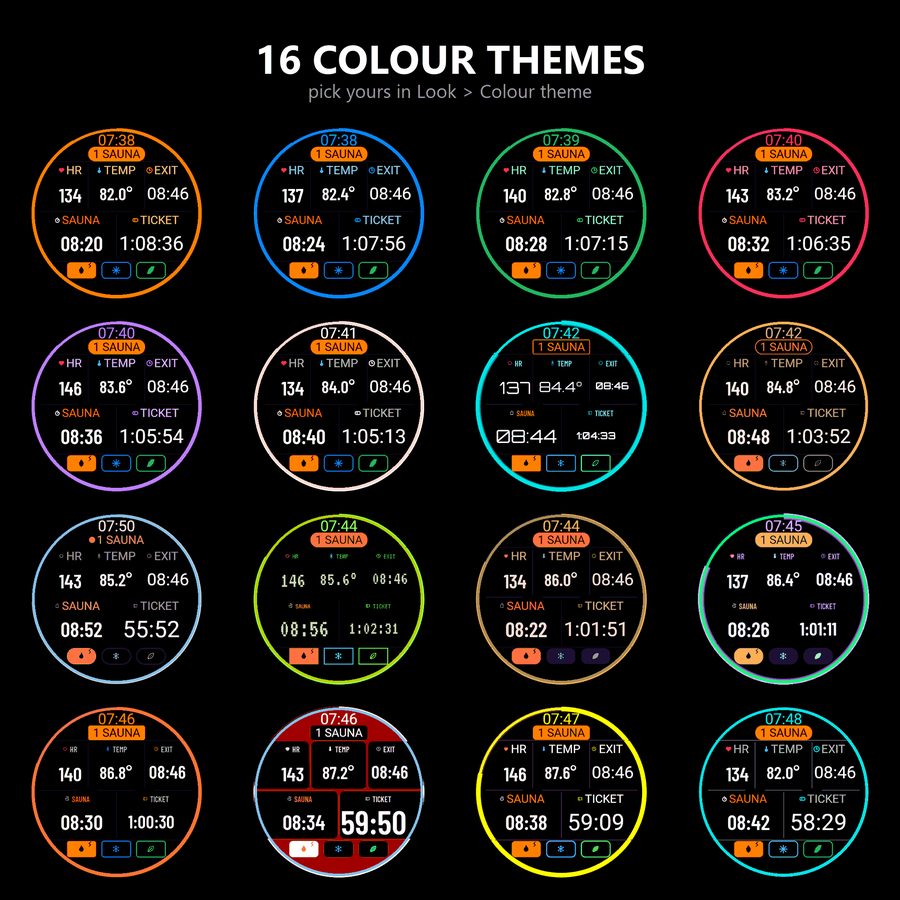
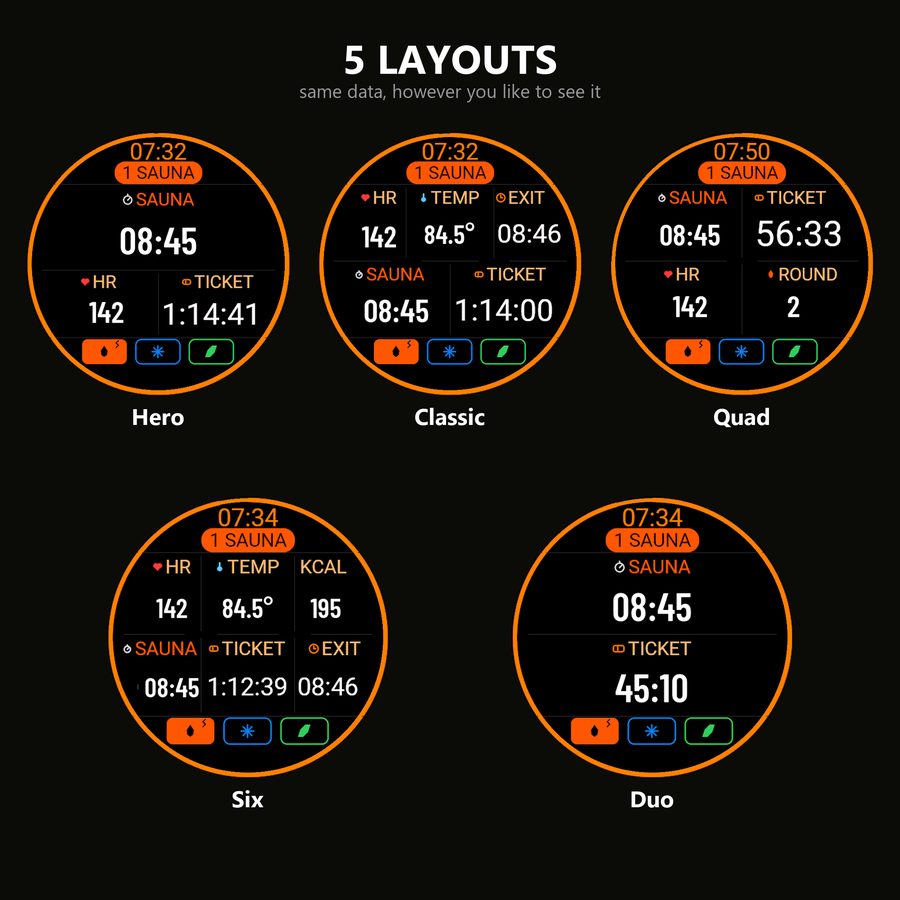
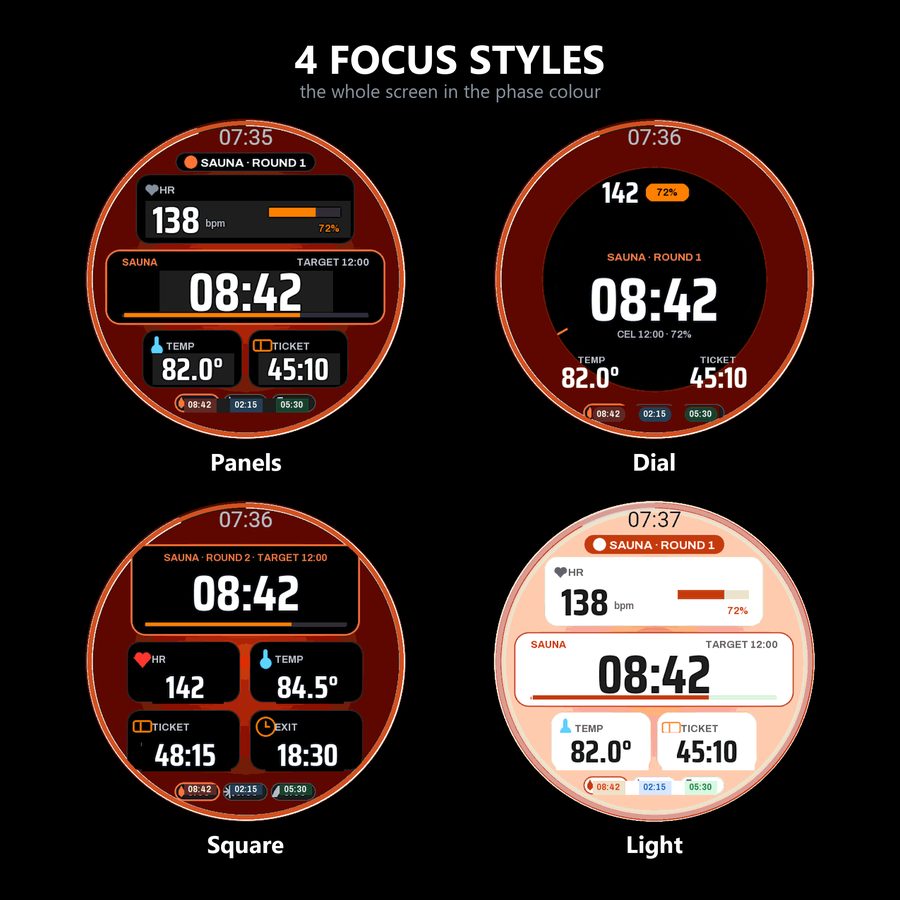
Rundy gorąca i zimna, opłacony czas i tętno - wszystko na nadgarstku. 16 motywów kolorystycznych, 5 układów, 4 style Focus: ustaw ekran tak, jak naprawdę go czytasz.
Hot and cold rounds, your paid time and your heart rate, all on your wrist. Sixteen colour themes, five layouts, four Focus styles - set it up the way you actually read it.
Hitze- und Kälterunden, deine bezahlte Zeit und deine Herzfrequenz - alles am Handgelenk. 16 Farbthemen, 5 Layouts, 4 Focus-Stile: Richte es genau so ein, wie du es am besten abliest.
Cycles chaud et froid, votre temps payé et votre fréquence cardiaque : tout est à votre poignet. 16 thèmes de couleurs, 5 mises en page, 4 styles Focus - adaptez l'affichage à votre façon de lire.
Rondas de calor y frío, tu tiempo pagado y tu frecuencia cardíaca, todo en tu muñeca. 16 temas de color, 5 diseños, 4 estilos Focus: configúralo para leerlo a tu manera.
Cicli caldo e freddo, il tuo tempo pagato e la frequenza cardiaca, tutto al polso. 16 temi di colore, 5 layout, 4 stili Focus: configuralo nel modo in cui lo leggi meglio.
Pobierz z Connect IQKup kod odblokowaniaInstrukcja Get it on Connect IQBuy an unlock codeManual Im Connect IQ Store holenFreischaltcode kaufenHandbuch lesen Télécharger sur Connect IQAcheter un code de déverrouillageLire le manuel Descargar en Connect IQComprar código de desbloqueoLeer el manual Scarica su Connect IQAcquista codice di sbloccoLeggi il manuale
Pierwsze 30 dni za darmo. Potem jednorazowy kod, bez abonamentu.
Free for the first 30 days. After that a one-time code, no subscription.
Die ersten 30 Tage kostenlos. Danach ein einmaliger Code, kein Abo.
Les 30 premiers jours sont gratuits. Ensuite un code unique, sans abonnement.
Los primeros 30 días son gratis. Después, un código único, sin suscripción.
I primi 30 giorni sono gratuiti. Poi un codice una tantum, senza abbonamento.
Instrukcja w innym języku
Aplikacja mówi w języku zegarka. Instrukcja jest w tych samych językach:
DeutschFrançaisEspañolItalianoPortuguêsNederlandsDanskSvenskaNorskSuomiČeštinaSlovenčinaSlovenščinaHrvatskiMagyarRomânăБългарскиEestiLatviešuLietuviųTürkçeΕλληνικάРусскийУкраїнськаעבריתالعربيةIndonesiaMelayuTiếng Việt简体中文繁體中文日本語한국어ไทย
Zanim wejdziesz pierwszy raz
- Ekran dotykowy startuje zablokowany i sam wraca do blokady w saunie i w zimnej wodzie. Przytrzymaj ekran albo naciśnij UP, żeby go odblokować. Kłódka na prawej krawędzi pokazuje stan. Jeśli mimo to coś się dotyka: Ustawienia, Wygląd, Blokada dotyku, Zawsze albo Dotyk wyłączony.
- Za mała czcionka? Ustawienia, Wygląd, Rozmiar tekstu: A+ chowa opisy pól, A++ robi z tarczy trzy pasy na całą szerokość. Widać z ławki bez okularów.
- BACK / LAP przechodzi do następnej fazy, a DOWN cofa tę zmianę, ale tylko przez 30 sekund po niej. Później DOWN nic nie robi, więc nie zepsuje Ci rundy.
- W Garmin Connect sesja zapisuje się jako Medytacja, żeby sauna nie podbijała obciążenia treningowego. Jeśli wolisz strefy tętna i kalorie liczone przez zegarek, przestaw Ustawienia, Typ aktywności na Kardio.
- Kalorie liczy aplikacja, nie zegarek, bo zegarek nie ma profilu sauny: przy Medytacji nie liczy nic, przy Kardio zawyża kilkukrotnie. Nasze liczenie idzie z faz i wagi z profilu, wychodzi około 36 kcal na 15 minut sauny przy 80 kg. Mało, ale prawdziwie.
- Termometr pokazuje temperaturę zegarka, nie powietrza w saunie. Czujnik siedzi przy nadgarstku, więc rośnie powoli i nigdy nie dojdzie do 90 stopni.
Pierwsze kroki
- Zainstaluj Sauna Session PRO ze sklepu Connect IQ i uruchom ją na zegarku przy bramce.
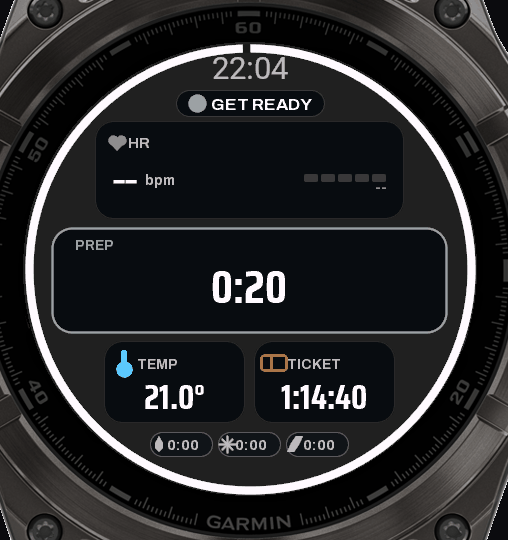
- Sesja startuje sama w fazie PRZYGOTOWANIE (albo po START, jeśli wyłączysz autostart). Zegar biletu zaczyna odliczać.
- Wchodzisz do sauny: BACK / LAP. Każde kolejne naciśnięcie to następna faza: sauna, zimno, relaks, sauna...
- Na koniec START, potem "Zapisz". Sesja trafia do Garmin Connect jako aktywność.
Przyciski i dotyk
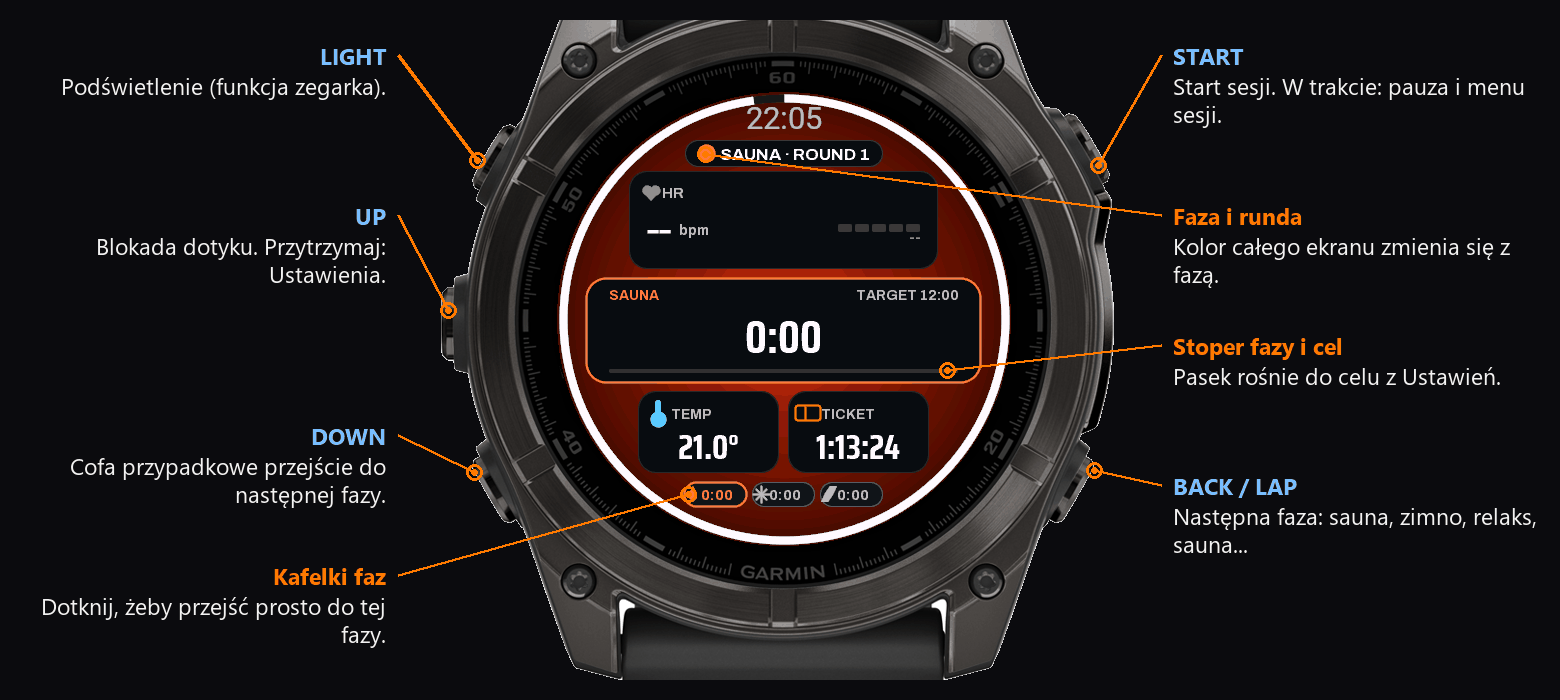
| Przycisk | Co robi |
|---|---|
| START | Start sesji. W trakcie: pauza i menu sesji (Wznów, Szatnia, Zapisz, Podsumowanie, Ustawienia, Odrzuć). |
| BACK / LAP | Następna faza. Przy pauzie: wznowienie. |
| DOWN | Cofa przypadkowe przejście do następnej fazy, przez 30 sekund po nim. |
| przytrzymaj UP | Ustawienia. Nagrywanie trwa dalej. |
| UP (zegarki dotykowe) | Blokuje i odblokowuje ekran dotykowy. |
| przytrzymanie ekranu | Ta sama blokada, bez sięgania po przycisk. |
| dotknięcie pola | Wybór, co pokazuje to pole. |
| dotknięcie kafelka fazy | Przejście prosto do tej fazy. |
Ekran dotykowy startuje zablokowany, więc obudzenie przygaszonego zegarka dotknięciem niczego nie otworzy przez przypadek. Przytrzymaj ekran (albo naciśnij UP), żeby odblokować, i tak samo, żeby zablokować. Kłódka na prawej krawędzi cały czas pokazuje stan. Ustawienia, Wygląd, Blokada dotyku: Po starcie, Sauna i zimno (domyślnie) (w gorących i zimnych fazach blokuje się sama), Zawsze (odblokowanie tylko w tym ustawieniu) albo Dotyk wyłączony (ekran jest całkiem ignorowany, kłódki nie ma).
Co widać na ekranie
Zegar biletu
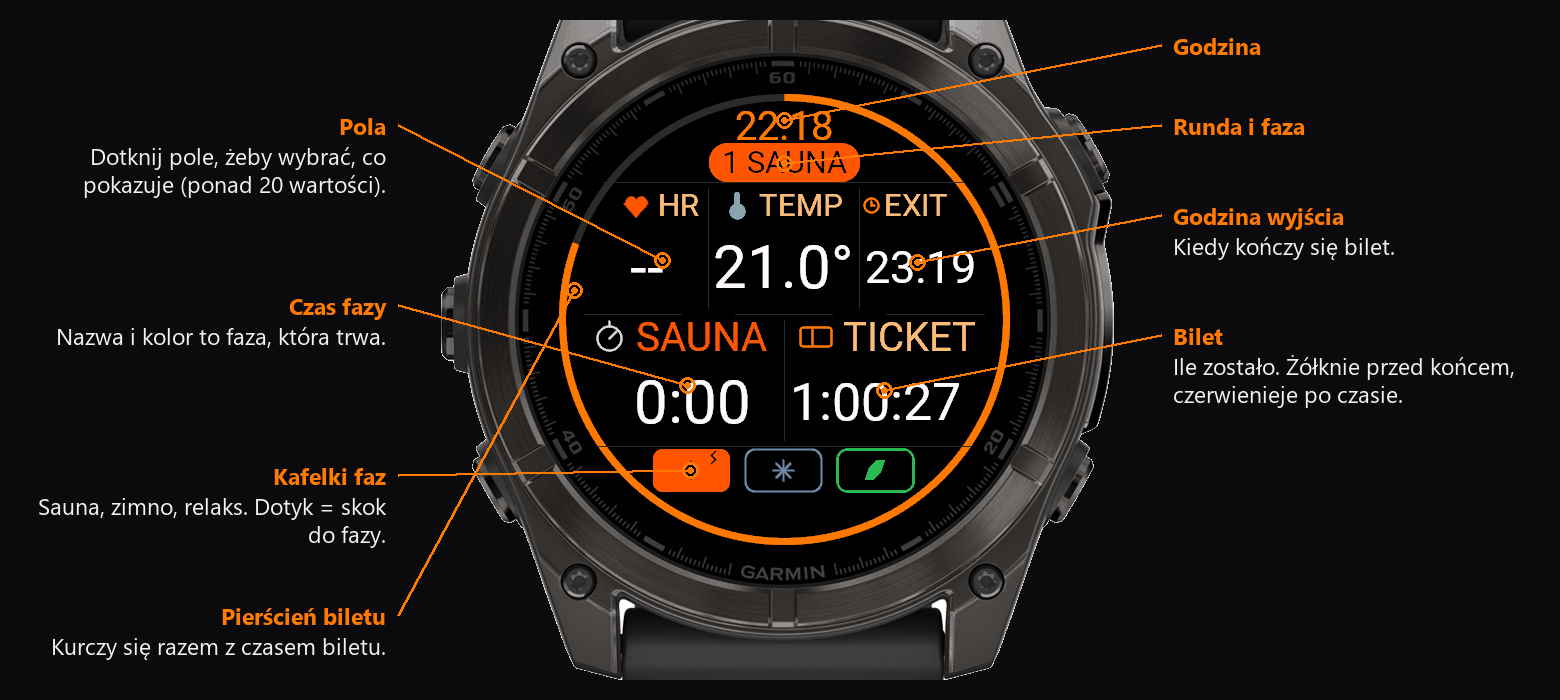
Ustawiasz, ile trwa Twój bilet (Ustawienia, Bilet). Zegarek odlicza czas od wejścia, pokazuje godzinę wyjścia i ostrzega wibracją: wcześniej, że czas zbierać się do wyjścia, i drugi raz tuż przed końcem. Po czasie przypomina co 5 minut. Spóźniasz się albo dokupiłeś czas? "Dodaj czas" i "Odejmij czas" zmieniają bilet w trakcie. W trybie Morsowanie biletu nie ma.
Fazy i rundy
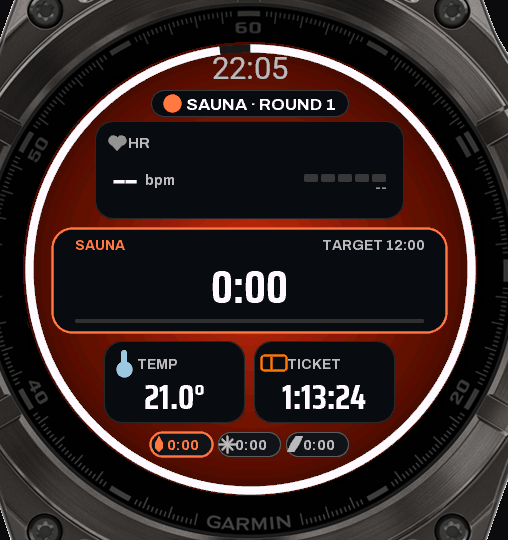
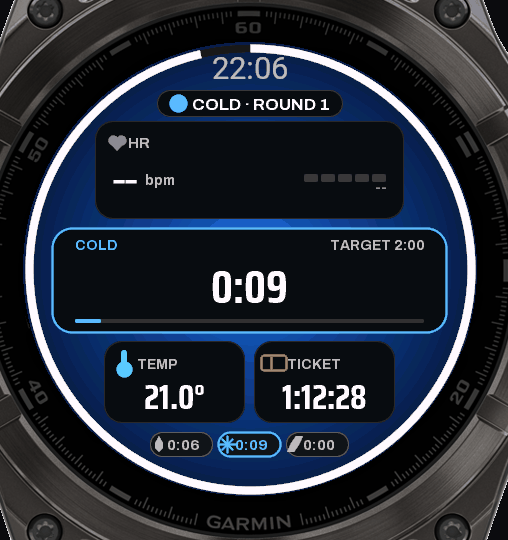
Fazy to PRZYGOTOWANIE, SAUNA, ZIMNO i RELAKS. Każda ma swój kolor, stoper i opcjonalny cel (Ustawienia, Ust. saunowania), po którym zegarek da znać.
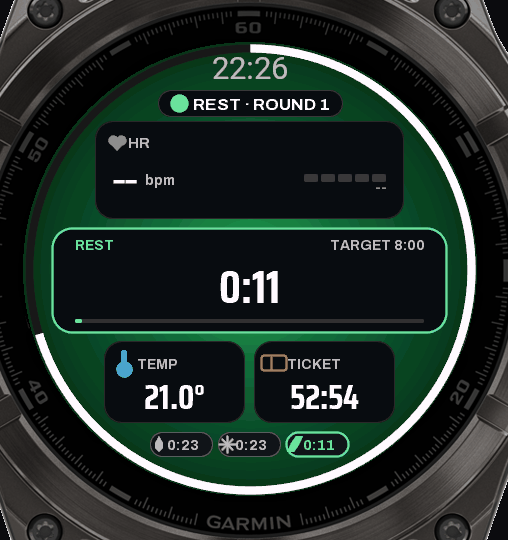
Plan sesji
W Ustawieniach, Ust. saunowania siedzą cele faz (sauna, zimno, relaks) i trzy dodatkowe wiersze:
- Szablon: gotowy plan, który wpisuje wszystkie cele naraz - Klasyczna fińska 3x(12/1/10 min), Krótka 2x(8/1/8), Kontrastowa 4x(10/2/5), Morsowa 3x(2/8, przełącza aplikację w tryb na zewnątrz). "Własny" trzyma Twoje ustawienia i wraca do nich, gdy wychodzisz z szablonu.
- Planowane rundy: plakietka pokazuje wtedy "runda 2/3", a po ostatniej zaplanowanej rundzie zegarek zawibruje i zapyta, czy zapisać.
- Odliczanie: 3-2-1 z wibracją przed nową sesją; dowolny przycisk je pomija.
Zapisane sesje zostają na zegarku: Ustawienia, Historia pokazuje ostatnie 30 z datą, liczbą rund i czasami, a w podsumowaniu jest strona z serią dni z rzędu i rekordem serii.
Typ aktywności: Saunowanie albo Morsowanie
Ustawienia, Typ aktywności. Najpierw wybierasz, do czego używasz zegarka:
- Saunowanie: fazy sauna, zimno, relaks, z zegarem biletu.
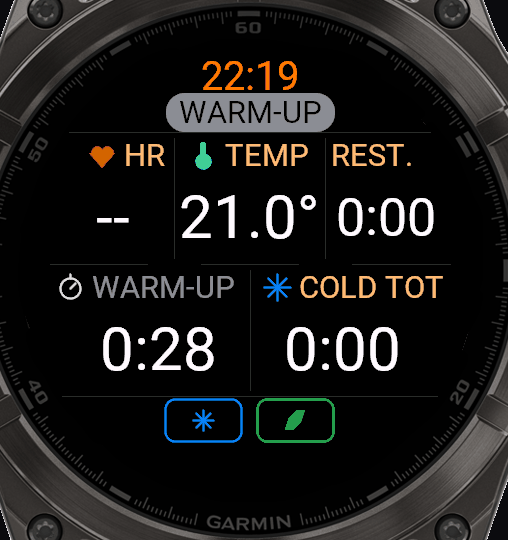
- Morsowanie: tryb na zewnątrz, bez sauny i bez biletu. Fazy to ROZGRZEWKA, ZIMNO i DOGRZEWANIE. Na ekranie są dwa kafelki faz, a zamiast biletu pola pokazują sumę zimna i sumę dogrzewania. W pierwszym wierszu Ustawień wpisujesz temperaturę wody (od -2 do 25 °C, na zegarku w stopniach Fahrenheita, jeśli takie ma ustawione); pole temperatury pokazuje ją wtedy jako WODA, a wartość zapisuje się w Garmin Connect. Aktywność zapisuje się pod nazwą "Morsowanie".
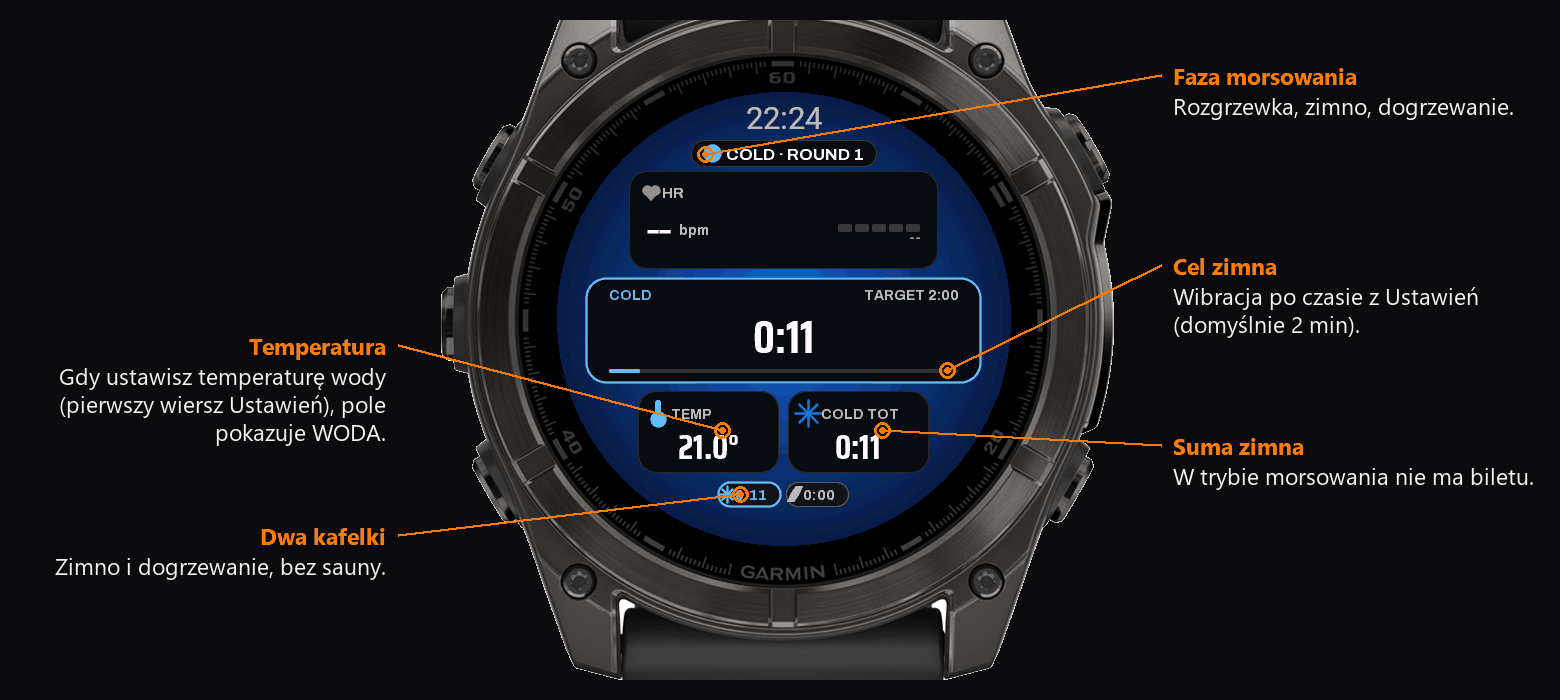
Zaraz po wyborze trybu decydujesz, jako co zapisać sesję w Garmin Connect. Garmin nie ma osobnego typu "sauna" dla aplikacji Connect IQ, więc aktywność ma tytuł "Sauna" (albo "Morsowanie"), a typ decyduje o tym, jak Garmin ją liczy:
- Kardio (liczy jako trening): tabela okrążeń z każdą fazą, strefy tętna, obciążenie treningowe i czas regeneracji. Wysokie tętno w saunie podbije Twoje obciążenie treningowe.
- Medytacja (domyślna, bez obciążenia): wykres stresu i oddechu, sauna nie psuje statystyk treningowych.
Typ zapisu działa od następnej sesji. Na starszych zegarkach dostępne jest tylko Kardio. Nazwa aktywności zapisuje się w języku, który ma ustawiony zegarek.
Menu sesji i ustawienia
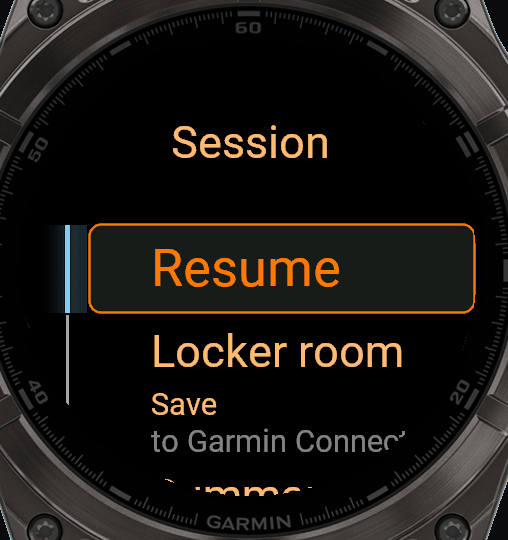
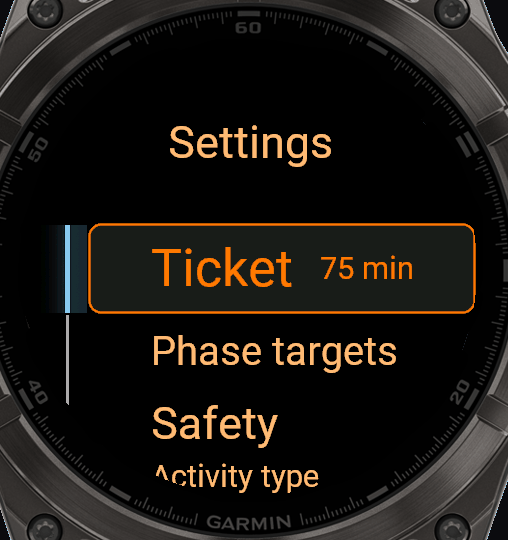
Bezpieczeństwo
- Maks. czas w saunie: alarm, gdy siedzisz za długo.
- Alarm tętna: alarm powyżej ustawionego tętna.
- Alarm bezpieczeństwa: krótki (co minutę), ciągła wibracja albo wibracja z dźwiękiem.
- Alarm przegrzania: mocna wibracja i czerwony ekran, gdy grzeje się sam zegarek (40, 45 albo 50 °C, albo wyłączony).
- Pomijaj puste sesje: sesje bez rundy i krótsze niż 2 minuty nie są zapisywane.
Sauna Session PRO nie jest urządzeniem medycznym. Słuchaj swojego ciała i pij wodę. Nie morsuj sam.
Zegarek też ma swoją granicę. Garmin podaje dla fēnixa 8 zakres pracy od -20 do 45 °C, a w fińskiej saunie bywa 70-100 °C. Dlatego jest Alarm przegrzania: przy 45 °C koperty zegarek mocno zawibruje i pokaże czerwony ekran. Trzymaj go niżej, bliżej podłogi, gdzie jest chłodniej, albo przykryj wilgotnym ręcznikiem. Czujnik tętna na mokrej, spoconej skórze i tak potrafi zgubić odczyt.
Wygląd
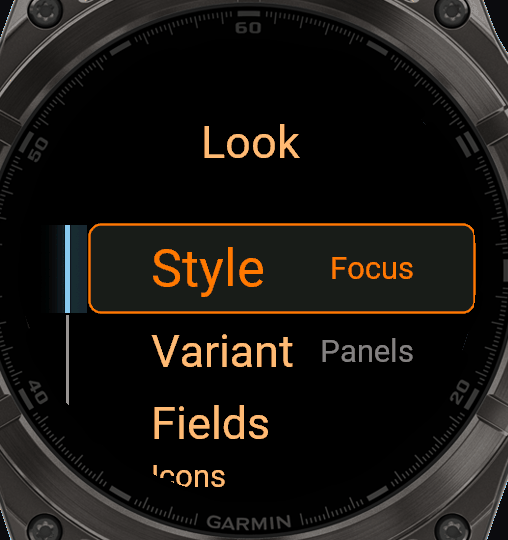
Styl Focus
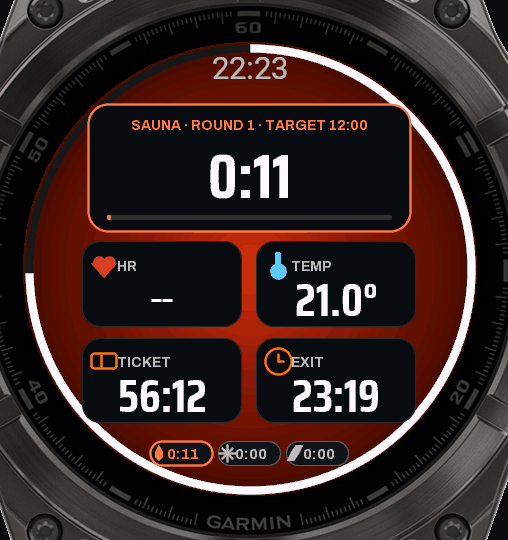
Cały ekran w kolorze fazy, duży stoper. Warianty: Panele, Tarcza, Kwadrat i Jasny. W wariancie Kwadrat wybierasz liczbę kafelków: 2, 4 albo 6. Każde pole możesz zmienić i pokolorować (Wygląd, Pola).
Styl Classic
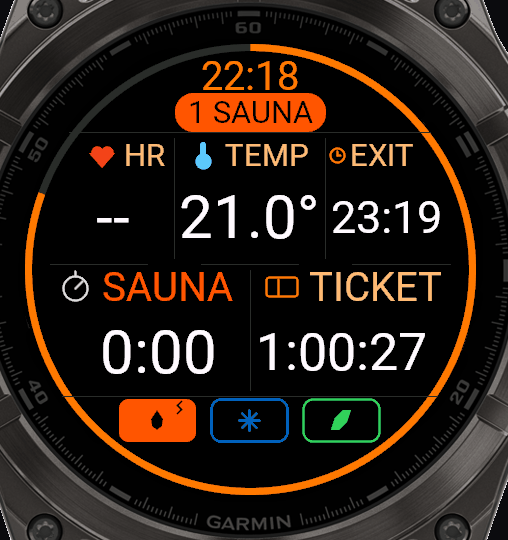
Siatka pól w pięciu układach (Hero, Klasyczny, Kwadrat, Sześć, Duo) i 16 motywów kolorów, w tym "Własny", gdzie ustawiasz każdy kolor, czcionkę, grubość pierścienia i zaokrąglenia.
Wybór z podglądem
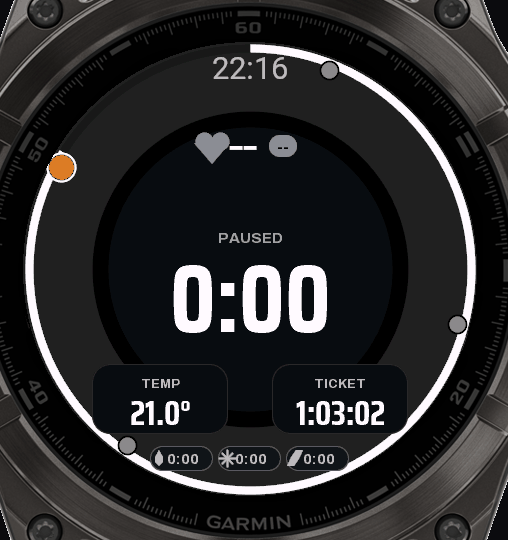
Kolory, czcionkę, ikony, motyw, układ i wariant wybierasz na żywej tarczy: dookoła pierścienia są kropki (przy kolorach kolorowe), UP i DOWN przesuwają wybór i tarcza od razu się zmienia. START zatwierdza, BACK wraca do poprzedniego. Na ekranie dotykowym możesz stuknąć w kropkę. Przy kolorach jednego pola to pole miga ramką.
Pola, ikony, kolory
W każdym polu wybierasz jedną z 24 wartości (tętno, stres, temperatura, bilet, godzina wyjścia, rundy, sumy faz, kalorie, pot, SpO2, oddech...). Każde pole może mieć własny kolor wartości, etykiety i ikony. Zestawy ikon: Auto, Pro (zaprojektowane ikony, na zegarkach z większą pamięcią), Kreskowe, Plakietki albo bez ikon.
Rozmiar tekstu
Trzy stopnie: A to widok normalny, A+ chowa opisy pól i oddaje całe kafelki wartościom, A++ dodatkowo układa tarczę w trzy pasy na całą szerokość i chowa sumy faz na dole. Podsumowanie, rekordy i historia też biorą większą czcionkę. W stylu Focus A+ i A++ chowają opisy paneli i powiększają liczby.
Tętno w procentach
Panel tętna pokazuje rezerwę tętna: tętno spoczynkowe z profilu Garmin to 0%, tętno maksymalne to 100%. Pasek ma pięć odcinków po 20% w kolorach stref.
Wykres tętna
Jedno z pól danych rysuje tętno w postaci linii przewijającej się przez całe pole, niczym wykres EKG. Wystarczy rzut oka, aby sprawdzić, czy tętno rośnie w cieple, czy spada w chłodzie. Czas obejmowany przez wykres można ustawić w ustawieniach telefonu (Okno wykresu tętna, od 20 do 120 sekund).
Ustawienia z telefonu
Wszystko, co ustawisz na zegarku, ustawisz też w aplikacji Connect IQ na telefonie: Sklep Connect IQ, Moje aplikacje, Sauna Session PRO, Ustawienia. Zmiany trafiają na zegarek po synchronizacji.
Po saunie
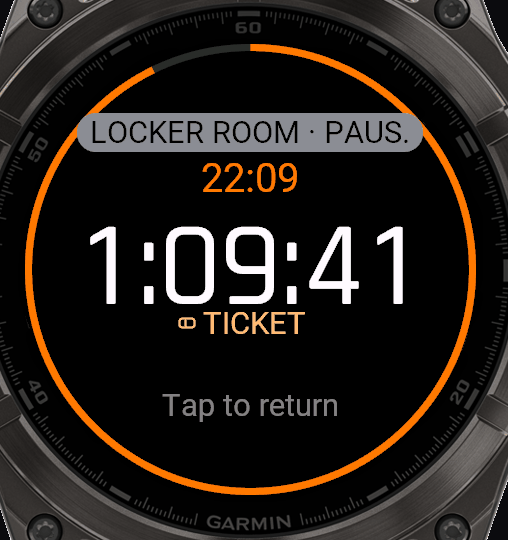
- Szatnia: pauza na przebranie się. Bilet liczy dalej, na ekranie tylko zegar i czas biletu.
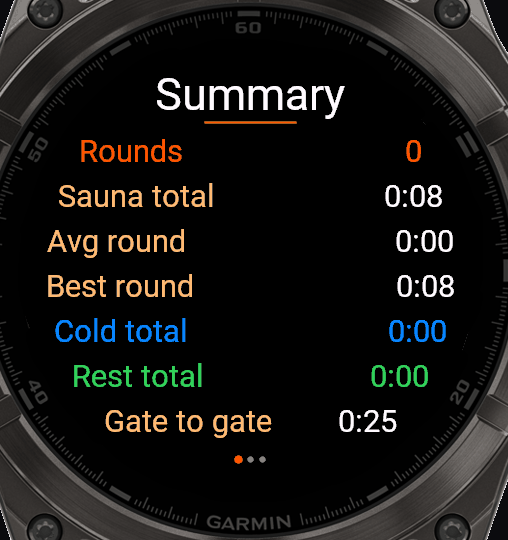
- Podsumowanie: rundy, czasy faz, tętno, kalorie, pot, temperatura.
- Stres i Body Battery: podsumowanie pokazuje oba odczyty z początku sesji obok tych z jej zakończenia, dzięki czemu widać, jak sesja na nie wpłynęła.
- Rekordy i historia: najdłuższa runda, najwięcej rund, najlepsza regeneracja tętna, trendy z ostatnich sesji.
- Ostatnie 7 dni: wykres słupkowy minut w saunie i zimnej kąpieli dla każdego z ostatnich 7 dni, dostępny z menu profilu.
- Zapis w Garmin Connect: jako Medytacja albo Kardio (patrz Typ aktywności).
Wersja próbna i pełna wersja
Masz 30 dni za darmo od pierwszego uruchomienia aplikacji, ze wszystkimi funkcjami. Zegarek sam liczy dni w tle, nic nie trzeba włączać. Po tym czasie przy uruchomieniu pojawia się ekran z adresem sklepu i numerem Twojego zegarka (UID); START przechodzi dalej.
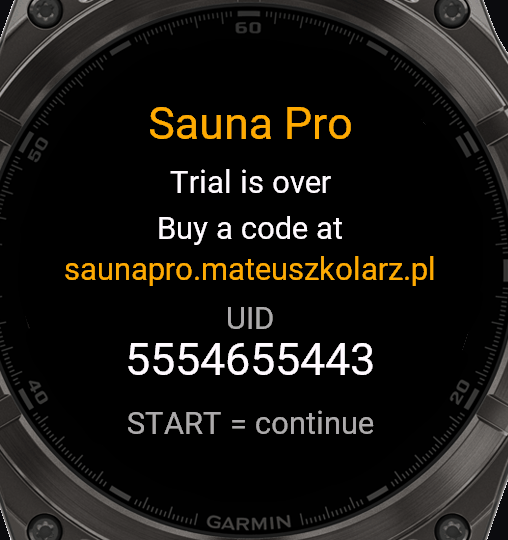
- UID widać na tym ekranie, w O aplikacji oraz w Garmin Connect: Urządzenie, Aplikacje, Sauna Session PRO, Ustawienia.
- Kod kupisz na saunapro.mateuszkolarz.pl. Płatność jednorazowa, bez subskrypcji.
- Kod wpisz w Garmin Connect, w ustawieniach Sauna Session PRO, w polu "Kod odblokowania". Zegarek sprawdza go sam, bez internetu.
Każda opcja po kolei
Ustawienia są w trzech miejscach i zapisują to samo: menu sesji (START w trakcie sesji), Ustawienia (przytrzymaj UP albo wejdź z menu sesji) i aplikacja Connect IQ w telefonie (Sklep Connect IQ, Moje aplikacje, Sauna Session PRO, Ustawienia). Zmienisz coś na zegarku, telefon pokaże to po synchronizacji, i odwrotnie. Wartości domyślne są szare.
Menu sesji
| Pozycja | Co robi |
|---|---|
| Wznów | Powrót na tarczę. BACK robi to samo. |
| Szatnia | Pauza na przebranie się: na ekranie zostaje tylko zegar i bilet. Nagrywanie stoi, bilet liczy dalej. Dotknij ekranu albo naciśnij dowolny przycisk, żeby wrócić. |
| Zapisz | Kończy sesję i wysyła ją do Garmin Connect. |
| Podsumowanie | Liczby z dotychczasowej sesji, bez kończenia jej. |
| Ustawienia | To samo, co przytrzymanie UP. Nagrywanie idzie dalej. |
| Odrzuć | Kasuje sesję. Pyta o potwierdzenie. |
Ustawienia
Czas, za który zapłaciłeś. Zegarek odlicza od otwarcia aplikacji, pokazuje godzinę wyjścia i wibruje przy dwóch ostrzeżeniach poniżej.
- Bilet od 0 do 600 minut. Domyślnie 75. Ustaw 0 i zegar biletu jest wyłączony, pola biletu nic wtedy nie pokazują.
- Dodaj czas i Odejmij czas zmieniają bilet w trakcie sesji, kiedy dokupisz czas albo wejdziesz spóźniony.
- Ostrzeżenie: wychodź, ile minut przed końcem. Domyślnie 10, zakres 0 do 60, 0 wyłącza. Tylko z telefonu.
- Ostrzeżenie końcowe, ile minut przed końcem. Domyślnie 5, zakres 0 do 60. Tylko z telefonu.
- Powtarzaj wibracje po czasie przypomina co 5 minut po wyczerpaniu biletu. Domyślnie włączone. Tylko z telefonu.
W trybie morsowania biletu nie ma.
Docelowa długość każdej fazy i plan całej sesji. Osiągnięcie celu wibruje, faza leci dalej.
- Cel: sauna w minutach. Domyślnie 12, zakres 0 do 120, 0 = bez celu.
- Cel: zimno. Domyślnie 2.
- Cel: relaks. Domyślnie 8.
- Szablon wpisuje wszystkie trzy cele i liczbę rund naraz: Klasyczna fińska 3 x (12 / 1 / 10 min), Krótka 2 x (8 / 1 / 8), Kontrastowa 4 x (10 / 2 / 5), Morsowanie 3 x (2 / 8, przy okazji przełącza aplikację w tryb zewnętrzny). Własny trzyma twoje własne cele i przywraca je, kiedy wychodzisz z szablonu. Domyślnie Własny.
- Zaplanowane rundy sprawiają, że plakietka pokazuje "runda 2/3", a po ostatniej zegarek wibruje i pyta, czy zapisać. Domyślnie Otwarta, czyli bez planu.
- Odliczanie 3-2-1 z wibracją przed nową sesją. Dowolny przycisk je pomija. Domyślnie włączone.
- Limit sauny alarmuje, kiedy siedzisz w gorącu za długo. Domyślnie 20 min, zakres 0 do 120, 0 = brak.
- Alarm tętna alarmuje powyżej ustawionego tętna. Domyślnie wyłączony, zakres 0 do 240 bpm.
- Rodzaj alarmu decyduje, jak alarm się odzywa: Krótki impuls raz na minutę, Ciągła wibracja albo Wibracja i dźwięk. Domyślnie krótki impuls.
- Dźwięk razem z wibracją dokłada sygnał do wszystkich powiadomień, nie tylko do alarmów. Domyślnie wyłączone. Tylko z telefonu.
- Alarm przegrzania pilnuje temperatury samego zegarka i odpowiada mocną wibracją oraz czerwonym ekranem: 40, 45, 50 °C albo wyłączony. Domyślnie 45 °C.
- Odrzucaj puste sesje nie zapisuje sesji bez rundy, krótszej niż 2 minuty. Domyślnie włączone.
Sauna Session PRO nie jest urządzeniem medycznym. Słuchaj swojego ciała, pij wodę i nie morsuj samotnie.
- Saunowanie to tryb wewnętrzny: PREP, SAUNA, ZIMNO i RELAKS, z biletem. Domyślnie.
- Morsowanie to tryb zewnętrzny: ROZGRZEWKA, ZIMNO i OGRZANIE, bez sauny i bez biletu. Dwa kafelki faz zamiast trzech, a pola biletu zmieniają się w sumę czasu w zimnie i sumę ogrzewania.
- Temperatura wody pojawia się w trybie morsowania, w pierwszym wierszu Ustawień: od -2 do 25 °C (albo w °F, jeśli tak ma ustawiony zegarek). Pole temperatury pokazuje wtedy WODA, liczba trafia do pliku FIT, a model kalorii jej używa: zimniejsza woda to więcej drżenia, czyli więcej kalorii.
- Zapis w Garmin Connect jako wybierasz zaraz po trybie: Medytacja daje wykresy stresu i oddechu i trzyma saunę poza obciążeniem treningowym, Kardio daje okrążenie na każdą fazę, strefy tętna, obciążenie treningowe i czas regeneracji, a wysokie tętno w saunie liczy się wtedy jako trening. Domyślnie Medytacja. Działa od następnej sesji. Starsze zegarki mają tylko Kardio.
Connect IQ nie ma typu aktywności "sauna", więc niezależnie od wyboru aktywność nazywa się "Sauna" (albo "Morsowanie") w języku, na jaki ustawiony jest zegarek.
Wszystko z tej listy wybierasz na żywej tarczy: dookoła pierścienia biegną kropki, UP i DOWN przesuwają wybór, ekran zmienia się na bieżąco, START zatwierdza, a BACK przywraca poprzednie.
- Styl: Focus zalewa ekran kolorem fazy i pokazuje jeden duży stoper, Classic to siatka pól. Domyślnie Focus.
- Focus, wariant: Panele, Tarcza (postęp celu na pierścieniu), Kwadrat (kafelki) albo Jasny (do jasno oświetlonego pomieszczenia). Domyślnie Panele.
- Liczba kafelków w wariancie Kwadrat: 2, 4 albo 6. Domyślnie 4.
- Classic, układ: Hero (3 pola), Klasyczny (5), Kwadrat (4), Sześć (6) albo Duo (2 duże). Domyślnie Klasyczny.
- Motyw kolorów: Amber, Ice, Forest, Ruby, Violet, Mono, HUD, Luksus, Nordic, Retro LCD, Drewno, Neon, Pro Data, Immersja, High contrast i Własny. Domyślnie Amber. W stylu Focus motyw ustawia kolory i czcionkę menu oraz list, a sama tarcza dalej chodzi za kolorem fazy.
- Pola otwierają listę, w której każdy wiersz to jedno pole: wybierasz, co pokazuje, i osobno kolor wartości, etykiety i ikony. Układ pól zapamiętuje się osobno dla każdego układu, więc Hero i Sześć mają własne ustawienia.
- Rozmiar tekstu: A normalny, A+ chowa opisy pól i oddaje kafelki liczbom, A++ dodatkowo układa tarczę w trzy pasy na całą szerokość i chowa sumy faz na dole. Podsumowanie, rekordy i historia idą za tym samym ustawieniem. Domyślnie A.
- Ikony: Auto (według motywu), Pro (rysowane ikony, na zegarkach z większą pamięcią), Kreskowe, Plakietki albo Bez ikon. Domyślnie Auto.
- Blokada dotyku: Po starcie (zablokowany od początku sesji, przytrzymaj ekran, żeby odblokować), Sauna i zimno (blokuje się sam za każdym razem, kiedy wracasz w gorąco albo do wody), Zawsze (odblokujesz tylko tutaj) albo Dotyk wyłączony (ekran jest całkiem ignorowany, kłódka znika). Domyślnie Sauna i zimno. Tylko na zegarkach z dotykiem.
- Rekordy: sesje, rundy, czas w gorącu, czas w zimnie, najdłuższa runda, najlepsza regeneracja tętna oraz ostatnie 7 i 30 dni.
- Historia: 30 ostatnich zapisanych sesji z datą, rundami i czasami.
- Ostatnie 7 dni: wykres słupkowy minut w saunie i w zimnie, jeden słupek na dzień.
- O aplikacji: wersja, numer zegarka (UID) i adres sklepu.
Motyw własny
Motyw kolorów, Własny to szesnasty motyw i ma swój edytor (Ustawienia, Wygląd, Motyw kolorów, Własny, potem Edytuj). Czternaście rzeczy do ustawienia, każda na żywej tarczy:
| Wiersz | Do wyboru |
|---|---|
| Preset bazowy | dowolny z pozostałych 15, jako punkt wyjścia |
| Czcionka | Systemowa, Kondensowana, Geometryczna, Pikselowa |
| Akcent | 16 kolorów |
| Etykiety | 16 kolorów |
| Przygaszony | 16 kolorów |
| Siatka (kolor) | 16 kolorów |
| Siatka | włączona albo wyłączona |
| Sauna / Zimno / Relaks | kolor każdej fazy, po 16 |
| Pierścień | 3, 4, 5, 7, 8, 10 albo 12 px |
| Karty (zaokrąglenie) | od 0 do 22 px |
| Plakietka | Wypełniona, Kontur albo Kropka |
| Tło fazy | Wyłączone, Jednolite albo Panele |
24 pola danych
Każde pole, w obu stylach, może pokazywać dowolną z tych wartości:
| Pole | Co pokazuje |
|---|---|
| Tętno | bieżący odczyt, z rezerwą tętna w procentach |
| Stres | wskaźnik stresu z zegarka |
| Temperatura | czujnik zegarka, °C albo °F. W trybie morsowania: ustawiona temperatura wody |
| Czas fazy | ile trwa bieżąca faza |
| Czas całkowity | cała sesja |
| Bilet | ile zostało z biletu |
| Kalorie | liczone przez aplikację, patrz FAQ |
| Runda | numer rundy, a przy planie "2/3" |
| Godzina wyjścia | o której musisz wyjść |
| Cel fazy | cel dla fazy, w której jesteś |
| Suma sauna | wszystkie gorące minuty sesji |
| Suma zimno | wszystkie zimne |
| Suma relaks | wszystkie w relaksie |
| Tętno średnie | dla sesji |
| Tętno maks. | dla sesji |
| Strefa tętna | strefa Garmina, w której jesteś |
| Regeneracja | o ile spadło tętno w fazie relaksu |
| Pot | szacunek w mililitrach |
| Bateria | bateria zegarka |
| Zegar | godzina |
| SpO2 | tlen we krwi, jeśli zegarek to mierzy |
| Oddech | oddechy na minutę |
| Wykres tętna | tętno jako przewijająca się linia, jak zapis EKG |
| Puste | nic, żeby zostawić pole czyste |
Wykres tętna jest tylko na zegarkach z większą pamięcią i tylko z menu zegarka. Ile czasu obejmuje, ustawia się z telefonu: 20, 30, 60, 90 albo 120 sekund.
Ustawienia tylko z telefonu
- Start sesji przy otwarciu. Domyślnie włączone. Wyłącz, a sesja poczeka na START.
- Ostrzeżenie: wychodź i Ostrzeżenie końcowe, w minutach przed końcem biletu.
- Powtarzaj wibracje po czasie.
- Dźwięk razem z wibracją.
- Wykres tętna, szybkość przewijania: 20, 30, 60, 90 albo 120 sekund.
- Kod odblokowania i numer zegarka (UID) do odczytania.
- Na zegarkach z odchudzoną wersją także motyw własny i kolory poszczególnych pól, bo te edytory nie mieszczą się w ich pamięci.
Co dostaje twój zegarek
Sauna Session PRO działa na 115 modelach, a część z nich ma 96 KB pamięci na całą aplikację. Zamiast je pominąć, dostają odchudzoną wersję. To, co aplikacja mierzy i zapisuje, jest wszędzie takie samo.
| Zegarki | Czym się różni |
|---|---|
| fēnix, epix, Forerunner od 255 w górę, Venu 2 i 3, Vivoactive 4 i 5, Instinct 3 AMOLED, Enduro 3, Descent Mk2 i Mk3, MARQ, Tactix | niczym, wszystko opisane wyżej |
| Instinct 3 Solar 45 mm, Instinct E 40 i 45 mm | oba style i wszystkie 16 motywów, ale bez rysowanego zestawu ikon Pro, bez pola z wykresem tętna, bez Rekordów, Historii i O aplikacji na zegarku, bez wyboru typu zapisu (zawsze Medytacja), a motyw własny i kolory pól ustawiasz z telefonu |
| fēnix 6 i 6S, Enduro, Forerunner 55 i 245, Venu Sq | tak samo, plus brak stylu Focus: zostaje siatka Classic z 16 motywami |
| Instinct 2, 2S, 2X, Crossover, Descent G1 | tak samo, a ponieważ ekran jest jednokolorowy, nie ma motywów kolorów ani dotyku do blokowania |
FAQ
Dlaczego numer rundy się nie zmienił?
Numer rundy zmienia się, gdy zaczynasz nowy obieg (wracasz do sauny, a przy Morsowaniu do zimnej wody). Obieg liczy się, jeśli choć jedna jego faza trwała 15 sekund. Jeśli przeklikasz wszystkie fazy szybciej, numer zostaje, bo taki obieg traktujemy jak przypadkowy.
Co wybrać w "Zapis w Garmin Connect"?
Chcesz widzieć każdą fazę jako okrążenie i strefy tętna, a sauna może się liczyć jako trening: Kardio. Nie chcesz, żeby sauna zmieniała obciążenie treningowe i czas regeneracji: Medytacja.
Co oznacza procent obok tętna?
Rezerwę tętna: 0% to tętno spoczynkowe z Twojego profilu Garmin, 100% to tętno maksymalne. W spoczynku widzisz więc np. 5-15%, w gorącej saunie więcej.
Czy pauza zatrzymuje bilet?
Nie. Bilet to czas na basenie, więc liczy dalej także w Szatni i przy pauzie.
Gdzie jest bilet przy morsowaniu?
Morsowanie to tryb na zewnątrz, więc biletu nie ma. W jego miejscu pola pokazują sumę czasu w zimnej wodzie i sumę dogrzewania.
Kupiłem kod, a aplikacja dalej pokazuje ekran zakupu.
Sprawdź, czy UID na stronie zakupu to ten sam numer, który widać w ustawieniach aplikacji, i czy kod został wpisany w polu "Kod odblokowania" (wielkość liter i myślniki nie mają znaczenia). Po zapisaniu ustawień zsynchronizuj zegarek. Zgubiony kod odzyskasz na stronie sklepu, podając UID i e-mail.
Po wgraniu pliku .prg widzę ikonę IQ z wykrzyknikiem.
Plik .prg jest budowany dla jednego konkretnego modelu zegarka. Plik dla innego modelu (np. fēnix 8 47 mm na fēnix 8 Pro) się nie uruchomi. Najprościej instalować ze sklepu Connect IQ, który sam dobiera wersję. Jeśli wgrywasz ręcznie, użyj pliku dla swojego modelu i skopiuj go do folderu GARMIN\Apps.
Czy w stylu Focus mogę zmienić kolory menu?
Tak: Wygląd, Motyw. Pulpit zostaje w stylu Focus (tło idzie za fazą), a wybrany motyw ustawia kolory i czcionkę menu oraz list. "Auto" zostawia wbudowaną ciemną paletę, a przy wariancie Jasny - jasną.
W jakim języku działa aplikacja?
W takim, jaki ma ustawiony zegarek. Sauna Session PRO ma wszystkie języki, które mają zegarki Garmina, i przełącza się razem z zegarkiem - nie trzeba nic ustawiać. Gdy zegarek ma język, którego aplikacja nie zna, pokaże angielski. Temperatura też idzie za zegarkiem: °C albo °F.
Skąd biorą się kalorie i czemu jest ich tak mało?
Zegarek nie ma profilu sauny. Przy zapisie jako Medytacja w ogóle nie liczy kalorii, a przy Kardio liczy trening, którego nie było: jego algorytm czyta tętno jako pracę mięśni, a w saunie serce bije szybciej dlatego, że rozszerzają się naczynia w skórze i spada ciśnienie. Stąd biorą się te 150-250 kcal za 20 minut siedzenia, zawyżone trzy, cztery razy.
Od wersji 2.14 aplikacja liczy je sama, co sekundę, według ekwiwalentu metabolicznego (MET) dla fazy, w której jesteś, i wagi z Twojego profilu Garmin: 1,7 MET w saunie, 1,2 w szatni, 1,3 w relaksie, a w zimnej wodzie od 2,0 do 3,5 zależnie od jej temperatury, bo drżenie mięśni to już prawdziwa praca. Wzór: kcal/min = MET × 3,5 × masa ciała / 200. Dla 80 kg i 15 minut sauny wychodzi około 36 kcal, z czego połowę spaliłbyś siedząc na kanapie. Waga zaraz po wyjściu spada od potu, nie od tłuszczu.
Ta liczba trafia też do pliku FIT jako osobne pole "Calories", więc w Garmin Connect zobaczysz obok siebie liczbę zegarka i naszą.
Jak powiększyć napisy na tarczy?
Ustawienia, Wygląd, Rozmiar tekstu. A to widok normalny, A+ chowa opisy pól i powiększa same wartości, A++ dodatkowo układa tarczę w trzy pasy na całą szerokość i chowa sumy faz. Podsumowanie po sesji, rekordy i historia też idą za tym ustawieniem. Da się to przestawić z telefonu w Connect IQ.
Zegarek pokazuje za niską temperaturę.
Temperatura pochodzi z czujnika w zegarku. Czujnik na nadgarstku pokazuje ciepło skóry i zegarka, więc w saunie rośnie z opóźnieniem.
Telefon mówi "okrążenie" przy każdej zmianie fazy.
To podpowiedź głosowa Garmina, nie aplikacja. Zmiana fazy zapisuje okrążenie, a Garmin Connect czyta je przez telefon. W aplikacji Garmin Connect: Ustawienia (Settings), Podpowiedzi dźwiękowe (Audio Prompts), wybierz typ aktywności, pod którym zapisujesz sesję (Cardio albo Medytacja), i wyłącz Alert okrążenia (Lap Alert). W tym samym miejscu jest przełącznik główny, jeśli chcesz ciszy całkowitej.
Inne aplikacje
Podoba Ci się aplikacja? Postaw kawę.
Manual in another language
The app speaks the language your watch is set to. The manual comes in the same languages:
DeutschFrançaisEspañolItalianoPortuguêsNederlandsDanskSvenskaNorskSuomiČeštinaSlovenčinaSlovenščinaHrvatskiMagyarRomânăБългарскиEestiLatviešuLietuviųTürkçeΕλληνικάРусскийУкраїнськаעבריתالعربيةIndonesiaMelayuTiếng Việt简体中文繁體中文日本語한국어ไทย
Before your first session
- The touch screen starts locked and locks itself again in the sauna and the cold. Hold the screen or press UP to unlock it; the padlock on the right edge shows which way it is. If it still gets touched: Settings, Look, Touch lock, Always or Touch off.
- Text too small? Settings, Look, Text size: A+ drops the field labels, A++ turns the dashboard into three full-width rows. Readable from the bench without glasses.
- BACK / LAP moves to the next phase and DOWN takes that change back, but only for 30 s after it. Later DOWN does nothing, so it cannot spoil your round.
- Garmin Connect saves the session as Meditation, so the sauna does not add training load. Prefer heart-rate zones and the watch's own calories? Settings, Activity type, Cardio.
- The app counts the calories, not the watch, because the watch has no sauna sport: Meditation counts none and Cardio counts several times too many. Ours come from the phase and your profile weight, about 36 kcal for 15 minutes of sauna at 80 kg. Small, but true.
- The thermometer reads the watch, not the air. The sensor sits against your wrist, so it climbs slowly and never reaches the temperature of the room.
Getting started
- Install Sauna Session PRO from the Connect IQ Store and open it on your watch at the gate.
- The session starts by itself in the PREP phase (or with START if auto-start is off). The ticket clock starts counting down.
- Going into the sauna: BACK / LAP. Every press moves to the next phase: sauna, cold, rest, sauna...
- To finish, press START, then "Save". The session is saved to Garmin Connect as an activity.
Buttons and touch
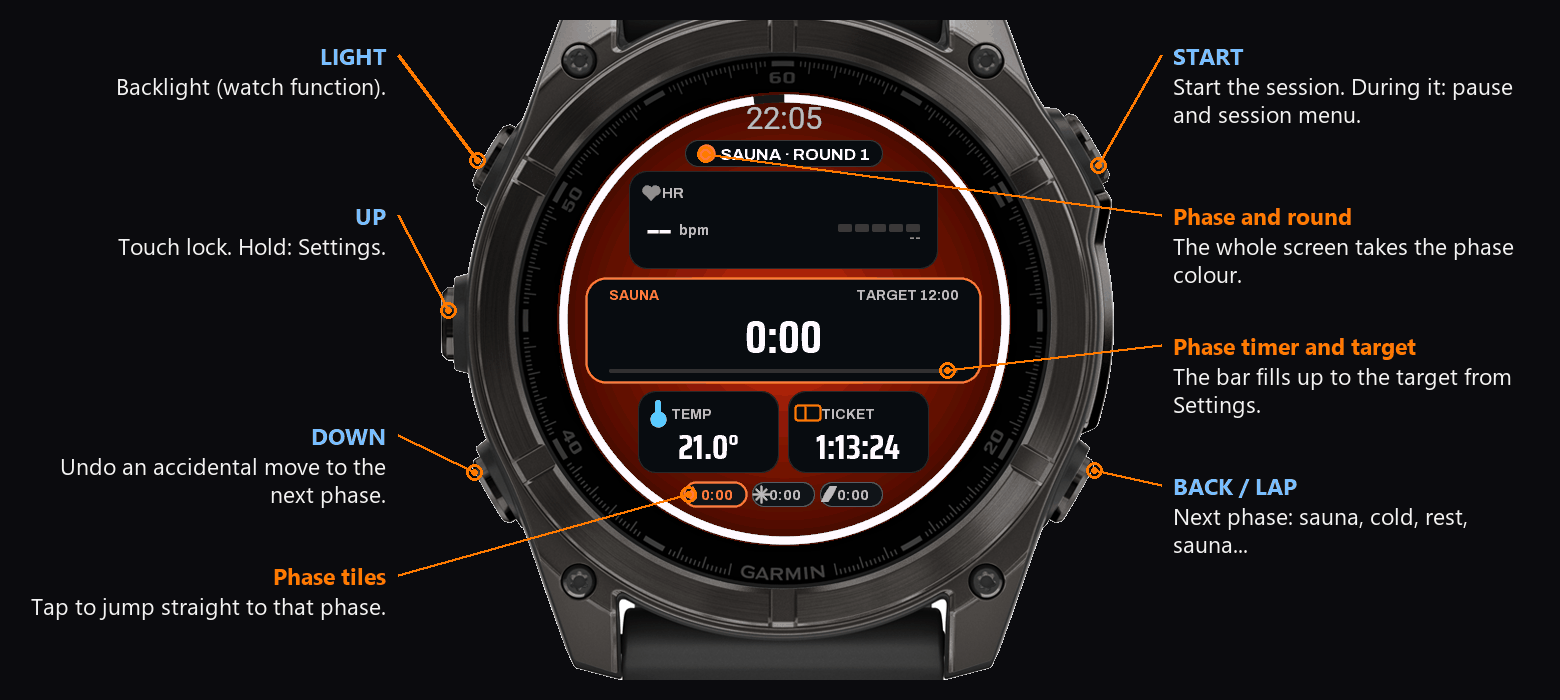
| Button | What it does |
|---|---|
| START | Starts the session. During it: pause and the session menu (Resume, Locker room, Save, Summary, Settings, Discard). |
| BACK / LAP | Next phase. When paused: resume. |
| DOWN | Undoes an accidental phase change, for 30 s after it. |
| hold UP | Settings. Recording keeps running. |
| UP (touch watches) | Locks and unlocks the touch screen. |
| hold the screen | The same lock, without reaching for a button. |
| tap a field | Choose what that field shows (unlock the screen first). |
| tap a phase tile | Jump straight to that phase. |
The touch screen starts locked, so waking a dimmed watch with a tap cannot open anything by accident. Hold the screen (or press UP) to unlock it, and again to lock it. A padlock on the right edge always shows which way it is. Settings, Look, Touch lock: At start, In sauna & cold (the default) (it locks itself again in the hot and cold phases), Always (only this setting unlocks it) or Touch off (the screen is ignored completely and the padlock is gone).
What's on the screen
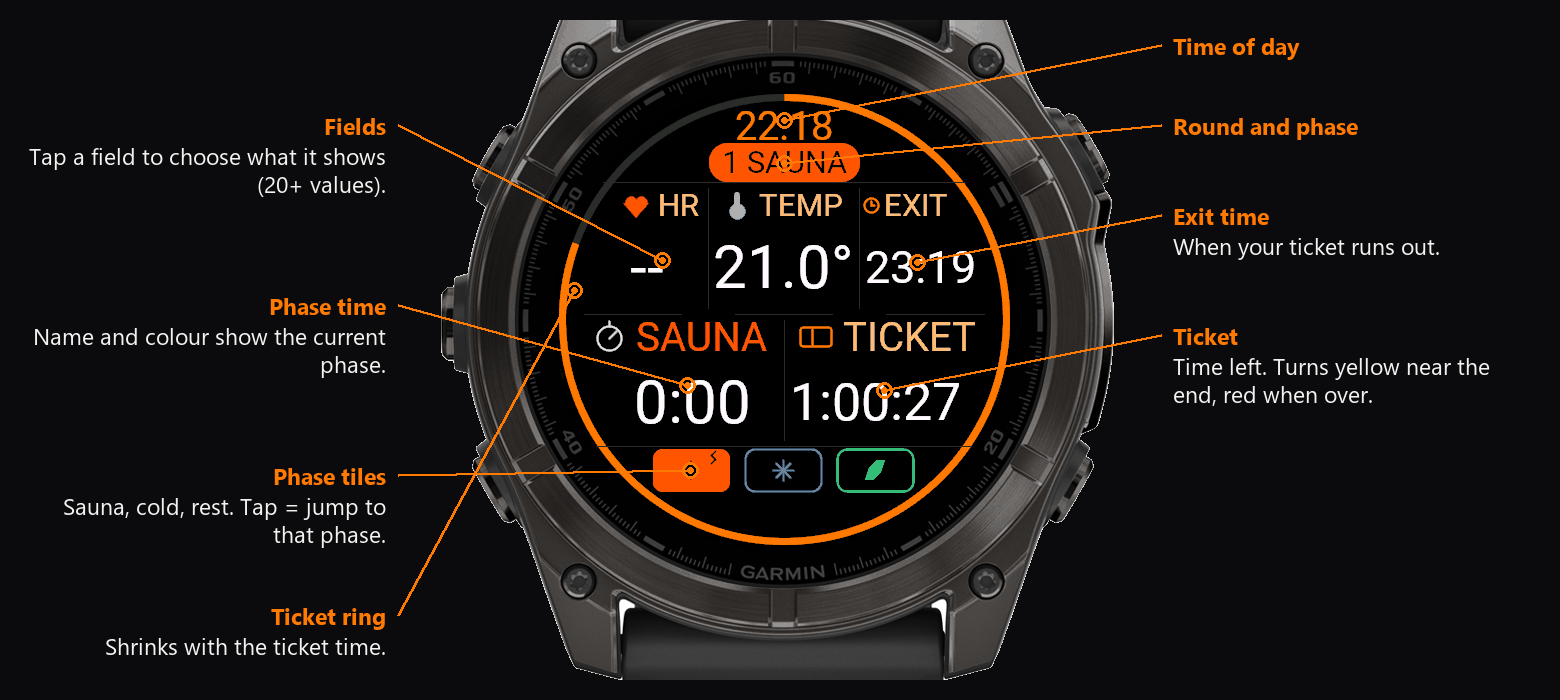
Ticket clock
Set how long your ticket is (Settings, Ticket). The watch counts down from the gate, shows the time you have to leave, and vibrates twice: once when it is time to start heading out, and again just before the end. After the end it reminds you every 5 minutes. Running late or bought extra time? "Add time" and "Take time off" change the ticket on the go. Cold plunge mode has no ticket.
Phases and rounds
The phases are PREP, SAUNA, COLD and REST. Each has its own colour, timer and optional target (Settings, Sauna settings) that the watch alerts you about.
Planning a session
Settings, Sauna settings holds the targets for the sauna, cold and rest phases and three more rows:
- Template: a ready plan that writes all the targets at once - Classic Finnish 3x(12/1/10 min), Short 2x(8/1/8), Contrast 4x(10/2/5), Cold plunge 3x(2/8, switches the app to the outdoor mode). "Custom" keeps your own targets and brings them back when you leave a template.
- Planned rounds: the badge then reads "round 2/3", and when the last planned round ends the watch vibrates and asks whether to save.
- Countdown: 3-2-1 with a vibration before a new session; any button skips it.
Saved sessions are kept on the watch: Settings, History shows the last 30 with date, rounds and times, and the summary has a page with your day streak and your best streak.
Activity type: Sauna or Cold plunge
Settings, Activity type. First choose what you use the watch for:
- Sauna: sauna, cold and rest phases, with the ticket clock.
- Cold plunge: an outdoor mode with no sauna and no ticket. The phases are WARM-UP, COLD and REWARM. The screen shows two phase tiles, and instead of the ticket the fields show your cold total and rewarm total. Set the water temperature in the first row of Settings (-2 to 25 °C, shown in °F if that is what your watch uses); the temperature field then shows it as WATER and it is saved to Garmin Connect. The activity is saved as "Cold plunge".
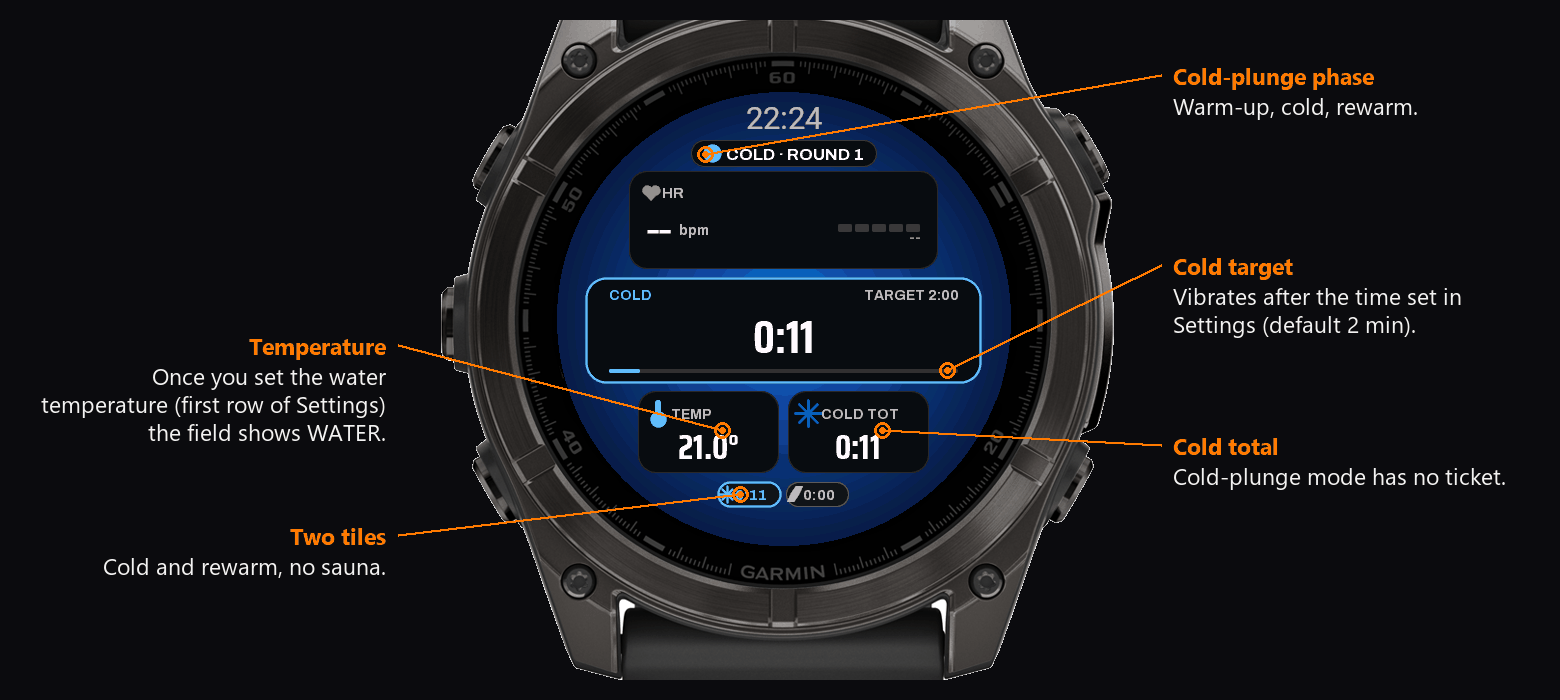
Right after picking the mode you choose how the session is saved in Garmin Connect. Garmin has no "sauna" activity type for Connect IQ apps, so the activity is titled "Sauna" (or "Cold plunge") and the type decides how Garmin counts it:
- Cardio (counts as training): a laps table with every phase, heart-rate zones, training load and recovery time. The high heart rate in the sauna raises your training load.
- Meditation (the default, no training load): stress and breathing charts; the sauna does not touch your training statistics.
The save type applies from the next session. Older watches offer Cardio only. The activity title is written in the language your watch is set to.
Session menu and settings
Safety
- Max sauna time: an alarm when you stay in too long.
- HR alert: an alarm above the heart rate you set.
- Safety alarm: short (every minute), continuous vibration, or vibration with a tone.
- Overheat alarm: one strong vibration and a red screen when the watch itself gets hot (40, 45 or 50 °C, or off).
- Drop empty sessions: sessions with no round and under 2 minutes are not saved.
Sauna Session PRO is not a medical device. Listen to your body and stay hydrated. Never cold-plunge alone.
The watch has a limit too. Garmin rates the fēnix 8 for -20 to 45 °C, and a Finnish sauna runs at 70-100 °C. That is what the Overheat alarm is for: at 45 °C of case temperature the watch vibrates hard and shows a red screen. Keep it low, near the floor where it is cooler, or under a damp towel. The optical heart-rate sensor loses the reading on wet, sweaty skin anyway.
Look
Focus style
The whole screen in the phase colour, with a big timer. Variants: Panels, Dial, Square and Light. On Square you choose the number of tiles: 2, 4 or 6. Every field can be changed and coloured (Look, Fields).
Classic style
A grid of fields in five layouts (Hero, Classic, Quad, Six, Duo) and 16 colour themes, including "Custom", where you set every colour, the font, the ring width and the corner radius.
Picking with a live preview
Colours, font, icons, theme, layout and variant are picked on the live dashboard: dots run around the ring (coloured ones for colours), UP and DOWN move the choice and the dashboard changes at once. START keeps it, BACK goes back to the old one. On a touch screen you can tap a dot. When you recolour one field, that field blinks with a frame.
Fields, icons, colours
Each field shows one of 24 values (heart rate, stress, temperature, ticket, exit time, rounds, phase totals, calories, sweat, SpO2, breathing...). Each field can have its own value, label and icon colour. Icon sets: Auto, Pro (designed icons, on watches with more memory), Line art, Badges or none.
Text size
Three steps: A is the normal view, A+ hides the field labels and gives the tiles to the values, A++ also lays the dashboard out as three full-width rows and hides the phase totals at the bottom. The summary, records and history take the bigger font too. In the Focus style A+ and A++ drop the panel labels and grow the numbers.
Heart rate in percent
The heart-rate panel shows your heart-rate reserve: resting heart rate from your Garmin profile is 0%, maximum heart rate is 100%. The bar has five 20% segments in the zone colours.
Heart-rate graph
One data field draws your heart rate as a line that scrolls across the whole field, the way an ECG trace moves. At a glance you see whether your heart rate is climbing in the heat or settling down in the cold. How much time the graph covers is set in the phone settings (Heart-rate graph window, 20 to 120 seconds).
Settings from your phone
Everything you can set on the watch can also be set in the Connect IQ app on your phone: Connect IQ Store, My apps, Sauna Session PRO, Settings. Changes reach the watch at the next sync.
After the sauna
- Locker room: a pause for changing. The ticket keeps counting; the screen shows just the clock and ticket time.
- Summary: rounds, phase times, heart rate, calories, sweat, temperature.
- Stress and Body Battery: the summary shows both readings from the start of the session next to the ones from the end, so you can see what the session did to them.
- Records and history: longest round, most rounds, best heart-rate recovery, trends over recent sessions.
- Last 7 days: a bar chart of your sauna and cold-plunge minutes for each of the last seven days, reached from the profile menu.
- Saved in Garmin Connect as Meditation or Cardio (see Activity type).
Trial and full version
You get 30 days free from the first time you open the app, with every feature. The watch counts the days by itself, nothing to turn on. After that the app opens with a screen showing the shop address and your watch number (UID); START continues.
- The UID is on this screen, in About, and in Garmin Connect: Device, Apps, Sauna Session PRO, Settings.
- Buy a code at saunapro.mateuszkolarz.pl. One-time payment, no subscription.
- Type the code into the Sauna Session PRO settings in Garmin Connect, field "Unlock code". The watch checks it offline.
Every option, one by one
Three places hold settings, and they write the same values: the session menu (START during a session), Settings (hold UP, or the session menu) and the Connect IQ app on your phone (Connect IQ Store, My apps, Sauna Session PRO, Settings). Change something on the watch and the phone page shows it after the next sync, and the other way round. Defaults are in grey.
The session menu
| Row | What it does |
|---|---|
| Resume | Back to the dashboard. BACK does the same. |
| Locker room | A pause for changing: the screen shows only the clock and the ticket. Recording stops, the ticket keeps counting. Tap or press any button to come back. |
| Save | Ends the session and writes it to Garmin Connect. |
| Summary | The pages of numbers for the session so far, without ending it. |
| Settings | The same Settings as holding UP. Recording keeps running. |
| Discard | Throws the session away. Asks first. |
Settings
How long you paid for. The watch counts down from the moment you open the app, shows the time you have to leave, and vibrates at the two warnings below.
- Ticket 0 to 600 minutes. Default 75. Set 0 and the ticket clock is off; the ticket fields then show nothing.
- Add time / Take time off change the ticket during a session, for when you buy extra time or came in late.
- Leave warning minutes before the end. Default 10, range 0 to 60, 0 turns it off. Phone only.
- Final warning minutes before the end. Default 5, range 0 to 60. Phone only.
- Repeat vibration after the time is up reminds you every 5 minutes once the ticket runs out. Default on. Phone only.
Cold plunge mode has no ticket.
The target length of each phase, and the plan for the whole session. Reaching a target vibrates; the phase carries on.
- Sauna target in minutes. Default 12, range 0 to 120, 0 = no target.
- Cold target. Default 2.
- Rest target. Default 8.
- Template writes all three targets and the round count at once: Classic Finnish 3 x (12 / 1 / 10 min), Short 2 x (8 / 1 / 8), Contrast 4 x (10 / 2 / 5), Cold plunge 3 x (2 / 8, and it switches the app to the outdoor mode). Custom keeps your own targets and puts them back when you leave a template. Default Custom.
- Planned rounds makes the badge read "round 2/3"; when the last one ends the watch vibrates and asks whether to save. Default Open, that is no plan.
- Countdown 3-2-1 with a vibration before a new session. Any button skips it. Default on.
- Max sauna time alarms when you have been in the heat too long. Default 20 min, range 0 to 120, 0 = off.
- HR alert alarms above the heart rate you set. Default off, range 0 to 240 bpm.
- Safety alarm picks how an alarm feels: Short pulse once a minute, Continuous vibration, or Vibration and tone. Default short pulse.
- Tone with vibration adds a beep to every alert, not just the alarms. Default off. Phone only.
- Overheat alarm watches the case temperature of the watch itself and answers with one strong vibration and a red screen: 40, 45, 50 °C or off. Default 45 °C.
- Drop empty sessions does not save a session with no round that lasted under 2 minutes. Default on.
Sauna Session PRO is not a medical device. Listen to your body, drink, and never cold-plunge alone.
- Sauna is the indoor mode: PREP, SAUNA, COLD and REST, with the ticket. Default.
- Cold plunge is the outdoor mode: WARM-UP, COLD and REWARM, no sauna and no ticket. Two phase tiles instead of three, and the ticket fields become your cold total and rewarm total.
- Water temperature appears in cold plunge mode, in the first row of Settings: -2 to 25 °C (shown in °F if that is what the watch uses). The temperature field then reads WATER, the number goes into the FIT file, and the calorie model uses it: colder water means more shivering, which means more calories.
- Save in Garmin Connect as comes right after you pick the mode: Meditation gives you stress and breathing charts and keeps the sauna out of your training load; Cardio gives you a lap per phase, heart-rate zones, training load and recovery time, and the high sauna heart rate then counts as training. Default Meditation. Takes effect from the next session. Older watches only offer Cardio.
Connect IQ has no sauna activity type, so whichever you pick, the activity is titled "Sauna" (or "Cold plunge") in the language your watch is set to.
Everything on this list is picked on the live dashboard: dots run around the ring, UP and DOWN move the choice and the screen changes as you go, START keeps it and BACK puts the old one back.
- Style: Focus fills the screen with the phase colour and one big timer, Classic is a grid of fields. Default Focus.
- Focus variant: Panels, Dial (target progress around the ring), Square (tiles) or Light (for a brightly lit room). Default Panels.
- Tiles for the Square variant: 2, 4 or 6. Default 4.
- Classic layout: Hero (3 fields), Classic (5), Quad (4), Six (6) or Duo (2 big ones). Default Classic.
- Colour theme: Amber, Ice, Forest, Ruby, Violet, Mono, HUD, Luksus, Nordic, Retro LCD, Wood, Neon, Pro Data, Immersion, High contrast and Custom. Default Amber. In the Focus style the theme sets the colours and the font of the menus and lists, while the dashboard keeps following the phase.
- Fields opens one row per slot; each row picks what that slot shows, and its own colour for the value, the label and the icon. The slots are remembered per layout, so Hero and Six keep their own arrangement.
- Text size: A normal, A+ drops the field labels and gives the tiles to the numbers, A++ also lays the dashboard out as three full-width rows and hides the phase totals at the bottom. The summary, records and history follow the same setting. Default A.
- Icons: Auto (follows the theme), Pro (drawn icons, on watches with more memory), Line art, Badges or None. Default Auto.
- Touch lock: At start (locked when the session starts, hold the screen to unlock), In sauna and cold (it locks itself again every time you go back into the heat or the water), Always (only this setting unlocks it) or Touch off (the screen is ignored completely and the padlock disappears). Default In sauna and cold. Touch watches only.
- Records: sessions, rounds, hot time, cold time, longest round, best heart-rate recovery, and the last 7 and 30 days.
- History: the last 30 saved sessions with date, rounds and times.
- Last 7 days: a bar chart of your sauna and cold minutes, one bar per day.
- About: the version, your watch number (UID) and the shop address.
The custom theme
Colour theme, Custom is the sixteenth theme and it has its own editor (Settings, Look, Colour theme, Custom, then Edit). Fourteen things to set, each one on the live dashboard:
| Row | Choices |
|---|---|
| Base theme | any of the other 15, as the starting point |
| Font | System, Condensed, Geometric, Pixel |
| Accent | 16 colours |
| Labels | 16 colours |
| Muted text | 16 colours |
| Grid lines | 16 colours |
| Grid | on or off |
| Sauna / Cold / Rest | the colour of each phase, 16 each |
| Ring width | 3, 4, 5, 7, 8, 10 or 12 px |
| Corner radius | 0 to 22 px |
| Phase badge | Filled, Outline or Dot |
| Phase background | Off, Flat or Panels |
The 24 data fields
Every slot, in both styles, can show any of these:
| Field | What it shows |
|---|---|
| Heart rate | the current reading, with your heart-rate reserve in percent |
| Stress | the watch's stress score |
| Temperature | the watch's own sensor, °C or °F. In cold plunge mode, the water temperature you set |
| Phase time | how long this phase has run |
| Total time | the whole session |
| Ticket | time left on the ticket |
| Calories | counted by the app, see the FAQ |
| Round | the round number, or "2/3" with a plan |
| Exit time | the clock time you have to leave |
| Phase target | the target for the phase you are in |
| Sauna total | all the hot minutes of the session |
| Cold total | all the cold ones |
| Rest total | all the rest ones |
| Average HR | for the session |
| Max HR | for the session |
| HR zone | the Garmin zone you are in |
| Recovery | how far your heart rate dropped in the rest phase |
| Sweat | an estimate in millilitres |
| Battery | the watch battery |
| Clock | the time of day |
| SpO2 | blood oxygen, if the watch measures it |
| Respiration | breaths per minute |
| HR graph | your heart rate as a scrolling line, like an ECG trace |
| Empty | nothing, to leave the slot clean |
The HR graph is only on the watches with more memory, and only from the watch menu. How much time it covers is a phone setting: 20, 30, 60, 90 or 120 seconds.
Settings that live on the phone only
- Start the session when the app opens. On by default. Turn it off and the session waits for START.
- Leave warning and Final warning, in minutes before the ticket ends.
- Repeat vibration after the time is up.
- Tone with vibration.
- HR graph scroll speed: 20, 30, 60, 90 or 120 seconds.
- Unlock code, and your watch number (UID) to read off.
- On the watches that run the lighter build, also the custom theme and the per-field colours, because those editors do not fit in their memory.
What your watch gets
Sauna Session PRO runs on 115 watch models, and some of them have 96 KB of memory for a whole app. Rather than leave those out, they run a lighter build. Everything the app records and saves is the same on all of them.
| Watches | What is different |
|---|---|
| fēnix, epix, Forerunner from 255, Venu 2 and 3, Vivoactive 4 and 5, Instinct 3 AMOLED, Enduro 3, Descent Mk2 and Mk3, MARQ, Tactix | nothing, everything described here |
| Instinct 3 Solar 45 mm, Instinct E 40 and 45 mm | both styles and all 16 themes, but no drawn Pro icon set, no HR graph field, no Records, History or About on the watch, no save-as picker (always Meditation), and the custom theme and per-field colours are set from the phone |
| fēnix 6 and 6S, Enduro, Forerunner 55 and 245, Venu Sq | the same, and no Focus style: the Classic grid with its 16 themes |
| Instinct 2, 2S, 2X, Crossover, Descent G1 | the same again, and because the screen is one colour there are no colour themes and no touch screen to lock |
FAQ
Why didn't the round number go up?
The round number goes up when you start a new cycle (back to the sauna, or back to the cold water in Cold plunge mode). A cycle counts if at least one of its phases lasted 15 seconds. If you click through every phase faster than that, the number stays, because such a cycle is treated as accidental.
What should I pick in "Save in Garmin Connect as"?
If you want every phase as a lap, heart-rate zones, and don't mind the sauna counting as training: Cardio. If you want the sauna kept out of training load and recovery time: Meditation.
What is the percentage next to my heart rate?
Heart-rate reserve: 0% is the resting heart rate from your Garmin profile, 100% is your maximum. At rest you will see something like 5-15%, more in a hot sauna.
Does pausing stop the ticket?
No. The ticket is your time at the spa, so it keeps counting in the locker room and while paused.
Where is the ticket in cold plunge mode?
Cold plunge is an outdoor mode, so there is no ticket. Its fields show your total time in the cold water and your rewarm total instead.
I bought a code but the app still shows the buy screen.
Check that the UID on the shop page is the same number the app settings show, and that the code went into the "Unlock code" field (case and dashes don't matter). Save the settings and sync the watch. A lost code can be recovered on the shop page with your UID and e-mail.
After copying a .prg file I see an IQ icon with an exclamation mark.
A .prg file is built for one specific watch model. A file for a different model (e.g. fēnix 8 47 mm on a fēnix 8 Pro) will not start. Installing from the Connect IQ Store picks the right build for you. If you side-load, use the file for your model and copy it to GARMIN\Apps.
Can I change the colours of the menus in the Focus style?
Yes: Look, Colour theme. The dashboard keeps the Focus look (the background follows the phase), and the theme you pick sets the colours and the font of the menus and lists. "Auto" keeps the built-in dark palette, or the light one with the Light variant.
What language does the app use?
The one your watch is set to. Sauna Session PRO ships every language Garmin watches offer, and it switches with the watch - there is nothing to set. If a language is not on the watch, the app shows English. Temperatures follow the watch too: °C or °F.
Where do the calories come from, and why so few?
The watch has no sauna sport. Saved as Meditation it counts no calories at all; under Cardio it counts a workout that never happened, because its model reads heart rate as muscle work, and in a hot room the heart beats faster only because the skin's vessels open and blood pressure falls. That is where 150-250 kcal for 20 minutes of sitting comes from, three to four times too much.
Since 2.14 the app counts them itself, once a second, in metabolic equivalents for the phase you are in and the weight from your Garmin profile: 1.7 MET in the sauna, 1.2 in the changing room, 1.3 while resting, and 2.0 to 3.5 in cold water depending on its temperature, because shivering is real work. The formula is kcal/min = MET × 3.5 × kg / 200. For 80 kg and 15 minutes of sauna that is about 36 kcal, half of which you would have burned on a sofa. The weight you lose right after a session is sweat, not fat.
The number also goes into the FIT file as its own "Calories" session field, so Garmin Connect shows the watch's number and ours side by side.
How do I make the text bigger?
Settings, Look, Text size. A is the normal view, A+ hides the field labels and grows the values, A++ also lays the dashboard out as three full-width rows and hides the phase totals. The summary, records and history follow the same setting. It can also be set from the phone in Connect IQ.
The temperature seems low.
Temperature comes from the watch's own sensor. On the wrist it reads skin and watch warmth, so in the sauna it rises with a delay.
My phone says "lap" every time I change a phase.
That is Garmin's audio prompt, not the app. Changing a phase takes a lap, and Garmin Connect reads it out through the phone. In the Garmin Connect app: Settings, Audio Prompts, pick the activity type you save as (Cardio or Meditation) and turn Lap Alert off. The same screen has a master switch if you want silence altogether.
More apps
Enjoying the app? Buy me a coffee.
Anleitung in einer anderen Sprache
Die App spricht die Sprache, auf die deine Uhr eingestellt ist. Die Anleitung gibt es in denselben Sprachen:
DeutschFrançaisEspañolItalianoPortuguêsNederlandsDanskSvenskaNorskSuomiČeštinaSlovenčinaSlovenščinaHrvatskiMagyarRomânăБългарскиEestiLatviešuLietuviųTürkçeΕλληνικάРусскийУкраїнськаעבריתالعربيةIndonesiaMelayuTiếng Việt简体中文繁體中文日本語한국어ไทย
Vor deiner ersten Session
- Der Touchscreen startet gesperrt und sperrt sich in der Sauna und im Kaltbad automatisch wieder. Halte das Display gedrückt oder drücke UP, um ihn zu entsperren; das Vorhängeschloss am rechten Rand zeigt den aktuellen Status. Falls er dennoch reagiert: Einstellungen, Design, Touch-Sperre, Immer oder Touch aus.
- Text zu klein? Einstellungen, Design, Textgröße: A+ blendet die Feldbeschriftungen aus, A++ verwandelt das Dashboard in drei Zeilen über die volle Breite. Auch von der Saunabank ohne Brille lesbar.
- BACK / LAP wechselt zur nächsten Phase und DOWN macht diesen Wechsel rückgängig, jedoch nur innerhalb von 30 s danach. Später bewirkt DOWN nichts mehr, damit deine Runde nicht versehentlich gestört wird.
- Garmin Connect speichert die Session als Meditation, damit die Sauna keine Trainingsbelastung erzeugt. Bevorzugst du Herzfrequenzzonen und die Kalorienberechnung der Uhr? Einstellungen, Aktivitätstyp, Cardio.
- Die App zählt die Kalorien, nicht die Uhr, da die Uhr kein Saunatraining kennt: Meditation zählt keine und Cardio zählt ein Vielfaches zu viel. Unsere Berechnung basiert auf der Phase und deinem Profilgewicht – etwa 36 kcal für 15 Minuten Sauna bei 80 kg. Wenig, aber realistisch.
- Das Thermometer misst die Uhr, nicht die Luft. Der Sensor liegt an deinem Handgelenk an, steigt daher nur langsam an und erreicht nie die Raumtemperatur.
Erste Schritte
- Installiere Sauna Session PRO aus dem Connect IQ Store und öffne die App beim Einlass auf deiner Uhr.
- Die Session startet automatisch in der Phase VORBEREITUNG (oder mit START, falls Autostart deaktiviert ist). Die Ticket-Uhr zählt rückwärts.
- In die Sauna gehen: BACK / LAP. Jeder Tastendruck wechselt zur nächsten Phase: Sauna, Kälte, Ruhe, Sauna...
- Zum Beenden drücke START, dann „Speichern“. Die Session wird als Aktivität in Garmin Connect gespeichert.
Tasten und Touch
| Taste | Funktion |
|---|---|
| START | Startet die Session. Währenddessen: Pause und das Session-Menü (Fortsetzen, Umkleide, Speichern, Zusammenfassung, Einstellungen, Verwerfen). |
| BACK / LAP | Nächste Phase. Bei Pause: Fortsetzen. |
| DOWN | Macht einen versehentlichen Phasenwechsel rückgängig (innerhalb von 30 s danach). |
| UP halten | Einstellungen. Die Aufzeichnung läuft weiter. |
| UP (Touchscreen-Uhren) | Sperrt und entsperrt den Touchscreen. |
| Display gedrückt halten | Gleiche Sperre, ohne nach einer Taste zu greifen. |
| Feld antippen | Auswählen, was dieses Feld anzeigt (Touchscreen vorher entsperren). |
| Phasenkachel antippen | Direkt zu dieser Phase springen. |
Der Touchscreen startet gesperrt, damit beim Aufwecken einer abgedunkelten Uhr durch Antippen nichts versehentlich geöffnet wird. Halte das Display gedrückt (oder drücke UP), um ihn zu entsperren, und erneut, um ihn zu sperren. Ein Vorhängeschloss am rechten Rand zeigt immer den aktuellen Status. Einstellungen, Design, Touch-Sperre: Beim Start, In Sauna & Kälte (Standard – sperrt sich in den heißen und kalten Phasen wieder automatisch), Immer (kann nur über diese Einstellung entsperrt werden) oder Touch aus (Eingaben auf dem Display werden komplett ignoriert und das Schloss verschwindet).
Aufbau der Anzeige
Ticket-Uhr
Stelle ein, wie lange dein Ticket gültig ist (Einstellungen, Ticket). Die Uhr zählt ab dem Einlass rückwärts, zeigt deine späteste Ausgangszeit an und vibriert zweimal: einmal, wenn es Zeit zum Aufbrechen ist, und noch einmal kurz vor Ablauf. Nach Ablauf erinnert sie dich alle 5 Minuten. Wird die Zeit knapp oder hast du nachgebucht? Mit „Zeit hinzufügen“ und „Zeit abziehen“ passt du das Ticket unterwegs an. Im Cold-plunge-Modus gibt es kein Ticket.
Phasen und Runden
Die Phasen sind VORBEREITUNG, SAUNA, KÄLTE und RUHE. Jede hat ihre eigene Farbe, einen Timer und ein optionales Ziel (Einstellungen, Sauna-Einstellungen), bei dessen Erreichen die Uhr vibriert.
Session planen
Unter Einstellungen, Sauna-Einstellungen findest du die Zielzeiten für Sauna, Kälte und Ruhe sowie drei weitere Optionen:
- Vorlage: ein fertiger Plan, der alle Zielzeiten auf einmal festlegt – Klassisch Finnisch 3x(12/1/10 min), Kurz 2x(8/1/8), Kontrast 4x(10/2/5), Cold plunge 3x(2/8, wechselt die App in den Outdoor-Modus). „Benutzerdefiniert“ behält deine eigenen Zielzeiten bei und stellt sie wieder her, wenn du eine Vorlage verlässt.
- Geplante Runden: die Anzeige zeigt dann „Runde 2/3“, und nach der letzten geplanten Runde vibriert die Uhr und fragt, ob gespeichert werden soll.
- Countdown: 3-2-1 mit Vibration vor einer neuen Session; jede Taste überspringt ihn.
Gespeicherte Sessions bleiben auf der Uhr: Einstellungen, Verlauf zeigt die letzten 30 mit Datum, Runden und Zeiten, und die Zusammenfassung enthält eine Seite mit deiner aktuellen Tagesserie und deiner Bestserie.
Aktivitätstyp: Sauna oder Cold plunge
Einstellungen, Aktivitätstyp. Wähle zuerst aus, wofür du die Uhr nutzt:
- Sauna: Phasen für Sauna, Kälte und Ruhe, mit Ticket-Uhr.
- Cold plunge: Ein Outdoor-Modus ohne Sauna und ohne Ticket. Die Phasen sind AUFWÄRMEN, KÄLTE und NACHWÄRMEN. Das Display zeigt zwei Phasenkacheln, und anstelle des Tickets zeigen die Datenfelder deine Kälte- und Nachwärm-Gesamtzeit an. Stelle die Wassertemperatur in der ersten Zeile der Einstellungen ein (-2 bis 25 °C, bzw. in °F, falls deine Uhr darauf eingestellt ist); das Temperaturfeld zeigt sie dann als WASSER an und sie wird in Garmin Connect gespeichert. Die Aktivität wird als „Cold plunge“ gespeichert.
Direkt nach der Moduswahl legst du fest, wie die Session in Garmin Connect gespeichert wird. Garmin bietet für Connect IQ-Apps keinen eigenen Aktivitätstyp „Sauna“, daher heißt die Aktivität „Sauna“ (oder „Cold plunge“) und der Typ bestimmt, wie Garmin sie einordnet:
- Cardio (zählt als Training): eine Runden-Tabelle mit jeder Phase, Herzfrequenzzonen, Trainingsbelastung und Erholungszeit. Die erhöhte Herzfrequenz in der Sauna steigert deine Trainingsbelastung.
- Meditation (Standard, keine Trainingsbelastung): Stress- und Atmungsdiagramme; die Sauna beeinflusst deine Trainingsstatistiken nicht.
Der Speichertyp gilt ab der nächsten Session. Ältere Uhren bieten nur Cardio. Der Aktivitätstitel wird in der Sprache verfasst, auf die deine Uhr eingestellt ist.
Session-Menü und Einstellungen
Sicherheit
- Max. Saunazeit: Alarm, wenn du zu lange in der Hitze bleibst.
- Pulsalarm: Alarm beim Überschreiten der eingestellten Herzfrequenz.
- Sicherheitsalarm: kurz (jede Minute), Dauervibration oder Dauervibration mit Ton.
- Überhitzungsalarm: eine kräftige Vibration und ein rotes Display, wenn die Uhr selbst zu heiß wird (40, 45 oder 50 °C, oder aus).
- Leere Sessions verwerfen: Sessions ohne Runden und unter 2 Minuten werden nicht gespeichert.
Sauna Session PRO ist kein medizinisches Gerät. Höre auf deinen Körper und trinke ausreichend Wasser. Gehe niemals allein eisbaden.
Auch die Uhr hat ihre Grenzen. Garmin spezifiziert die fēnix 8 für -20 bis 45 °C, und eine finnische Sauna hat 70-100 °C. Genau dafür gibt es den Überhitzungsalarm: Bei 45 °C Gehäusetemperatur vibriert die Uhr kräftig und zeigt ein rotes Display. Halte sie weiter unten, in Bodennähe, wo es kühler ist, oder unter einem feuchten Handtuch. Der optische Herzfrequenzsensor verliert auf nasser, schwitziger Haut ohnehin an Genauigkeit.
Design
Focus-Stil
Das gesamte Display in der Phasenfarbe, mit einem großen Timer. Varianten: Panels, Dial, Square und Light. Bei Square wählst du die Anzahl der Kacheln: 2, 4 oder 6. Jedes Feld kann geändert und farblich angepasst werden (Design, Felder).
Classic-Stil
Ein Raster aus Datenfeldern in fünf Layouts (Hero, Classic, Quad, Six, Duo) und 16 Farbthemen, einschließlich „Benutzerdefiniert“, wo du jede Farbe, die Schriftart, die Ringbreite und den Eckenradius selbst festlegst.
Auswahl mit Live-Vorschau
Farben, Schriftart, Symbole, Thema, Layout und Variante werden direkt auf dem Live-Dashboard ausgewählt: Punkte laufen um den Ring (farbige Punkte für Farben), UP und DOWN bewegen die Auswahl und das Dashboard ändert sich sofort. START übernimmt die Auswahl, BACK kehrt zur vorherigen zurück. Auf dem Touchscreen kannst du einen Punkt einfach antippen. Beim Umfärben eines Feldes blinkt dieses mit einem Rahmen.
Felder, Symbole, Farben
Jedes Feld zeigt einen von 24 Werten (Herzfrequenz, Stress, Temperatur, Ticket, Ausgangszeit, Runden, Phasen-Gesamtzeiten, Kalorien, Schweiß, SpO2, Atmung...). Jedes Feld kann einen eigenen Wert sowie eigene Farben für Beschriftung und Symbol haben. Symbolsätze: Auto, Pro (aufwendig gestaltete Symbole, auf Uhren mit mehr Speicher), Line art, Badges oder keine.
Textgröße
Drei Stufen: A ist die normale Ansicht, A+ blendet die Feldbeschriftungen aus und überlässt den Platz den Werten, A++ ordnet das Dashboard zudem als drei Zeilen über die volle Breite an und blendet die Phasen-Gesamtzeiten unten aus. Die Zusammenfassung, Rekorde und der Verlauf übernehmen die größere Schrift ebenfalls. Im Focus-Stil blenden A+ und A++ die Kachelbeschriftungen aus und vergrößern die Zahlen.
Herzfrequenz in Prozent
Das Herzfrequenz-Feld zeigt deine Herzfrequenzreserve: Der Ruhepuls aus deinem Garmin-Profil entspricht 0%, die maximale Herzfrequenz 100%. Der Balken hat fünf 20%-Segmente in den jeweiligen Zonenfarben.
Herzfrequenz-Diagramm
Ein Datenfeld zeichnet deine Herzfrequenz als Linie, die über das gesamte Feld wandert – genau wie eine EKG-Kurve. Auf einen Blick siehst du, ob dein Puls in der Hitze ansteigt oder sich in der Kälte beruhigt. Welchen Zeitraum das Diagramm abdeckt, wird in den Smartphone-Einstellungen festgelegt (Herzfrequenz-Diagrammfenster, 20 bis 120 Sekunden).
Einstellungen über das Smartphone
Alles, was du auf der Uhr einstellen kannst, lässt sich auch in der Connect IQ App auf deinem Smartphone festlegen: Connect IQ Store, Meine Apps, Sauna Session PRO, Einstellungen. Die Änderungen werden bei der nächsten Synchronisierung auf die Uhr übertragen.
Nach der Sauna
- Umkleide: Pause zum Umziehen. Das Ticket läuft weiter; das Display zeigt nur die Uhrzeit und die Ticketzeit.
- Zusammenfassung: Runden, Phasen-Zeiten, Herzfrequenz, Kalorien, Schweiß, Temperatur.
- Stress und Body Battery: Die Zusammenfassung zeigt beide Messwerte vom Beginn der Session neben denen am Ende, sodass du sehen kannst, wie die Session darauf gewirkt hat.
- Rekorde und Verlauf: längste Runde, meiste Runden, beste Pulserholung, Trends über die letzten Sessions.
- Letzte 7 Tage: ein Balkendiagramm deiner Sauna- und Kaltbademinuten für jeden der letzten 7 Tage, erreichbar über das Profilmenü.
- Gespeichert in Garmin Connect als Meditation oder Cardio (siehe Aktivitätstyp).
Testversion und Vollversion
Ab dem ersten Öffnen der App kannst du 30 Tage lang alle Funktionen kostenlos nutzen. Die Uhr zählt die Tage von selbst, du musst nichts aktivieren. Danach öffnet sich die App mit einem Bildschirm, der die Shop-Adresse und deine Uhrennummer (UID) anzeigt; mit START geht es weiter.
- Die UID findest du auf diesem Bildschirm, unter Über und in Garmin Connect: Gerät, Apps, Sauna Session PRO, Einstellungen.
- Kaufe einen Code auf saunapro.mateuszkolarz.pl. Einmalige Zahlung, kein Abo.
- Gib den Code in den Einstellungen von Sauna Session PRO in Garmin Connect im Feld „Freischaltcode“ ein. Die Uhr prüft ihn offline.
Alle Optionen im Überblick
Einstellungen lassen sich an drei Stellen vornehmen, und sie greifen auf dieselben Werte zu: das Session-Menü (START während einer Session), Einstellungen (UP gedrückt halten oder über das Session-Menü) und die Connect IQ App auf deinem Smartphone (Connect IQ Store, Meine Apps, Sauna Session PRO, Einstellungen). Ändere etwas auf der Uhr und die Seite auf dem Smartphone zeigt es nach der nächsten Synchronisierung an – und umgekehrt. Standardwerte sind grau dargestellt.
Das Session-Menü
| Eintrag | Funktion |
|---|---|
| Fortsetzen | Zurück zum Dashboard. BACK bewirkt dasselbe. |
| Umkleide | Eine Pause zum Umziehen: Das Display zeigt nur die Uhrzeit und das Ticket. Die Aufzeichnung stoppt, das Ticket läuft weiter. Antippen oder eine beliebige Taste drücken, um zurückzukehren. |
| Speichern | Beendet die Session und speichert sie in Garmin Connect. |
| Zusammenfassung | Die Werte der bisherigen Session anzeigen, ohne sie zu beenden. |
| Einstellungen | Dieselben Einstellungen wie beim Halten von UP. Die Aufzeichnung läuft weiter. |
| Verwerfen | Verwirft die Session. Fragt vorher nach. |
Einstellungen
Wie lange du bezahlt hast. Die Uhr zählt ab dem Moment rückwärts, in dem du die App öffnest, zeigt deine späteste Ausgangszeit an und vibriert bei den beiden unten stehenden Warnungen.
- Ticketzeit 0 bis 600 Minuten. Standard 75. Bei 0 ist die Ticket-Uhr aus; die Ticket-Felder zeigen dann nichts an.
- Zeit hinzufügen / Zeit abziehen ändert das Ticket während einer Session, falls du Zeit nachbuchst oder später hineingegangen bist.
- Warnung: gehen Minuten vor dem Ende. Standard 10, Bereich 0 bis 60, 0 schaltet sie aus. Nur am Smartphone.
- Letzte Warnung Minuten vor dem Ende. Standard 5, Bereich 0 bis 60. Nur am Smartphone.
- Nach Ende wiederholen erinnert dich alle 5 Minuten, sobald das Ticket abgelaufen ist. Standard an. Nur am Smartphone.
Im Cold-plunge-Modus gibt es kein Ticket.
Die Zieldauer jeder Phase und der Plan für die gesamte Session. Beim Erreichen eines Ziels vibriert die Uhr; die Phase läuft weiter.
- Sauna-Ziel in Minuten. Standard 12, Bereich 0 bis 120, 0 = kein Ziel.
- Kalt-Ziel. Standard 2.
- Ruhe-Ziel. Standard 8.
- Vorlage legt alle drei Zielzeiten und die Rundenzahl auf einmal fest: Klassisch Finnisch 3 x (12 / 1 / 10 min), Kurz 2 x (8 / 1 / 8), Kontrast 4 x (10 / 2 / 5), Cold plunge 3 x (2 / 8, und wechselt die App in den Outdoor-Modus). Eigene behält deine eigenen Zielzeiten bei und stellt sie wieder her, wenn du eine Vorlage verlässt. Standard Eigene.
- Geplante Runden lässt die Anzeige „Runde 2/3“ anzeigen; nach der letzten vibriert die Uhr und fragt, ob gespeichert werden soll. Standard Offen, also kein Plan.
- Countdown 3-2-1 mit Vibration vor einer neuen Session. Jede Taste überspringt ihn. Standard an.
- Max. Saunazeit schlägt Alarm, wenn du zu lange in der Hitze bist. Standard 20 min, Bereich 0 bis 120, 0 = aus.
- Pulsalarm warnt beim Überschreiten der eingestellten Herzfrequenz. Standard aus, Bereich 0 bis 240 bpm.
- Sicherheitsalarm wählt die Art des Alarms: Kurzer Impuls einmal pro Minute, Dauervibration oder Dauervibration + Ton. Standard kurzer Impuls.
- Ton bei Vibration fügt jedem Hinweis einen Piepton hinzu, nicht nur den Alarmen. Standard aus. Nur am Smartphone.
- Überhitzungsalarm überwacht die Gehäusetemperatur der Uhr selbst und reagiert mit einer kräftigen Vibration und einem roten Display: 40, 45, 50 °C oder aus. Standard 45 °C.
- Leere Sitzungen verwerfen speichert keine Session ohne Runden, die unter 2 Minuten gedauert hat. Standard an.
Sauna Session PRO ist kein medizinisches Gerät. Höre auf deinen Körper, trinke ausreichend und gehe niemals allein eisbaden.
- Sauna ist der Indoor-Modus: VORBEREITUNG, SAUNA, KÄLTE und RUHE, mit Ticket. Standard.
- Cold plunge ist der Outdoor-Modus: AUFWÄRMEN, KÄLTE und NACHWÄRMEN, ohne Sauna und ohne Ticket. Zwei Phasenkacheln statt drei, und die Ticket-Felder werden zu deiner Kälte- und Nachwärm-Gesamtzeit.
- Wassertemperatur erscheint im Cold-plunge-Modus in der ersten Zeile der Einstellungen: -2 bis 25 °C (angezeigt in °F, falls deine Uhr darauf eingestellt ist). Das Temperaturfeld zeigt dann WASSER an, der Wert wird in die FIT-Datei geschrieben und das Kalorienmodell nutzt ihn: Kälteres Wasser bedeutet mehr Zittern, was mehr Kalorien verbrennt.
- In Garmin Connect als folgt direkt nach der Moduswahl: Meditation liefert dir Stress- und Atmungsdiagramme und hält die Sauna aus deiner Trainingsbelastung heraus; Cardio liefert dir eine Runde pro Phase, Herzfrequenzzonen, Trainingsbelastung und Erholungszeit – der erhöhte Saunapuls zählt dann als Training. Standard Meditation. Gilt ab der nächsten Session. Ältere Uhren bieten nur Cardio.
Connect IQ bietet keinen Aktivitätstyp für Sauna, daher heißt die Aktivität in jedem Fall „Sauna“ (oder „Cold plunge“) in der Sprache, auf die deine Uhr eingestellt ist.
Alles auf dieser Liste wird direkt auf dem Live-Dashboard ausgewählt: Punkte laufen um den Ring, UP und DOWN bewegen die Auswahl und das Display passt sich sofort an, START übernimmt die Auswahl und BACK stellt die vorherige wieder her.
- Stil: Focus füllt das Display mit der Phasenfarbe und einem großen Timer, Classic ist ein Raster aus Feldern. Standard Focus.
- Focus-Variante: Panels, Dial (Zielfortschritt um den Ring), Square (Kacheln) oder Light (für hell erleuchtete Räume). Standard Panels.
- Kacheln für die Square-Variante: 2, 4 oder 6. Standard 4.
- Classic-Layout: Hero (3 Felder), Classic (5), Quad (4), Six (6) oder Duo (2 große Felder). Standard Classic.
- Farbschema: Amber, Ice, Forest, Ruby, Violet, Mono, HUD, Luksus, Nordic, Retro LCD, Holz, Neon, Pro Data, Immersion, High contrast und Eigene. Standard Amber. Im Focus-Stil legt das Farbschema die Farben und die Schriftart der Menüs und Listen fest, während das Dashboard der jeweiligen Phase folgt.
- Felder öffnet eine Zeile pro Position; jede Zeile bestimmt, was dieses Feld anzeigt, sowie eine eigene Farbe für Wert, Beschriftung und Symbol. Die Positionen werden pro Layout gespeichert, sodass Hero und Six ihre jeweils eigene Anordnung behalten.
- Textgröße: A normal, A+ blendet die Feldbeschriftungen aus und überlässt den Platz den Zahlen, A++ ordnet das Dashboard zudem als drei Zeilen über die volle Breite an und blendet die Phasen-Gesamtzeiten unten aus. Die Zusammenfassung, Rekorde und der Verlauf folgen derselben Einstellung. Standard A.
- Symbole: Auto (folgt dem Farbschema), Pro (grafische Symbole, auf Uhren mit mehr Speicher), Linien, Plaketten oder Keine. Standard Auto.
- Touch-Sperre: Beim Start (gesperrt beim Start der Session, Display gedrückt halten zum Entsperren), In Sauna & Kälte (sperrt sich jedes Mal automatisch wieder, wenn du in die Hitze oder ins Wasser zurückkehrst), Immer (kann nur über diese Einstellung entsperrt werden) oder Touch aus (das Display wird komplett ignoriert und das Schloss verschwindet). Standard In Sauna & Kälte. Nur für Uhren mit Touchscreen.
- Rekorde: Sessions, Runden, Hitzezeit, Kältezeit, längste Runde, beste Pulserholung sowie die letzten 7 und 30 Tage.
- Verlauf: die letzten 30 gespeicherten Sessions mit Datum, Runden und Zeiten.
- Letzte 7 Tage: ein Balkendiagramm deiner Sauna- und Kaltbademinuten, ein Balken pro Tag.
- Über: die Version, deine Uhrennummer (UID) und die Shop-Adresse.
Das eigene Farbschema
Farbschema, Eigene ist das sechzehnte Thema und verfügt über einen eigenen Konfigurator (Einstellungen, Design, Farbschema, Eigene, dann Bearbeiten). Vierzehn Optionen zum Einstellen, jede direkt auf dem Live-Dashboard:
| Eintrag | Auswahl |
|---|---|
| Basis-Preset | jedes der anderen 15 als Ausgangspunkt |
| Schriftart | System, Schmal, Geometrisch, Pixel |
| Akzent | 16 Farben |
| Beschriftungen | 16 Farben |
| Gedämpfter Text | 16 Farben |
| Rasterlinien | 16 Farben |
| Raster | an oder aus |
| Sauna / Kalt / Ruhe | die Farbe jeder Phase, jeweils 16 |
| Ringbreite | 3, 4, 5, 7, 8, 10 oder 12 px |
| Eckenradius | 0 bis 22 px |
| Phasen-Abzeichen | Gefüllt, Umriss oder Punkt |
| Phasenhintergrund | Aus, Einfarbig oder Kacheln |
Die 24 Datenfelder
Jede Position kann in beiden Stilen einen dieser Werte anzeigen:
| Feld | Anzeige |
|---|---|
| Herzfrequenz | der aktuelle Messwert, mit Herzfrequenzreserve in Prozent |
| Stress | der Stresslevel der Uhr |
| Temperatur | vom internen Sensor der Uhr, °C oder °F. Im Cold-plunge-Modus die eingestellte Wassertemperatur |
| Phasenzeit | wie lange die aktuelle Phase bereits läuft |
| Gesamtzeit | die gesamte Session |
| Ticket | verbleibende Ticketzeit |
| Kalorien | von der App berechnet, siehe FAQ |
| Runde | die Rundennummer, oder „2/3“ mit Plan |
| Ausgangszeit | die Uhrzeit, zu der du aufbrechen musst |
| Phasenziel | das Ziel der aktuellen Phase |
| Sauna gesamt | alle heißen Minuten der Session |
| Kalt gesamt | alle kalten Minuten |
| Ruhe gesamt | alle Ruheminuten |
| Durchschnittspuls | für die gesamte Session |
| Maximalpuls | für die gesamte Session |
| Pulszone | die aktuelle Garmin-Herzfrequenzzone |
| Pulserholung | wie weit dein Puls in der Ruhephase gesunken ist |
| Schweiß | geschätzter Verlust in Millilitern |
| Akku | Akkustand der Uhr |
| Uhrzeit | die aktuelle Uhrzeit |
| SpO2 | Blutsauerstoff, sofern von der Uhr unterstützt |
| Atmung | Atemzüge pro Minute |
| Puls-Diagramm | deine Herzfrequenz als durchlaufende Kurve, wie beim EKG |
| Leer | keine Anzeige, um das Feld frei zu lassen |
Das Puls-Diagramm ist nur auf Uhren mit größerem Speicher und nur über das Uhrenmenü verfügbar. Welchen Zeitraum es abdeckt, lässt sich am Smartphone einstellen: 20, 30, 60, 90 oder 120 Sekunden.
Einstellungen, die es nur auf dem Smartphone gibt
- Session beim Öffnen der App starten. Standardmäßig an. Wenn deaktiviert, wartet die Session auf START.
- Warnung: gehen und Letzte Warnung, in Minuten vor Ticketende.
- Nach Ende wiederholen.
- Ton bei Vibration.
- Laufzeit des Puls-Diagramms: 20, 30, 60, 90 oder 120 Sekunden.
- Freischaltcode sowie deine Uhrennummer (UID) zum Ablesen.
- Auf Uhren mit der schlankeren Version auch das eigene Farbschema und die Farben einzelner Felder, da diese Konfiguratoren nicht in deren Speicher passen.
Funktionsumfang nach Uhrenmodell
Sauna Session PRO läuft auf 115 Uhrenmodellen, von denen manche nur 96 KB Speicher für eine gesamte App haben. Statt diese Modelle auszulassen, läuft darauf eine schlankere Version. Alle Aufzeichnungen und gespeicherten Daten sind auf allen Modellen identisch.
| Uhren | Unterschiede |
|---|---|
| fēnix, epix, Forerunner ab 255, Venu 2 und 3, Vivoactive 4 und 5, Instinct 3 AMOLED, Enduro 3, Descent Mk2 und Mk3, MARQ, Tactix | keine, vollständiger hier beschriebener Funktionsumfang |
| Instinct 3 Solar 45 mm, Instinct E 40 und 45 mm | beide Stile und alle 16 Themen, jedoch ohne Pro-Symbolsatz, ohne Puls-Diagramm-Feld, keine Rekorde, Verlauf oder Über auf der Uhr, keine Wahl des Aktivitätstyps (immer Meditation), und das eigene Thema sowie Einzelfeldfarben werden am Smartphone eingestellt |
| fēnix 6 und 6S, Enduro, Forerunner 55 und 245, Venu Sq | wie zuvor, und kein Focus-Stil: das Classic-Raster mit seinen 16 Themen |
| Instinct 2, 2S, 2X, Crossover, Descent G1 | ebenfalls wie zuvor, und da das Display einfarbig ist, gibt es keine Farbthemen und keinen Touchscreen zum Sperren |
FAQ
Warum hat sich die Rundenzahl nicht erhöht?
Die Rundenzahl steigt, sobald du einen neuen Zyklus startest (zurück in die Sauna oder im Cold-plunge-Modus zurück ins kalte Wasser). Ein Zyklus zählt, wenn mindestens eine seiner Phasen mindestens 15 Sekunden gedauert hat. Klickst du schneller durch alle Phasen, bleibt die Zahl unverändert, da ein solcher Durchgang als versehentlich gewertet wird.
Was sollte ich bei „In Garmin Connect speichern als“ auswählen?
Wenn du jede Phase als Runde, Herzfrequenzzonen und die Sauna als Training gewertet haben möchtest: Cardio. Wenn die Sauna die Trainingsbelastung und Erholungszeit nicht beeinflussen soll: Meditation.
Was bedeutet die Prozentangabe neben meiner Herzfrequenz?
Herzfrequenzreserve: 0% ist der Ruhepuls aus deinem Garmin-Profil, 100% deine maximale Herzfrequenz. In Ruhe siehst du etwa 5-15%, in einer heißen Sauna entsprechend mehr.
Stoppt eine Pause auch das Ticket?
Nein. Das Ticket entspricht deiner Aufenthaltszeit im Spa, läuft also auch in der Umkleide und bei pausierter Session weiter.
Wo ist das Ticket im Cold-plunge-Modus?
Cold plunge ist ein Outdoor-Modus, daher gibt es kein Ticket. Seine Datenfelder zeigen stattdessen deine Gesamtzeit im kalten Wasser und deine Nachwärm-Gesamtzeit an.
Ich habe einen Code gekauft, aber die App zeigt immer noch den Kaufbildschirm.
Prüfe, ob die UID auf der Shop-Seite mit der Nummer in den App-Einstellungen übereinstimmt und der Code im Feld „Freischaltcode“ (Unlock code) eingetragen wurde (Groß-/Kleinschreibung und Bindestriche spielen keine Rolle). Speichere die Einstellungen und synchronisiere die Uhr. Ein verloren gegangener Code kann auf der Shop-Seite mit deiner UID und E-Mail-Adresse wiederhergestellt werden.
Nach dem Kopieren einer .prg-Datei sehe ich ein IQ-Symbol mit Ausrufezeichen.
Eine .prg-Datei wird für ein bestimmtes Uhrenmodell erstellt. Eine Datei für ein anderes Modell (z. B. fēnix 8 47 mm auf einer fēnix 8 Pro) startet nicht. Bei der Installation über den Connect IQ Store wird automatisch die passende Version gewählt. Beim manuellen Sideloaden kopiere die Datei für dein Modell in den Ordner GARMIN\Apps.
Kann ich die Menüfarben im Focus-Stil anpassen?
Ja: Design, Farbschema. Das Dashboard behält den Focus-Look (der Hintergrund passt sich der Phase an), während das gewählte Farbschema die Farben und die Schriftart der Menüs und Listen bestimmt. „Auto“ behält die integrierte dunkle Palette bei, bzw. die helle bei der Light-Variante.
Welche Sprache nutzt die App?
Die Sprache, auf die deine Uhr eingestellt ist. Sauna Session PRO unterstützt jede Sprache, die Garmin-Uhren anbieten, und passt sich automatisch der Uhr an – es muss nichts eingestellt werden. Wird eine Sprache von der Uhr nicht angeboten, zeigt die App Englisch. Auch Temperaturangaben richten sich nach der Uhr: °C oder °F.
Woher stammen die Kalorien und warum sind es so wenige?
Die Uhr bietet keine Sportart für die Sauna. Als Meditation gespeichert zählt sie überhaupt keine Kalorien; unter Cardio zählt sie ein Training, das so nie stattgefunden hat, da ihr Modell die Herzfrequenz als Muskelarbeit deutet – in einem heißen Raum schlägt das Herz jedoch nur schneller, weil sich die Blutgefäße der Haut weiten und der Blutdruck sinkt. Daher rühren die 150-250 kcal für 20 Minuten Sitzen, das Drei- bis Vierfache des Realen.
Seit Version 2.14 berechnet die App die Kalorien selbst, einmal pro Sekunde, anhand von metabolischen Äquivalenten für die jeweilige Phase und dem Gewicht aus deinem Garmin-Profil: 1.7 MET in der Sauna, 1.2 in der Umkleide, 1.3 beim Ausruhen und 2.0 bis 3.5 im kalten Wasser je nach Wassertemperatur, da Zittern echte Muskelarbeit ist. Die Formel lautet kcal/min = MET × 3.5 × kg / 200. Für 80 kg und 15 Minuten Sauna ergibt das rund 36 kcal, wovon du die Hälfte auch auf dem Sofa verbrannt hättest. Das verlorene Gewicht direkt nach dem Saunagang ist Schweiß, kein Fett.
Der Wert wird zudem als eigenes Feld „Kalorien“ in die FIT-Datei geschrieben, sodass Garmin Connect den Wert der Uhr und unseren nebeneinander anzeigt.
Wie mache ich den Text größer?
Einstellungen, Design, Textgröße. A ist die normale Ansicht, A+ blendet die Feldbeschriftungen aus und vergrößert die Werte, A++ ordnet das Dashboard zudem als drei Zeilen über die volle Breite an und blendet die Phasen-Gesamtzeiten aus. Die Zusammenfassung, Rekorde und der Verlauf folgen derselben Einstellung. Dies kann auch vom Smartphone aus in Connect IQ festgelegt werden.
Die Temperatur scheint zu niedrig zu sein.
Die Temperatur stammt vom internen Sensor der Uhr. Am Handgelenk misst er Haut- und Uhrentemperatur, daher steigt der Wert in der Sauna nur verzögert an.
Mein Telefon sagt bei jedem Phasenwechsel "Runde".
Das ist die Sprachansage von Garmin, nicht die App. Ein Phasenwechsel setzt eine Runde, und Garmin Connect liest sie über das Telefon vor. In der Garmin Connect App: Einstellungen (Settings), Sprachansagen (Audio Prompts), die Aktivitätsart auswählen, unter der du speicherst (Cardio oder Meditation), und Rundenalarm (Lap Alert) ausschalten. Im selben Menü gibt es einen Hauptschalter, wenn es ganz still sein soll.
Weitere Apps
Gefällt dir die App? Spendier mir einen Kaffee.
Manuel dans une autre langue
L'application s'affiche dans la langue configurée sur votre montre. Le manuel est disponible dans les mêmes langues :
DeutschFrançaisEspañolItalianoPortuguêsNederlandsDanskSvenskaNorskSuomiČeštinaSlovenčinaSlovenščinaHrvatskiMagyarRomânăБългарскиEestiLatviešuLietuviųTürkçeΕλληνικάРусскийУкраїнськаעבריתالعربيةIndonesiaMelayuTiếng Việt简体中文繁體中文日本語한국어ไทย
Avant votre première séance
- L'écran tactile démarre verrouillé et se reverrouille automatiquement dans le sauna et dans le froid. Maintenez l'écran appuyé ou appuyez sur UP pour le déverrouiller ; le cadenas sur le bord droit indique son état. S'il s'active encore involontairement : Paramètres, Apparence, Verrou tactile, Toujours ou Pas de tactile.
- Texte trop petit ? Paramètres, Apparence, Taille texte : A+ masque les étiquettes des champs, A++ transforme le tableau de bord en trois lignes pleine largeur. Lisible depuis le banc sans lunettes.
- BACK / LAP passe à la phase suivante et DOWN annule ce changement, mais seulement pendant 30 s. Ensuite, DOWN ne fait rien, évitant ainsi de fausser votre tour.
- Garmin Connect enregistre la séance sous Méditation, afin que le sauna n'ajoute pas de charge d'entraînement. Vous préférez les zones de fréquence cardiaque et les calories de la montre ? Paramètres, Type d'activité, Cardio.
- L'application calcule les calories, pas la montre, car la montre n'a pas d'activité sauna : Méditation n'en compte aucune et Cardio en compte plusieurs fois trop. Les nôtres proviennent de la phase et du poids de votre profil, soit environ 36 kcal pour 15 minutes de sauna à 80 kg. Peu, mais réaliste.
- Le thermomètre mesure la température de la montre, pas celle de l'air. Le capteur est contre votre poignet, il monte donc lentement et n'atteint jamais la température de la pièce.
Prise en main
- Installez Sauna Session PRO depuis le Connect IQ Store et ouvrez-la sur votre montre dès l'entrée.
- La séance démarre automatiquement en phase PRÉP (ou avec START si le démarrage automatique est désactivé). Le compte à rebours du ticket se lance.
- Entrée dans le sauna : BACK / LAP. Chaque pression passe à la phase suivante : sauna, froid, repos, sauna...
- Pour terminer, appuyez sur START, puis sur « Enregistrer ». La séance est enregistrée dans Garmin Connect en tant qu'activité.
Boutons et écran tactile
| Bouton | Action |
|---|---|
| START | Démarre la séance. Pendant celle-ci : pause et menu de séance (Reprendre, Vestiaire, Enregistrer, Résumé, Paramètres, Supprimer). |
| BACK / LAP | Phase suivante. En pause : reprendre. |
| DOWN | Annule un changement de phase accidentel pendant 30 s. |
| maintenir UP | Paramètres. L'enregistrement continue. |
| UP (montres tactiles) | Verrouille et déverrouille l'écran tactile. |
| maintenir l'écran | Le même verrouillage, sans utiliser de bouton. |
| appuyer sur un champ | Choisir ce que ce champ affiche (déverrouillez d'abord l'écran). |
| appuyer sur une tuile de phase | Passer directement à cette phase. |
L'écran tactile démarre verrouillé, de sorte que réveiller une montre en veille par un appui ne risque pas d'ouvrir quoi que ce soit par accident. Maintenez l'écran appuyé (ou appuyez sur UP) pour le déverrouiller, et recommencez pour le verrouiller. Un cadenas sur le bord droit indique toujours son état. Paramètres, Apparence, Verrou tactile : Au démarrage, Sauna & froid (par défaut) (il se reverrouille automatiquement dans les phases chaudes et froides), Toujours (seul ce paramètre le déverrouille) ou Pas de tactile (l'écran est totalement ignoré et le cadenas disparaît).
Qu'y a-t-il sur l'écran
Compte à rebours du ticket
Définissez la durée de votre ticket (Paramètres, Ticket). La montre effectue un compte à rebours depuis l'entrée, affiche l'heure à laquelle vous devez sortir et vibre deux fois : une première fois lorsqu'il est temps de commencer à vous préparer, et une seconde juste avant la fin. Une fois le temps écoulé, elle vous le rappelle toutes les 5 minutes. En retard ou vous avez acheté du temps supplémentaire ? « Ajouter du temps » et « Enlever du temps » permettent de modifier le ticket à la volée. Le mode Bain froid n'a pas de ticket.
Phases et tours
Les phases sont PRÉP, SAUNA, FROID et REPOS. Chacune possède sa propre couleur, son propre minuteur et un objectif optionnel (Paramètres, Réglages sauna) pour lequel la montre vous avertit.
Planifier une séance
Paramètres, Réglages sauna contient les objectifs pour les phases de sauna, de froid et de repos, ainsi que trois lignes supplémentaires :
- Modèle : un plan prêt à l'emploi qui définit tous les objectifs en une seule fois - Finlandais classique 3x(12/1/10 min), Court 2x(8/1/8), Contraste 4x(10/2/5), Bain froid 3x(2/8, bascule l'application en mode extérieur). « Personnalisé » conserve vos propres objectifs et les rétablit lorsque vous quittez un modèle.
- Tours prévus : le badge affiche alors « tour 2/3 », et lorsque le dernier tour prévu se termine, la montre vibre et demande si vous souhaitez enregistrer.
- Compte à rebours : 3-2-1 avec vibration avant une nouvelle séance ; n'importe quel bouton permet de l'ignorer.
Les séances enregistrées sont conservées sur la montre : Paramètres, Historique affiche les 30 dernières avec la date, les tours et les durées, et le résumé comporte une page avec votre série quotidienne et votre meilleure série.
Type d'activité : Sauna ou Bain froid
Paramètres, Type d'activité. Choisissez d'abord pour quoi vous utilisez la montre :
- Sauna : phases de sauna, froid et repos, avec le compte à rebours du ticket.
- Bain froid : un mode extérieur sans sauna et sans ticket. Les phases sont ÉCHAUFFEMENT, FROID et RÉCHAUFFEMENT. L'écran affiche deux tuiles de phase, et au lieu du ticket, les champs indiquent votre total de froid et votre total de réchauffement. Définissez la température de l'eau sur la première ligne des Paramètres (-2 à 25 °C, affichée en °F si votre montre utilise cette unité) ; le champ de température l'affiche alors sous le libellé EAU et elle est enregistrée dans Garmin Connect. L'activité est enregistrée sous le nom « Bain froid ».
Juste après avoir choisi le mode, vous déterminez comment la séance est enregistrée dans Garmin Connect. Garmin ne propose aucun type d'activité « sauna » pour les applications Connect IQ ; l'activité est donc intitulée « Sauna » (ou « Bain froid ») et le type détermine la façon dont Garmin la comptabilise :
- Cardio (compte comme entraînement) : tableau des circuits avec chaque phase, zones de fréquence cardiaque, charge d'entraînement et temps de récupération. La fréquence cardiaque élevée dans le sauna augmente votre charge d'entraînement.
- Méditation (par défaut, sans charge d'entraînement) : graphiques de stress et de respiration ; le sauna ne modifie pas vos statistiques d'entraînement.
Le type d'enregistrement s'applique à partir de la séance suivante. Les montres plus anciennes ne proposent que Cardio. Le titre de l'activité est rédigé dans la langue configurée sur votre montre.
Menu de la séance et paramètres
Sécurité
- Temps max sauna : une alarme si vous restez trop longtemps dans la chaleur.
- Alerte HR : une alarme au-dessus de la fréquence cardiaque configurée.
- Alarme sécurité : brève (chaque minute), vibration continue ou vibration avec tonalité.
- Alarme surchauffe : une forte vibration et un écran rouge lorsque la montre elle-même devient trop chaude (40, 45 ou 50 °C, ou désactivée).
- Ignorer les séances vides : les séances sans aucun tour et durant moins de 2 minutes ne sont pas enregistrées.
Sauna Session PRO n'est pas un dispositif médical. Écoutez votre corps et hydratez-vous. Ne vous baignez jamais en eau froide seul.
La montre a aussi ses limites. Garmin certifie la fēnix 8 entre -20 et 45 °C, alors qu'un sauna finlandais fonctionne entre 70 et 100 °C. C'est la raison d'être de l'alarme de surchauffe : à 45 °C de température de boîtier, la montre vibre fortement et affiche un écran rouge. Gardez-la vers le bas, près du sol où il fait plus frais, ou sous une serviette humide. De toute façon, le capteur optique de fréquence cardiaque perd la mesure sur une peau mouillée et transpirante.
Apparence
Style Focus
Tout l'écran prend la couleur de la phase, avec un grand minuteur. Variantes : Panneaux, Cadran, Carré et Clair. Sur Carré, vous choisissez le nombre de tuiles : 2, 4 ou 6. Chaque champ peut être modifié et coloré (Apparence, Champs).
Style Classique
Une grille de champs selon cinq dispositions (Héros, Classique, Quad, Six, Duo) et 16 thèmes de couleurs, y compris « Personnalisé », où vous définissez chaque couleur, la police, la largeur de l'anneau et le rayon des angles.
Sélection avec aperçu en direct
Les couleurs, la police, les icônes, le thème, la disposition et la variante sont choisis directement sur le tableau de bord actif : des points défilent autour de l'anneau (colorés pour les couleurs), UP et DOWN déplacent la sélection et le tableau de bord change instantanément. START valide, BACK revient à l'ancien réglage. Sur écran tactile, vous pouvez toucher un point. Lorsque vous changez la couleur d'un champ, celui-ci clignote avec un cadre.
Champs, icônes, couleurs
Chaque champ affiche l'une des 24 valeurs (fréquence cardiaque, stress, température, ticket, heure de sortie, tours, totaux de phase, calories, sueur, SpO2, respiration...). Chaque champ peut avoir sa propre couleur de valeur, d'étiquette et d'icône. Jeux d'icônes : Auto, Pro (icônes graphiques, sur les montres disposant de plus de mémoire), Trait, Badges ou aucun.
Taille du texte
Trois niveaux : A est la vue normale, A+ masque les étiquettes des champs pour laisser la place aux valeurs, A++ organise également le tableau de bord en trois lignes pleine largeur et masque les totaux de phase en bas. Le résumé, les records et l'historique adoptent aussi cette police plus grande. Dans le style Focus, A+ et A++ masquent les étiquettes des panneaux et agrandissent les chiffres.
Fréquence cardiaque en pourcentage
Le panneau de fréquence cardiaque affiche votre réserve de fréquence cardiaque : la fréquence cardiaque au repos de votre profil Garmin correspond à 0%, la fréquence cardiaque maximale à 100%. La barre comporte cinq segments de 20% aux couleurs des zones.
Graphique de fréquence cardiaque
Un champ de données trace votre fréquence cardiaque sous la forme d'une ligne qui défile sur tout le champ, à la manière d'un tracé d'ECG. D'un simple coup d'œil, vous voyez si votre fréquence cardiaque grimpe dans la chaleur ou redescend dans le froid. La durée couverte par le graphique se règle dans les paramètres du téléphone (Fenêtre du graphique HR, 20 à 120 secondes).
Paramètres depuis votre téléphone
Tout ce que vous pouvez régler sur la montre peut également l'être dans l'application Connect IQ sur votre téléphone : Connect IQ Store, Mes applications, Sauna Session PRO, Paramètres. Les modifications sont transmises à la montre lors de la synchronisation suivante.
Après le sauna
- Vestiaire : une pause pour vous changer. Le ticket continue de tourner ; l'écran affiche uniquement l'horloge et le temps restant du ticket.
- Résumé : tours, temps de phase, fréquence cardiaque, calories, transpiration, température.
- Stress et Body Battery : le résumé présente côte à côte les valeurs de début et de fin de séance, pour que vous puissiez constater leur évolution.
- Records et historique : tour le plus long, plus grand nombre de tours, meilleure récupération cardiaque, tendances sur les séances récentes.
- 7 derniers jours : graphique à barres de vos minutes de sauna et de bain froid pour chacun des sept derniers jours, accessible depuis le menu de profil.
- Enregistré dans Garmin Connect sous Méditation ou Cardio (voir Type d'activité).
Version d'essai et version complète
Vous bénéficiez de 30 jours gratuits dès la première ouverture de l'application, avec toutes les fonctionnalités. La montre compte les jours d'elle-même, il n'y a rien à activer. Ensuite, l'application s'ouvre sur un écran indiquant l'adresse de la boutique et le numéro de votre montre (UID) ; START permet de continuer.
- L'UID se trouve sur cet écran, dans À propos, et dans Garmin Connect : Appareil, Applications, Sauna Session PRO, Paramètres.
- Achetez un code sur saunapro.mateuszkolarz.pl. Paiement unique, sans abonnement.
- Saisissez le code dans les paramètres de Sauna Session PRO dans Garmin Connect, au champ « Code de déverrouillage ». La montre le vérifie hors ligne.
Toutes les options, une par une
Les paramètres se trouvent à trois endroits et modifient les mêmes valeurs : le menu de séance (START pendant une séance), les Paramètres (maintenir UP, ou depuis le menu de séance) et l'application Connect IQ sur votre téléphone (Connect IQ Store, Mes applications, Sauna Session PRO, Paramètres). Modifiez un réglage sur la montre et la page du téléphone l'affichera après la synchronisation suivante, et inversement. Les valeurs par défaut sont en gris.
Le menu de la séance
| Ligne | Action |
|---|---|
| Reprendre | Retour au tableau de bord. BACK fait de même. |
| Vestiaire | Une pause pour vous changer : l'écran affiche uniquement l'horloge et le ticket. L'enregistrement s'arrête, le ticket continue de tourner. Touchez l'écran ou appuyez sur n'importe quel bouton pour revenir. |
| Enregistrer | Termine la séance et l'enregistre dans Garmin Connect. |
| Résumé | Affiche les pages de données de la séance en cours, sans la terminer. |
| Paramètres | Les mêmes Paramètres qu'en maintenant UP. L'enregistrement continue. |
| Supprimer | Supprime la séance. Demande confirmation d'abord. |
Paramètres
La durée que vous avez payée. La montre effectue un compte à rebours dès l'ouverture de l'application, vous avertit lorsqu'il est temps de partir et continue de compter après zéro pour vous indiquer votre dépassement.
- Ticket 0 à 600 minutes. Par défaut 75. Réglez sur 0 pour désactiver le compte à rebours du ticket ; les champs de ticket n'affichent alors rien.
- Ajouter du temps / Enlever du temps modifient le ticket en cours de séance, si vous achetez du temps supplémentaire ou arrivez en retard.
- Alerte de sortie minutes avant la fin. Par défaut 10, plage de 0 à 60, 0 pour désactiver. Téléphone uniquement.
- Alerte finale minutes avant la fin. Par défaut 5, plage de 0 à 60. Téléphone uniquement.
- Répéter la vibration après expiration du temps vous rappelle toutes les 5 minutes une fois le ticket écoulé. Activé par défaut. Téléphone uniquement.
Le mode Bain froid n'a pas de ticket.
La durée cible de chaque phase, et le plan pour l'ensemble de la séance. Atteindre une cible déclenche une vibration ; la phase continue.
- Cible Sauna en minutes. Par défaut 12, plage de 0 à 120, 0 = aucune cible.
- Cible Froid. Par défaut 2.
- Cible Repos. Par défaut 8.
- Modèle applique les trois cibles et le nombre de tours en une seule fois : Finlandais classique 3 x (12 / 1 / 10 min), Court 2 x (8 / 1 / 8), Contraste 4 x (10 / 2 / 5), Bain froid 3 x (2 / 8, et bascule l'application en mode extérieur). Personnalisé conserve vos propres cibles et les rétablit lorsque vous quittez un modèle. Personnalisé par défaut.
- Tours prévus affiche le badge « tour 2/3 » ; lorsque le dernier tour se termine, la montre vibre et demande si vous souhaitez enregistrer. Par défaut Ouvert, c'est-à-dire sans plan.
- Compte à rebours 3-2-1 avec vibration avant une nouvelle séance. N'importe quel bouton permet de l'ignorer. Activé par défaut.
- Temps max sauna déclenche une alarme si vous restez trop longtemps dans la chaleur. Par défaut 20 min, plage de 0 à 120, 0 = désactivé.
- Alerte HR déclenche une alarme au-dessus de la fréquence cardiaque configurée. Désactivée par défaut, plage de 0 à 240 bpm.
- Alarme sécurité choisit le type d'alarme : Impulsion brève une fois par minute, Vibration continue ou Vibration et tonalité. Impulsion brève par défaut.
- Tonalité avec vibration ajoute un bip à chaque alerte, pas seulement aux alarmes. Désactivé par défaut. Téléphone uniquement.
- Alarme surchauffe surveille la température du boîtier de la montre elle-même et réagit par une forte vibration et un écran rouge : 40, 45, 50 °C ou désactivée. Par défaut 45 °C.
- Supprimer séances vides n'enregistre pas les séances sans aucun tour durant moins de 2 minutes. Activé par défaut.
Sauna Session PRO n'est pas un dispositif médical. Écoutez votre corps, hydratez-vous et ne vous baignez jamais en eau froide seul.
- Sauna est le mode intérieur : PRÉP, SAUNA, FROID et REPOS, avec le ticket. Par défaut.
- Bain froid est le mode extérieur : ÉCHAUFFEMENT, FROID et RÉCHAUFFEMENT, sans sauna ni ticket. Deux tuiles de phase au lieu de trois, et les champs du ticket deviennent votre total de froid et votre total de réchauffement.
- Température de l'eau apparaît en mode bain froid, sur la première ligne des Paramètres : -2 à 25 °C (affichée en °F si votre montre utilise cette unité). Le champ de température indique alors EAU, la valeur est inscrite dans le fichier FIT et le modèle de calories l'utilise : une eau plus froide entraîne plus de frissons, donc plus de calories.
- Enregistrer dans Garmin Connect comme apparaît juste après le choix du mode : Méditation vous donne des graphiques de stress et de respiration et préserve votre charge d'entraînement ; Cardio vous donne un circuit par phase, les zones de fréquence cardiaque, la charge d'entraînement et le temps de récupération, la fréquence cardiaque élevée du sauna comptant alors comme entraînement. Méditation par défaut. Prend effet dès la séance suivante. Les montres plus anciennes ne proposent que Cardio.
Connect IQ ne disposant pas d'un type d'activité sauna, quel que soit votre choix, l'activité est intitulée « Sauna » (ou « Bain froid ») dans la langue configurée sur votre montre.
Tous les éléments de cette liste sont choisis sur le tableau de bord actif : des points défilent autour de l'anneau, UP et DOWN déplacent la sélection et l'écran change en direct, START valide et BACK rétablit l'ancien réglage.
- Style : Focus remplit l'écran avec la couleur de la phase et un grand minuteur, Classique est une grille de champs. Focus par défaut.
- Variante Focus : Panneaux, Cadran (progression de la cible autour de l'anneau), Carré (tuiles) ou Clair (pour une pièce très éclairée). Panneaux par défaut.
- Tuiles pour la variante Carré : 2, 4 ou 6. 4 par défaut.
- Disposition Classique : Héros (3 champs), Classique (5), Quad (4), Six (6) ou Duo (2 grands champs). Classique par défaut.
- Thème de couleur : Amber, Ice, Forest, Ruby, Violet, Mono, HUD, Luksus, Nordic, Retro LCD, Bois, Neon, Pro Data, Immersion, High contrast et Personnalisé. Amber par défaut. Dans le style Focus, le thème définit les couleurs et la police des menus et des listes, tandis que le tableau de bord continue de suivre la phase.
- Champs ouvre une ligne par emplacement ; chaque ligne définit ce que cet emplacement affiche, ainsi que sa propre couleur pour la valeur, l'étiquette et l'icône. Les emplacements sont mémorisés par disposition, de sorte que Héros et Six conservent leur propre agencement.
- Taille texte : A normale, A+ masque les étiquettes des champs pour laisser la place aux chiffres, A++ organise également le tableau de bord en trois lignes pleine largeur et masque les totaux de phase en bas. Le résumé, les records et l'historique suivent le même réglage. A par défaut.
- Icônes : Auto (suit le thème), Pro (icônes graphiques, sur les montres avec plus de mémoire), Trait, Badges ou Aucun. Auto par défaut.
- Verrou tactile : Au démarrage (verrouillé au début de la séance, maintenir l'écran pour déverrouiller), Sauna & froid (se reverrouille automatiquement à chaque retour dans la chaleur ou dans l'eau), Toujours (seul ce paramètre le déverrouille) ou Pas de tactile (l'écran est totalement ignoré et le cadenas disparaît). Sauna & froid par défaut. Montres tactiles uniquement.
- Records : séances, tours, temps chaud, temps froid, tour le plus long, meilleure récupération de fréquence cardiaque, et les 7 et 30 derniers jours.
- Historique : les 30 dernières séances enregistrées avec la date, les tours et les durées.
- 7 derniers jours : un graphique à barres de vos minutes de sauna et de froid, une barre par jour.
- À propos : la version, le numéro de votre montre (UID) et l'adresse de la boutique.
Le thème personnalisé
Thème de couleur, Personnalisé est le seizième thème et dispose de son propre configurateur (Paramètres, Apparence, Thème de couleur, Personnalisé). Vous choisissez les couleurs sur le tableau de bord actif avec aperçu :
| Ligne | Choix |
|---|---|
| Thème de base | l'un des 15 autres thèmes comme point de départ |
| Police | Système, Condensée, Géométrique, Pixel |
| Accent | 16 couleurs |
| Étiquettes | 16 couleurs |
| Texte atténué | 16 couleurs |
| Lignes de grille | 16 couleurs |
| Grille | activée ou désactivée |
| Sauna / Froid / Repos | la couleur de chaque phase, 16 pour chacune |
| Largeur de l'anneau | 3, 4, 5, 7, 8, 10 ou 12 px |
| Rayon des angles | 0 à 22 px |
| Badge de phase | Plein, Contour ou Point |
| Fond de phase | Désactivé, Plat ou Panneaux |
Les 24 champs de données
Chaque emplacement, dans les deux styles, peut afficher l'une de ces valeurs :
| Champ | Donnée affichée |
|---|---|
| Fréquence cardiaque | la mesure actuelle, avec votre réserve de fréquence cardiaque en pourcentage |
| Stress | le niveau de stress de la montre |
| Température | le capteur interne de la montre, °C ou °F. En mode bain froid, la température de l'eau configurée |
| Temps de phase | la durée de la phase en cours |
| Temps total | l'ensemble de la séance |
| Ticket | temps restant sur le ticket |
| Calories | calculées par l'application, voir la FAQ |
| Tour | le numéro de tour, ou « 2/3 » avec un plan |
| Heure de sortie | l'heure à laquelle vous devez sortir |
| Temps cible phase | l'objectif de la phase en cours |
| Sauna total | toutes les minutes chaudes de la séance |
| Froid total | toutes les minutes froides |
| Repos total | toutes les minutes de repos |
| HR moyenne | pour l'ensemble de la séance |
| HR max | pour l'ensemble de la séance |
| Zone HR | la zone Garmin dans laquelle vous vous trouvez |
| Récupération | de combien votre fréquence cardiaque a baissé pendant la phase de repos |
| Sueur | une estimation en millilitres |
| Batterie | la batterie de la montre |
| Horloge | l'heure actuelle |
| SpO2 | l'oxygène sanguin, si la montre le mesure |
| Respiration | respirations par minute |
| Graphique HR | votre fréquence cardiaque sous forme de ligne défilante, comme un tracé d'ECG |
| Vide | rien, pour laisser l'emplacement vide |
Le graphique HR est disponible uniquement sur les montres avec plus de mémoire, et seulement depuis le menu de la montre. La durée qu'il couvre se règle sur le téléphone : 20, 30, 60, 90 ou 120 secondes.
Paramètres exclusifs au téléphone
- Démarrer la séance à l'ouverture de l'application. Activé par défaut. Désactivez-le pour que la séance attende une pression sur START.
- Alerte de sortie et Alerte finale, en minutes avant la fin du ticket.
- Répéter la vibration après expiration du temps.
- Tonalité avec vibration.
- Vitesse de défilement du graphique HR : 20, 30, 60, 90 ou 120 secondes.
- Code de déverrouillage, et le numéro de votre montre (UID) à relever.
- Sur les montres utilisant la version allégée, également le thème personnalisé et les couleurs par champ, car ces éditeurs ne tiennent pas dans leur mémoire.
Fonctionnalités selon votre montre
Sauna Session PRO fonctionne sur 115 modèles de montre, et certains d'entre eux ne disposent que de 96 KB de mémoire pour toute l'application. Plutôt que de les exclure, ils exécutent une version allégée. Tout ce que l'application enregistre et sauvegarde reste identique sur l'ensemble des modèles.
| Montres | Différences |
|---|---|
| fēnix, epix, Forerunner à partir du 255, Venu 2 et 3, Vivoactive 4 et 5, Instinct 3 AMOLED, Enduro 3, Descent Mk2 et Mk3, MARQ, Tactix | aucune, tout ce qui est décrit ici |
| Instinct 3 Solar 45 mm, Instinct E 40 et 45 mm | les deux styles et les 16 thèmes, mais pas de jeu d'icônes Pro dessinées, pas de champ graphique HR, pas de Records, Historique ni À propos sur la montre, pas de sélecteur d'enregistrement (toujours Méditation), et le thème personnalisé ainsi que les couleurs par champ se règlent depuis le téléphone |
| fēnix 6 et 6S, Enduro, Forerunner 55 et 245, Venu Sq | identique, et pas de style Focus : la grille Classique avec ses 16 thèmes |
| Instinct 2, 2S, 2X, Crossover, Descent G1 | identique également, et comme l'écran est monochrome, il n'y a pas de thèmes de couleur ni d'écran tactile à verrouiller |
FAQ
Pourquoi le numéro de tour n'a-t-il pas augmenté ?
Le numéro de tour augmente lorsque vous commencez un nouveau cycle (retour au sauna, ou retour à l'eau froide en mode Bain froid). Un cycle est comptabilisé si au moins l'une de ses phases a duré 15 secondes. Si vous passez toutes les phases plus vite que cela, le numéro ne change pas, car un tel cycle est considéré comme accidentel.
Que dois-je choisir dans « Enregistrer dans Garmin Connect sous » ?
Si vous souhaitez que chaque phase apparaisse comme un circuit, avoir les zones de fréquence cardiaque, et que le fait de comptabiliser le sauna comme un entraînement ne vous dérange pas : Cardio. Si vous préférez que le sauna soit exclu de la charge d'entraînement et du calcul du temps de récupération : Méditation.
À quoi correspond le pourcentage affiché à côté de ma fréquence cardiaque ?
Il s'agit de la réserve de fréquence cardiaque : 0% correspond à votre fréquence cardiaque au repos définie dans votre profil Garmin, et 100% à votre fréquence cardiaque maximale. Au repos, vous verrez environ 5-15%, et davantage dans un sauna chaud.
Est-ce que mettre en pause arrête le ticket ?
Non. Le ticket correspond à votre temps total passé dans l'établissement, il continue donc de tourner dans le vestiaire et lorsque l'activité est en pause.
Où se trouve le ticket en mode bain froid ?
Le bain froid est un mode extérieur, il n'y a donc pas de ticket. Ses champs affichent à la place votre temps total dans l'eau froide et votre temps total de réchauffement.
J'ai acheté un code mais l'application affiche toujours l'écran d'achat.
Vérifiez que l'UID sur la page de la boutique correspond exactement au numéro affiché dans les paramètres de l'application, et que le code a bien été saisi dans le champ « Code de déverrouillage » (la casse et les tirets n'ont pas d'importance). Enregistrez les paramètres et synchronisez la montre. Un code perdu peut être récupéré sur la page de la boutique à l'aide de votre UID et de votre adresse e-mail.
Après avoir copié un fichier .prg, je vois une icône IQ avec un point d'exclamation.
Un fichier .prg est compilé pour un modèle de montre spécifique. Un fichier destiné à un autre modèle (par exemple fēnix 8 47 mm sur une fēnix 8 Pro) ne démarrera pas. L'installation depuis le Connect IQ Store sélectionne automatiquement la bonne version pour vous. Si vous effectuez un transfert manuel, utilisez le fichier correspondant à votre modèle et copiez-le dans le dossier GARMIN\Apps.
Puis-je changer les couleurs des menus dans le style Focus ?
Oui : Apparence, Thème de couleur. Le tableau de bord conserve l'aspect Focus (l'arrière-plan suit la phase), et le thème sélectionné définit les couleurs et la police des menus et des listes. « Auto » conserve la palette sombre intégrée, ou la palette claire avec la variante Clair.
Quelle langue l'application utilise-t-elle ?
Celle définie sur votre montre. Sauna Session PRO intègre toutes les langues proposées par les montres Garmin et s'adapte automatiquement à votre montre - il n'y a rien à configurer. Si une langue n'est pas disponible sur la montre, l'application s'affiche en anglais. Les températures suivent également les paramètres de la montre : °C ou °F.
D'où viennent les calories, et pourquoi si peu ?
La montre ne possède pas d'activité sauna. Enregistrée sous Méditation, elle ne compte aucune calorie ; sous Cardio, elle compte un entraînement qui n'a jamais eu lieu, car son modèle assimile la fréquence cardiaque à un travail musculaire, alors que dans une pièce chaude, le cœur bat plus vite uniquement parce que les vaisseaux sanguins de la peau se dilatent et que la pression artérielle baisse. C'est de là que viennent les 150-250 kcal pour 20 minutes passées assis, soit trois à quatre fois trop.
Depuis la version 2.14, l'application les calcule elle-même, une fois par seconde, en équivalents métaboliques selon la phase en cours et le poids de votre profil Garmin : 1.7 MET dans le sauna, 1.2 au vestiaire, 1.3 au repos et de 2.0 à 3.5 dans l'eau froide selon sa température, car frissonner représente un véritable effort. La formule est kcal/min = MET × 3.5 × kg / 200. Pour 80 kg et 15 minutes de sauna, cela représente environ 36 kcal, dont la moitié aurait été brûlée sur un canapé. Le poids perdu juste après une séance est de la sueur, pas de la graisse.
Cette valeur est également inscrite dans le fichier FIT dans son propre champ de session « Calories », afin que Garmin Connect affiche côte à côte le chiffre de la montre et le nôtre.
Comment agrandir le texte ?
Paramètres, Apparence, Taille texte. A est la vue normale, A+ masque les étiquettes des champs et agrandit les valeurs, A++ organise également le tableau de bord en trois lignes pleine largeur et masque les totaux de phase. Le résumé, les records et l'historique suivent le même réglage. Il peut également être configuré depuis le téléphone dans Connect IQ.
La température semble basse.
La température provient du capteur interne de la montre. Portée au poignet, elle mesure la chaleur de la peau et de la montre elle-même, de sorte que dans le sauna, elle augmente avec un certain retard.
Mon téléphone annonce "tour" à chaque changement de phase.
C'est une annonce vocale de Garmin, pas l'application. Un changement de phase déclenche un tour, et Garmin Connect le lit à voix haute via le téléphone. Dans l'application Garmin Connect : Paramètres (Settings), Annonces vocales (Audio Prompts), choisissez le type d'activité sous lequel vous enregistrez (Cardio ou Méditation) et désactivez l'alerte de tour (Lap Alert). Le même écran comporte un interrupteur général si vous voulez le silence complet.
Plus d'applications
Vous appréciez l'application ? Offrez-moi un café.
Manual en otro idioma
La aplicación habla el idioma en el que esté configurado tu reloj. El manual está disponible en los mismos idiomas:
DeutschFrançaisEspañolItalianoPortuguêsNederlandsDanskSvenskaNorskSuomiČeštinaSlovenčinaSlovenščinaHrvatskiMagyarRomânăБългарскиEestiLatviešuLietuviųTürkçeΕλληνικάРусскийУкраїнськаעבריתالعربيةIndonesiaMelayuTiếng Việt简体中文繁體中文日本語한국어ไทย
Antes de tu primera sesión
- La pantalla táctil empieza bloqueada y se vuelve a bloquear automáticamente en la sauna y en el frío. Mantén pulsada la pantalla o pulsa UP para desbloquearla; el candado en el borde derecho muestra el estado. Si aun así se activa sin querer: Ajustes, Aspecto, Bloqueo táctil, Siempre o Sin táctil.
- ¿Texto demasiado pequeño? Ajustes, Aspecto, Tamaño de texto: A+ oculta las etiquetas de los campos, A++ divide el panel en tres filas de ancho completo. Legible desde el banco sin gafas.
- BACK / LAP pasa a la siguiente fase y DOWN deshace ese cambio, pero solo durante los 30 s posteriores. Después DOWN no hace nada, para no arruinar tu ronda.
- Garmin Connect guarda la sesión como Meditación, para que la sauna no sume carga de entrenamiento. ¿Prefieres zonas de frecuencia cardíaca y las calorías propias del reloj? Ajustes, Tipo de actividad, Cardio.
- La aplicación calcula las calorías, no el reloj, porque el reloj no tiene un deporte de sauna: Meditación no cuenta ninguna y Cardio cuenta varias veces de más. Las nuestras se calculan a partir de la fase y el peso de tu perfil, unas 36 kcal por 15 minutos de sauna para 80 kg. Poco, pero real.
- El termómetro mide el reloj, no el aire. El sensor está pegado a tu muñeca, por lo que sube despacio y nunca alcanza la temperatura de la sala.
Primeros pasos
- Instala Sauna Session PRO desde Connect IQ Store y ábrela en tu reloj al pasar por los torniquetes de entrada.
- La sesión se inicia automáticamente en la fase PREPARACIÓN (o con START si el inicio automático está desactivado). El reloj de la entrada empieza la cuenta atrás.
- Al entrar a la sauna: BACK / LAP. Cada pulsación pasa a la siguiente fase: sauna, frío, descanso, sauna...
- Para terminar, pulsa START y luego «Guardar». La sesión se guarda en Garmin Connect como una actividad.
Botones y pantalla táctil
| Botón | Función |
|---|---|
| START | Inicia la sesión. Durante la sesión: pausa y menú de sesión (Reanudar, Vestuario, Guardar, Resumen, Ajustes, Descartar). |
| BACK / LAP | Siguiente fase. En pausa: reanudar. |
| DOWN | Deshace un cambio de fase accidental, durante los 30 s posteriores. |
| mantén UP | Ajustes. La grabación continúa activa. |
| UP (relojes táctiles) | Bloquea y desbloquea la pantalla táctil. |
| mantén pulsada la pantalla | El mismo bloqueo, sin necesidad de tocar un botón. |
| toca un campo | Elige qué muestra ese campo (desbloquea la pantalla primero). |
| toca la casilla de una fase | Salta directamente a esa fase. |
La pantalla táctil empieza bloqueada, de modo que al activar un reloj atenuado con un toque no se abra nada por accidente. Mantén pulsada la pantalla (o pulsa UP) para desbloquearla, y otra vez para bloquearla. Un candado en el borde derecho muestra siempre el estado. Ajustes, Aspecto, Bloqueo táctil: Al inicio, En sauna y frío (por defecto) (se vuelve a bloquear sola en las fases de calor y frío), Siempre (solo este ajuste la desbloquea) o Sin táctil (la pantalla se ignora por completo y el candado desaparece).
Qué hay en la pantalla
Reloj de la entrada
Configura la duración de tu entrada (Ajustes, Entrada). El reloj hace la cuenta atrás desde el acceso, muestra la hora a la que debes salir y vibra dos veces: una cuando es hora de empezar a salir y otra justo antes de que termine el tiempo. Cuando finaliza, te lo recuerda cada 5 minutos. ¿Vas con retraso o compraste tiempo extra? «Añadir tiempo» y «Restar tiempo» modifican la entrada sobre la marcha. El modo de inmersión en frío no incluye entrada.
Fases y rondas
Las fases son PREPARACIÓN, SAUNA, FRÍO y DESCANSO. Cada una tiene su propio color, temporizador y objetivo opcional (Ajustes, Ajustes de sauna) sobre el que el reloj te avisa.
Planificar una sesión
Ajustes, Ajustes de sauna contiene los objetivos para las fases de sauna, frío y descanso, además de tres filas más:
- Plantilla: un plan listo para usar que configura todos los objetivos a la vez: Finlandesa clásica 3x(12/1/10 min), Corta 2x(8/1/8), Contraste 4x(10/2/5), Inmersión en frío 3x(2/8, cambia la aplicación al modo exterior). «Personalizado» conserva tus propios objetivos y los restablece cuando sales de una plantilla.
- Rondas planificadas: el indicador muestra entonces «ronda 2/3», y cuando finaliza la última ronda planificada el reloj vibra y pregunta si deseas guardar.
- Cuenta atrás: 3-2-1 con vibración antes de una nueva sesión; cualquier botón la omite.
Las sesiones guardadas se almacenan en el reloj: Ajustes, Historial muestra las últimas 30 con fecha, rondas y tiempos, y el resumen incluye una página con tu racha de días y tu mejor racha.
Tipo de actividad: Sauna o Inmersión en frío
Ajustes, Tipo de actividad. Primero elige para qué usas el reloj:
- Sauna: fases de sauna, frío y descanso, con el reloj de entrada.
- Inmersión en frío: un modo al aire libre sin sauna y sin entrada. Las fases son CALENTAMIENTO, FRÍO y RECALENTAMIENTO. La pantalla muestra dos casillas de fase y, en lugar de la entrada, los campos muestran el tiempo total en frío y el total de recalentamiento. Configura la temperatura del agua en la primera fila de Ajustes (-2 a 25 °C, mostrada en °F si es lo que usa tu reloj); el campo de temperatura la muestra como AGUA y se guarda en Garmin Connect. La actividad se guarda como «Inmersión en frío».
Justo después de elegir el modo, eliges cómo se guarda la sesión en Garmin Connect. Garmin no dispone de un tipo de actividad «sauna» para aplicaciones Connect IQ, por lo que la actividad se titula «Sauna» (o «Inmersión en frío») y el tipo determina cómo la contabiliza Garmin:
- Cardio (cuenta como entrenamiento): una tabla de vueltas con cada fase, zonas de frecuencia cardíaca, carga de entrenamiento y tiempo de recuperación. La frecuencia cardíaca elevada en la sauna aumenta tu carga de entrenamiento.
- Meditación (por defecto, sin carga de entrenamiento): gráficos de estrés y respiración; la sauna no altera tus estadísticas de entrenamiento.
El tipo de guardado se aplica a partir de la siguiente sesión. Los relojes más antiguos solo ofrecen Cardio. El título de la actividad se escribe en el idioma configurado en tu reloj.
Menú de sesión y ajustes
Seguridad
- Tiempo máx. en sauna: una alarma si permaneces dentro demasiado tiempo.
- Alerta de HR: una alarma cuando superas la frecuencia cardíaca configurada.
- Alarma de seguridad: corta (cada minuto), vibración continua o vibración con tono.
- Alarma de sobrecalentamiento: una vibración fuerte y pantalla roja cuando el propio reloj se calienta (40, 45 o 50 °C, o desactivada).
- Descartar sesiones vacías: las sesiones sin ninguna ronda y de menos de 2 minutos no se guardan.
Sauna Session PRO no es un dispositivo médico. Escucha a tu cuerpo y mantente hidratado. Nunca te sumerjas en agua fría a solas.
El reloj también tiene un límite. Garmin certifica el fēnix 8 para -20 a 45 °C, y una sauna finlandesa funciona a 70-100 °C. Para eso sirve la alarma de sobrecalentamiento: a 45 °C de temperatura de la carcasa, el reloj vibra con fuerza y muestra una pantalla roja. Mantenlo abajo, cerca del suelo donde hace más fresco, o bajo una toalla húmeda. De todos modos, el sensor óptico de frecuencia cardíaca pierde la lectura sobre la piel húmeda y sudorosa.
Aspecto
Estilo Focus
Toda la pantalla con el color de la fase y un temporizador grande. Variantes: Panels, Dial, Square y Light. En Square puedes elegir el número de casillas: 2, 4 o 6. Cada campo se puede cambiar y personalizar de color (Aspecto, Campos).
Estilo Classic
Una cuadrícula de campos en cinco diseños (Hero, Classic, Quad, Six, Duo) y 16 temas de color, incluido «Personalizado», donde configuras cada color, la fuente, el grosor del anillo y el radio de las esquinas.
Selección con vista previa en vivo
Colores, fuente, iconos, tema, diseño y variante se eligen directamente en la pantalla activa: hay puntos a lo largo del anillo (de colores para la selección de color), UP y DOWN desplazan la selección y la pantalla cambia al instante. START la confirma y BACK regresa a la anterior. En pantallas táctiles puedes tocar directamente un punto. Al cambiar el color de un campo, este parpadea enmarcado.
Campos, iconos y colores
Cada campo muestra uno de los 24 valores disponibles (frecuencia cardíaca, estrés, temperatura, entrada, hora de salida, rondas, totales por fase, calorías, sudor, SpO2, respiración...). Cada campo puede tener su propio valor, etiqueta y color de icono. Conjuntos de iconos: Auto, Pro (iconos diseñados, en relojes con más memoria), Line art, Insignias o ninguno.
Tamaño de texto
Tres niveles: A es la vista normal, A+ oculta las etiquetas de los campos y da las casillas a los valores, A++ además organiza el panel en tres filas de ancho completo y oculta los totales de fase en la parte inferior. El resumen, los récords y el historial adoptan también la fuente más grande. En el estilo Focus, A+ y A++ ocultan las etiquetas de los paneles y agrandan los números.
Frecuencia cardíaca en porcentaje
El panel de frecuencia cardíaca muestra tu frecuencia cardíaca de reserva: la frecuencia en reposo de tu perfil de Garmin es el 0% y la frecuencia máxima es el 100%. La barra tiene cinco segmentos del 20% con los colores de cada zona.
Gráfica de frecuencia cardíaca
Un campo de datos dibuja tu frecuencia cardíaca como una línea que se desplaza por todo el campo, igual que un trazado de ECG. De un vistazo verás si las pulsaciones suben con el calor o se estabilizan con el frío. El periodo de tiempo que cubre la gráfica se configura en los ajustes del teléfono (Ventana de gráfica de FC, de 20 a 120 segundos).
Ajustes desde el teléfono
Todo lo que puedes configurar en el reloj también se puede ajustar en la aplicación Connect IQ de tu teléfono: Connect IQ Store, Mis aplicaciones, Sauna Session PRO, Ajustes. Los cambios se sincronizan con el reloj en la siguiente sincronización.
Después de la sauna
- Vestuario: una pausa para cambiarse. La entrada sigue contando; la pantalla muestra únicamente la hora y el tiempo de la entrada.
- Resumen: rondas, tiempos de fase, frecuencia cardíaca, calorías, sudor, temperatura.
- Estrés y Body Battery: el resumen muestra las dos lecturas del inicio de la sesión junto a las del final, para que puedas ver el efecto que ha tenido la sesión.
- Récords e historial: ronda más larga, mayor número de rondas, mejor recuperación de frecuencia cardíaca, tendencias de sesiones recientes.
- Últimos 7 días: un gráfico de barras con los minutos de sauna y baño frío de cada uno de los últimos 7 días, accesible desde el menú de perfil.
- Guardado en Garmin Connect como Meditación o Cardio (consulta Tipo de actividad).
Prueba y versión completa
Tienes 30 días gratis desde la primera vez que abres la aplicación, con todas las funciones. El reloj cuenta los días por sí solo, no hay que activar nada. A partir de entonces, la aplicación se abre con una pantalla que muestra la dirección de la tienda y el número de tu reloj (UID); START continúa.
- El UID aparece en esta pantalla, en Acerca de y en Garmin Connect: Dispositivo, Aplicaciones, Sauna Session PRO, Ajustes.
- Compra un código en saunapro.mateuszkolarz.pl. Pago único, sin suscripción.
- Introduce el código en los ajustes de Sauna Session PRO en Garmin Connect, en el campo «Unlock code». El reloj lo verifica sin conexión.
Todas las opciones, una a una
Hay tres lugares donde se configuran los ajustes, y todos modifican los mismos valores: el menú de sesión (START durante una sesión), Ajustes (mantén pulsado UP, o desde el menú de sesión) y la aplicación Connect IQ en tu teléfono (Connect IQ Store, Mis aplicaciones, Sauna Session PRO, Ajustes). Si cambias algo en el reloj, la página del teléfono lo mostrará tras la siguiente sincronización, y al revés. Los valores por defecto se muestran en gris.
El menú de sesión
| Fila | Qué hace |
|---|---|
| Reanudar | Vuelve a la pantalla principal. BACK hace lo mismo. |
| Vestuario | Una pausa para cambiarse: la pantalla muestra únicamente la hora y la entrada. La grabación se detiene, la entrada sigue contando. Toca la pantalla o pulsa cualquier botón para volver. |
| Guardar | Finaliza la sesión y la guarda en Garmin Connect. |
| Resumen | Muestra las pantallas con los datos de la sesión hasta el momento, sin finalizarla. |
| Ajustes | Los mismos Ajustes que al mantener pulsado UP. La grabación sigue en marcha. |
| Descartar | Descarta la sesión. Pide confirmación primero. |
Ajustes
El tiempo que has pagado. El reloj realiza una cuenta atrás desde el momento en que abres la aplicación, muestra la hora a la que debes salir y vibra con los dos avisos siguientes.
- Tiempo de entrada de 0 a 600 minutos. Por defecto 75. Si pones 0, el reloj de la entrada se desactiva; los campos de entrada no muestran nada.
- Añadir tiempo / Restar tiempo modifican la entrada durante la sesión, por si compras tiempo extra o entraste más tarde.
- Aviso de salida minutos antes del final. Por defecto 10, rango de 0 a 60, 0 lo desactiva. Solo en el teléfono.
- Aviso final minutos antes del final. Por defecto 5, rango de 0 a 60. Solo en el teléfono.
- Repetir vibración tras finalizar el tiempo te recuerda cada 5 minutos una vez que se agota el tiempo de la entrada. Por defecto activado. Solo en el teléfono.
El modo de inmersión en frío no tiene entrada.
Objetivos para cada fase. El reloj vibra cuando se alcanza cada objetivo. Pon 0 para desactivar un objetivo.
- Objetivo de sauna de 0 a 60 minutos. Por defecto 12.
- Objetivo de frío de 0 a 600 segundos. Por defecto 60.
- Objetivo de descanso de 0 a 60 minutos. Por defecto 10.
- Plantilla configura los tres objetivos y las rondas con un solo toque: Finlandesa clásica 3x(12/1/10 min), Corta 2x(8/1/8), Contraste 4x(10/2/5), Inmersión en frío 3x(2/8, cambia la aplicación al modo exterior). Personalizado conserva tus propios objetivos y los restablece cuando sales de una plantilla. Por defecto Personalizado.
- Rondas planificadas hace que la insignia muestre «ronda 2/3»; al terminar la última ronda, el reloj vibra y pregunta si deseas guardar. Por defecto Abierto, es decir, sin plan.
- Cuenta atrás 3-2-1 con vibración antes de una nueva sesión. Cualquier botón la omite. Por defecto activado.
- Tiempo máx. en sauna avisa cuando has estado demasiado tiempo en el calor. Por defecto 20 min, rango de 0 a 120, 0 = desactivado.
- Alerta de HR avisa al superar la frecuencia cardíaca configurada. Por defecto desactivada, rango de 0 a 240 bpm.
- Alarma de seguridad elige cómo se siente la alarma: Impulso corto una vez por minuto, Vibración continua o Vibración y tono. Por defecto impulso corto.
- Tono con vibración añade un pitido a cada aviso, no solo a las alarmas. Por defecto desactivado. Solo en el teléfono.
- Alarma de sobrecalentamiento vigila la temperatura de la propia carcasa del reloj y responde con una vibración fuerte y pantalla roja: 40, 45, 50 °C o desactivada. Por defecto 45 °C.
- Descartar sesiones vacías no guarda una sesión sin ninguna ronda que haya durado menos de 2 minutos. Por defecto activado.
Sauna Session PRO no es un dispositivo médico. Escucha a tu cuerpo, hidrátate y nunca te sumerjas en agua fría a solas.
- Sauna es el modo interior: PREPARACIÓN, SAUNA, FRÍO y DESCANSO, con la entrada. Por defecto.
- Inmersión en frío es el modo exterior: CALENTAMIENTO, FRÍO y RECALENTAMIENTO, sin sauna y sin entrada. Dos casillas de fase en lugar de tres, y los campos de entrada se convierten en tu total de frío y total de recalentamiento.
- Temperatura del agua aparece en el modo de inmersión en frío, en la primera fila de Ajustes: de -2 a 25 °C (mostrada en °F si es lo que usa tu reloj). El campo de temperatura muestra entonces AGUA, el valor se guarda en el archivo FIT y el modelo de calorías lo utiliza: agua más fría implica más temblores, lo que se traduce en más calorías.
- Guardar en Garmin Connect como aparece justo después de elegir el modo: Meditación te ofrece gráficos de estrés y respiración y mantiene la sauna fuera de tu carga de entrenamiento; Cardio te ofrece una vuelta por fase, zonas de frecuencia cardíaca, carga de entrenamiento y tiempo de recuperación, y las altas pulsaciones de la sauna cuentan como entrenamiento. Por defecto Meditación. Surte efecto a partir de la siguiente sesión. Los relojes más antiguos solo ofrecen Cardio.
Connect IQ no cuenta con un tipo de actividad para sauna, por lo que elijas la que elijas, la actividad se titula «Sauna» (o «Inmersión en frío») en el idioma que tenga configurado tu reloj.
Todo lo de esta lista se elige directamente en la pantalla activa: hay puntos alrededor del anillo, UP y DOWN mueven la selección y la pantalla cambia sobre la marcha, START confirma la elección y BACK vuelve a la anterior.
- Estilo: Focus (toda la pantalla con el color de la fase) o Classic (cuadrícula de campos). Por defecto Focus.
- Variante de Focus: Panels, Dial, Square o Light. Por defecto Panels.
- Casillas para la variante Square: 2, 4 o 6. Por defecto 4.
- Diseño Classic: Hero (3 campos), Classic (5), Quad (4), Six (6) o Duo (2 grandes). Por defecto Classic.
- Tema de color: Amber, Ice, Forest, Ruby, Violet, Mono, HUD, Luksus, Nordic, Retro LCD, Madera, Neon, Pro Data, Immersion, High contrast y Personalizado. Por defecto Amber. En el estilo Focus, el tema establece los colores y la fuente de los menús y listas, mientras que la pantalla principal sigue el color de la fase.
- Campos abre una fila por espacio; cada fila elige qué muestra ese espacio y un color propio para el valor, la etiqueta y el icono. Las posiciones se recuerdan por diseño, de modo que Hero y Six conservan su propia disposición.
- Tamaño de texto: A normal, A+ oculta las etiquetas de los campos y da más espacio a los números, A++ además organiza el panel en tres filas de ancho completo y oculta los totales de fase en la parte inferior. El resumen, los récords y el historial siguen el mismo ajuste. Por defecto A.
- Iconos: Auto (sigue el tema), Pro (iconos gráficos, en relojes con más memoria), Line art, Insignias o Ninguno. Por defecto Auto.
- Bloqueo táctil: Al inicio (bloqueado al empezar la sesión, mantén pulsada la pantalla para desbloquear), En sauna y frío (se vuelve a bloquear automáticamente cada vez que entras de nuevo al calor o al agua), Siempre (solo este ajuste lo desbloquea) o Sin táctil (la pantalla se ignora por completo y el candado desaparece). Por defecto En sauna y frío. Solo en relojes táctiles.
- Récords: sesiones, rondas, tiempo de calor, tiempo de frío, ronda más larga, mejor recuperación de frecuencia cardíaca y los últimos 7 y 30 días.
- Historial: las últimas 30 sesiones guardadas con fecha, rondas y tiempos.
- Últimos 7 días: un gráfico de barras de tus minutos de sauna y frío, una barra por día.
- Acerca de: la versión, el número de tu reloj (UID) y la dirección de la tienda.
El tema personalizado
Tema de color, Personalizado es el decimosexto tema y cuenta con su propio editor (Ajustes, Aspecto, Tema de color, Personalizado y luego Editar). Catorce opciones para configurar, cada una directamente en la pantalla activa:
| Fila | Opciones |
|---|---|
| Tema base | cualquiera de los otros 15 como punto de partida |
| Fuente | Sistema, Condensada, Geométrica, Píxel |
| Acento | 16 colores |
| Etiquetas | 16 colores |
| Texto atenuado | 16 colores |
| Líneas de cuadrícula | 16 colores |
| Cuadrícula | activada o desactivada |
| Sauna / Frío / Descanso | el color de cada fase, 16 para cada una |
| Grosor del anillo | 3, 4, 5, 7, 8, 10 o 12 px |
| Radio de esquina | de 0 a 22 px |
| Insignia de fase | Rellena, Contorno o Punto |
| Fondo de fase | Desactivado, Plano o Paneles |
Los 24 campos de datos
Cada espacio, en ambos estilos, puede mostrar cualquiera de estos valores:
| Campo | Muestra |
|---|---|
| Frecuencia cardíaca | frecuencia cardíaca en directo en bpm, con una barra de color en porcentaje de reserva cardíaca |
| Estrés | estrés en directo de 0 a 100 medido por el sensor de Garmin |
| Temperatura | temperatura de la carcasa del reloj, o el ajuste del agua en el modo de inmersión en frío |
| Tiempo de fase | cuánto tiempo lleva en curso la fase actual |
| Tiempo total | la sesión completa |
| Entrada | tiempo restante de la entrada |
| Calorías | calculadas por la aplicación, consulta las FAQ |
| Ronda | el número de ronda, o «2/3» si hay un plan |
| Hora de salida | la hora en punto a la que debes marcharte |
| Objetivo de fase | el objetivo de la fase en la que te encuentras |
| Total de sauna | todos los minutos de calor de la sesión |
| Total de frío | todos los minutos de frío |
| Total de descanso | todos los minutos de descanso |
| HR media | de toda la sesión |
| HR máxima | de toda la sesión |
| Zona de HR | la zona de Garmin en la que te encuentras |
| Recuperación | cuánto han bajado tus pulsaciones en la fase de descanso |
| Sudor | una estimación en mililitros |
| Batería | la batería del reloj |
| Reloj | la hora actual |
| SpO2 | oxígeno en sangre, si el reloj lo mide |
| Respiración | respiraciones por minuto |
| Gráfica de HR | tu frecuencia cardíaca en una línea en movimiento, como el trazado de un ECG |
| Vacío | nada, para dejar el espacio limpio |
La gráfica de HR solo está disponible en relojes con más memoria y únicamente desde el menú del reloj. El tiempo que abarca se configura desde el teléfono: 20, 30, 60, 90 o 120 segundos.
Ajustes exclusivos del teléfono
- Iniciar la sesión al abrir la aplicación. Activado por defecto. Si lo desactivas, la sesión espera a que pulses START.
- Aviso de salida y Aviso final, en minutos antes de que termine la entrada.
- Repetir vibración tras finalizar el tiempo.
- Tono con vibración.
- Velocidad de desplazamiento de la gráfica de HR: 20, 30, 60, 90 o 120 segundos.
- Código de desbloqueo y el número de tu reloj (UID) para consultar.
- En los relojes que ejecutan la versión ligera, también el tema personalizado y los colores por campo, ya que esos editores no caben en su memoria.
Qué incluye según tu reloj
Sauna Session PRO funciona en 115 modelos de reloj, y algunos solo tienen 96 KB de memoria para toda la aplicación. En lugar de dejarlos fuera, ejecutan una versión más ligera. Todo lo que la aplicación registra y guarda es idéntico en todos ellos.
| Relojes | Qué cambia |
|---|---|
| fēnix, epix, Forerunner desde 255, Venu 2 y 3, Vivoactive 4 y 5, Instinct 3 AMOLED, Enduro 3, Descent Mk2 y Mk3, MARQ, Tactix | nada, incluye todo lo descrito aquí |
| Instinct 3 Solar 45 mm, Instinct E 40 y 45 mm | ambos estilos y los 16 temas, pero sin el conjunto de iconos gráficos Pro, sin campo de gráfica de HR, sin Récords, Historial ni Acerca de en el reloj, sin selector de tipo de guardado (siempre Meditación), y el tema personalizado y los colores por campo se configuran desde el teléfono |
| fēnix 6 y 6S, Enduro, Forerunner 55 y 245, Venu Sq | lo mismo, y sin estilo Focus: la cuadrícula Classic con sus 16 temas |
| Instinct 2, 2S, 2X, Crossover, Descent G1 | lo mismo de nuevo, y al ser la pantalla monocroma no hay temas de color ni pantalla táctil que bloquear |
Preguntas frecuentes
¿Por qué no aumentó el número de ronda?
El número de ronda aumenta cuando comienzas un nuevo ciclo (al volver a la sauna, o de vuelta al agua fría en el modo de inmersión en frío). Un ciclo cuenta si al menos una de sus fases duró 15 segundos. Si avanzas por todas las fases más rápido que eso, el número no cambia, ya que ese ciclo se considera accidental.
¿Qué debo elegir en «Guardar en Garmin Connect como»?
Si quieres cada fase como una vuelta, zonas de frecuencia cardíaca y no te importa que la sauna cuente como entrenamiento: Cardio. Si prefieres que la sauna quede fuera de la carga de entrenamiento y del tiempo de recuperación: Meditación.
¿Qué significa el porcentaje junto a mi frecuencia cardíaca?
Frecuencia cardíaca de reserva: el 0% es la frecuencia cardíaca en reposo de tu perfil de Garmin y el 100% es tu máximo. En reposo verás algo como 5-15%, y más en una sauna caliente.
¿Pausar detiene la entrada?
No. La entrada representa tu tiempo en el spa, por lo que sigue contando en el vestuario y mientras está en pausa.
¿Dónde está la entrada en el modo de inmersión en frío?
La inmersión en frío es un modo de exterior, por lo que no hay entrada. En su lugar, sus campos muestran tu tiempo total en el agua fría y tu total de recalentamiento.
Compré un código pero la aplicación sigue mostrando la pantalla de compra.
Comprueba que el UID en la página de la tienda sea el mismo número que muestran los ajustes de la aplicación y que hayas introducido el código en el campo «Unlock code» (mayúsculas, minúsculas y guiones no importan). Guarda los ajustes y sincroniza el reloj. Si pierdes el código, puedes recuperarlo en la página de la tienda con tu UID y correo electrónico.
Tras copiar un archivo .prg veo un icono de IQ con un signo de exclamación.
Un archivo .prg se compila para un modelo de reloj específico. Un archivo para un modelo diferente (por ejemplo, fēnix 8 47 mm en un fēnix 8 Pro) no se iniciará. Instalar desde Connect IQ Store selecciona la versión correcta automáticamente. Si instalas manualmente, usa el archivo para tu modelo y cópialo en GARMIN\Apps.
¿Puedo cambiar los colores de los menús en el estilo Focus?
Sí: Aspecto, Tema de color. La pantalla principal mantiene la estética Focus (el fondo sigue el color de la fase) y el tema que elijas establece los colores y la fuente de los menús y listas. «Auto» mantiene la paleta oscura integrada, o la clara con la variante Light.
¿Qué idioma utiliza la aplicación?
El que tenga configurado tu reloj. Sauna Session PRO incluye todos los idiomas que ofrecen los relojes Garmin y cambia junto con el reloj; no hay que configurar nada. Si un idioma no está disponible en el reloj, la aplicación se muestra en inglés. Las temperaturas también siguen el ajuste del reloj: °C o °F.
¿De dónde salen las calorías y por qué tan pocas?
El reloj no tiene un deporte de sauna. Guardado como Meditación no cuenta ninguna caloría; bajo Cardio cuenta un entrenamiento que nunca existió, porque su modelo interpreta la frecuencia cardíaca como trabajo muscular, y en una sala caliente el corazón late más rápido solo porque los vasos sanguíneos de la piel se dilatan y la presión arterial baja. De ahí salen esas 150-250 kcal por 20 minutos sentado, de tres a cuatro veces de más.
Desde la versión 2.14 la aplicación las calcula por sí misma, una vez por segundo, en equivalentes metabólicos según la fase en la que te encuentres y el peso de tu perfil de Garmin: 1.7 MET en la sauna, 1.2 en el vestuario, 1.3 al descansar y de 2.0 a 3.5 en agua fría según su temperatura, ya que tiritar es trabajo muscular real. La fórmula es kcal/min = MET × 3.5 × kg / 200. Para 80 kg y 15 minutos de sauna son unas 36 kcal, la mitad de las cuales habrías quemado en el sofá. El peso que pierdes justo después de una sesión es sudor, no grasa.
El valor también se guarda en el archivo FIT en su propio campo de sesión «Calorías», de modo que Garmin Connect muestra el número del reloj y el nuestro uno al lado del otro.
¿Cómo hago el texto más grande?
Ajustes, Aspecto, Tamaño de texto. A es la vista normal, A+ oculta las etiquetas de los campos y agranda los valores, A++ además organiza el panel en tres filas de ancho completo y oculta los totales de fase. El resumen, los récords y el historial siguen el mismo ajuste. También se puede configurar desde el teléfono en Connect IQ.
La temperatura parece baja.
La temperatura proviene del propio sensor del reloj. En la muñeca mide el calor de la piel y del reloj, por lo que en la sauna sube con retraso.
Mi teléfono dice "vuelta" cada vez que cambio de fase.
Es un aviso de voz de Garmin, no la aplicación. Cambiar de fase marca una vuelta y Garmin Connect la lee en voz alta por el teléfono. En la aplicación Garmin Connect: Configuración (Settings), Avisos de voz (Audio Prompts), elige el tipo de actividad con el que guardas (Cardio o Meditación) y desactiva la alerta de vuelta (Lap Alert). En la misma pantalla hay un interruptor general si quieres silencio total.
Más aplicaciones
¿Te gusta la aplicación? Invítame a un café.
Manuale in un'altra lingua
L'app parla la lingua impostata sull'orologio. Il manuale è disponibile nelle stesse lingue:
DeutschFrançaisEspañolItalianoPortuguêsNederlandsDanskSvenskaNorskSuomiČeštinaSlovenčinaSlovenščinaHrvatskiMagyarRomânăБългарскиEestiLatviešuLietuviųTürkçeΕλληνικάРусскийУкраїнськаעבריתالعربيةIndonesiaMelayuTiếng Việt简体中文繁體中文日本語한국어ไทย
Prima della tua prima sessione
- Il touchscreen si avvia bloccato e si riblocca automaticamente in sauna e nel freddo. Tieni premuto lo schermo o premi UP per sbloccarlo; il lucchetto sul bordo destro ne indica lo stato. Se riceve ancora tocchi indesiderati: Impostazioni, Aspetto, Blocco touch, Sempre o Touch disattiv..
- Testo troppo piccolo? Impostazioni, Aspetto, Dim. testo: A+ nasconde le etichette dei campi, A++ trasforma la schermata in tre righe a larghezza intera. Leggibile dalla panca senza occhiali.
- BACK / LAP passa alla fase successiva e DOWN annulla il passaggio, ma solo per 30 s dopo averlo effettuato. Più tardi DOWN non fa nulla, così non può rovinare il tuo round.
- Garmin Connect salva la sessione come Meditazione, così la sauna non aggiunge carico di allenamento. Preferisci le zone di frequenza cardiaca e le calorie calcolate dall'orologio? Impostazioni, Tipo attività, Cardio.
- L'app calcola le calorie, non l'orologio, perché l'orologio non prevede uno sport per la sauna: Meditazione non ne conta nessuna e Cardio ne conta molte volte troppe. Le nostre derivano dalla fase e dal peso del tuo profilo, circa 36 kcal per 15 minuti di sauna a 80 kg. Poche, ma reali.
- Il termometro misura l'orologio, non l'aria. Il sensore poggia contro il polso, quindi sale lentamente e non raggiunge mai la temperatura della stanza.
Per iniziare
- Installa Sauna Session PRO da Connect IQ Store e aprila sull'orologio ai tornelli d'ingresso.
- La sessione si avvia da sola nella fase PREP (oppure con START se l'avvio automatico è disattivato). Il timer del biglietto inizia il conto alla rovescia.
- Per entrare in sauna: BACK / LAP. Ogni pressione passa alla fase successiva: sauna, freddo, riposo, sauna...
- Per terminare, premi START, poi "Salva". La sessione viene salvata su Garmin Connect come attività.
Pulsanti e touch
| Pulsante | Cosa fa |
|---|---|
| START | Avvia la sessione. Durante la sessione: pausa e menu della sessione (Riprendi, Spogliatoio, Salva, Riepilogo, Impostazioni, Scarta). |
| BACK / LAP | Fase successiva. Quando in pausa: riprendi. |
| DOWN | Annulla un cambio di fase accidentale, entro 30 s dal cambio. |
| tieni premuto UP | Impostazioni. La registrazione continua. |
| UP (orologi touch) | Blocca e sblocca il touchscreen. |
| tieni premuto lo schermo | Lo stesso blocco, senza dover premere un pulsante. |
| tocca un campo | Scegli cosa mostra quel campo (sblocca prima lo schermo). |
| tocca un riquadro di fase | Passa direttamente a quella fase. |
Il touchscreen si avvia bloccato, così toccando lo schermo per riattivare l'orologio in standby non si aprirà nulla per errore. Tieni premuto lo schermo (o premi UP) per sbloccarlo, e di nuovo per bloccarlo. Un lucchetto sul bordo destro mostra sempre lo stato attuale. Impostazioni, Aspetto, Blocco touch: All'avvio, In sauna e freddo (predefinito) (si riblocca automaticamente nelle fasi calda e fredda), Sempre (solo questa voce lo sblocca) o Touch disattiv. (lo schermo viene completamente ignorato e il lucchetto scompare).
Cosa c'è sullo schermo
Timer del biglietto
Imposta la durata del tuo biglietto (Impostazioni, Ticket). L'orologio calcola il conto alla rovescia dall'ingresso, mostra l'ora di uscita prevista e vibra due volte: una prima volta quando è ora di iniziare a uscire, e di nuovo poco prima della scadenza. Dopo la fine ti avvisa ogni 5 minuti. Sei in ritardo o hai acquistato tempo extra? "Aggiungi tempo" e "Riduci tempo" modificano il biglietto in qualsiasi momento. La modalità Bagno freddo non ha biglietto.
Fasi e round
Le fasi sono PREP, SAUNA, FREDDO e RIPOSO. Ognuna ha il proprio colore, timer e un obiettivo opzionale (Impostazioni, Impostazioni sauna) per il quale l'orologio invia un avviso.
Pianificare una sessione
In Impostazioni, Impostazioni sauna trovi gli obiettivi per le fasi di sauna, freddo e riposo, oltre ad altre tre voci:
- Template: un programma pronto che imposta tutti gli obiettivi in una volta sola: Finlandese classica 3x(12/1/10 min), Breve 2x(8/1/8), Contrasto 4x(10/2/5), Bagno freddo 3x(2/8, imposta l'app in modalità all'aperto). "Personalizzato" memorizza i tuoi obiettivi personali e li ripristina quando abbandoni un template.
- Giri pianificati: l'indicatore mostrerà "giro 2/3" e, al termine dell'ultimo giro pianificato, l'orologio vibrerà chiedendo se salvare la sessione.
- Conto alla rovescia: 3-2-1 con vibrazione prima di una nuova sessione; premendo qualsiasi pulsante lo salti.
Le sessioni salvate rimangono sull'orologio: Impostazioni, Cronologia mostra le ultime 30 con data, round e tempi, mentre il riepilogo include una schermata con i giorni consecutivi attuali e il tuo record.
Tipo di attività: Sauna o Bagno freddo
Impostazioni, Tipo attività. Prima di tutto scegli per cosa usi l'orologio:
- Sauna: fasi di sauna, freddo e riposo, con il timer del biglietto.
- Bagno freddo: una modalità all'aperto senza sauna e senza biglietto. Le fasi sono RISCALDAMENTO, FREDDO e RIRISCALDAMENTO. Lo schermo mostra due riquadri di fase e, al posto del biglietto, i campi indicano il tempo totale al freddo e il totale del riscaldamento. Imposta la temperatura dell'acqua nella prima riga di Impostazioni (da -2 a 25 °C, mostrata in °F se è l'unità usata dal tuo orologio); il campo della temperatura la mostrerà come ACQUA e verrà salvata su Garmin Connect. L'attività viene salvata come "Bagno freddo".
Subito dopo aver scelto la modalità, puoi decidere come salvare la sessione in Garmin Connect. Garmin non dispone di un tipo di attività "sauna" per le app Connect IQ, quindi l'attività viene intitolata "Sauna" (o "Bagno freddo") e il tipo stabilisce in che modo Garmin la conteggia:
- Cardio (conteggiato come allenamento): una tabella dei lap con ogni singola fase, zone di frequenza cardiaca, training load e tempo di recupero. La frequenza cardiaca elevata in sauna aumenta il training load.
- Meditazione (impostazione predefinita, nessun training load): grafici di stress e respirazione; la sauna non influisce sulle statistiche di allenamento.
Il tipo di salvataggio si applica a partire dalla sessione successiva. Gli orologi meno recenti supportano solo Cardio. Il titolo dell'attività viene registrato nella lingua impostata sull'orologio.
Menu sessione e impostazioni
Sicurezza
- Tempo max sauna: un avviso se rimani dentro troppo a lungo.
- Avviso HR: un allarme se superi la frequenza cardiaca impostata.
- Allarme sicurezza: breve (ogni minuto), vibrazione continua o vibrazione con segnale acustico.
- Allarme surriscaldamento: una forte vibrazione e schermata rossa quando l'orologio stesso si scalda troppo (40, 45 o 50 °C, oppure disattivato).
- Scarta se vuote: le sessioni senza round e inferiori a 2 minuti non vengono salvate.
Sauna Session PRO non è un dispositivo medico. Ascolta sempre il tuo corpo e idratati. Non fare mai bagni freddi da solo.
Anche l'orologio ha un limite. Garmin certifica il fēnix 8 per temperature da -20 a 45 °C, mentre una sauna finlandese lavora a 70-100 °C. L'allarme di surriscaldamento serve proprio a questo: a 45 °C di temperatura della cassa l'orologio vibra con decisione e mostra una schermata rossa. Tienilo in basso, vicino al pavimento dove l'aria è più fresca, o coprilo con un asciugamano umido. In ogni caso, il sensore ottico cardio fatica a rilevare le pulsazioni sulla pelle bagnata o sudata.
Aspetto
Stile Focus
L'intero schermo assume il colore della fase, con un timer grande. Varianti: Panels, Dial, Square e Light. Con Square scegli il numero di riquadri: 2, 4 o 6. Ogni campo può essere modificato e colorato (Aspetto, Campi).
Stile Classic
Una griglia di campi in cinque layout (Hero, Classic, Quad, Sei, Duo) e 16 temi colore, incluso "Personalizzato", dove puoi impostare ogni colore, il carattere, lo spessore dell'anello e il raggio degli angoli.
Selezione con anteprima in tempo reale
Colori, carattere, icone, tema, layout e variante vengono scelti direttamente sulla schermata attiva: una serie di punti scorre lungo l'anello (colorati per i colori), UP e DOWN spostano la selezione e la schermata cambia istantaneamente. START conferma, BACK torna all'opzione precedente. Sugli schermi touch puoi anche toccare direttamente un punto. Quando cambi colore a un campo, quel campo lampeggia con una cornice.
Campi, icone, colori
Ogni campo mostra uno dei 24 valori disponibili (frequenza cardiaca, stress, temperatura, biglietto, ora di uscita, round, totali di fase, calorie, sudore, SpO2, respirazione...). Ogni campo può avere il proprio colore per valore, etichetta e icona. Set di icone: Auto, Pro (icone grafiche, sugli orologi con più memoria), Line art, Badge o nessuno.
Dimensione del testo
Tre livelli: A è la visualizzazione normale, A+ nasconde le etichette dei campi per dare più spazio ai valori, A++ organizza inoltre la schermata in tre righe a larghezza intera e nasconde i totali di fase in basso. Anche riepilogo, record e cronologia adottano i caratteri più grandi. Nello stile Focus, A+ e A++ rimuovono le etichette dei pannelli e ingrandiscono i numeri.
Frequenza cardiaca in percentuale
Il pannello della frequenza cardiaca mostra la frequenza cardiaca di riserva: la frequenza a riposo del tuo profilo Garmin corrisponde allo 0%, la frequenza massima al 100%. La barra include cinque segmenti da 20% con i colori delle zone cardio.
Grafico frequenza cardiaca
Un campo dati disegna la frequenza cardiaca con una linea continua scorrevole sull'intero campo, come un tracciato ECG. A colpo d'occhio vedi subito se le pulsazioni salgono con il caldo o si calmano con il freddo. L'intervallo temporale visualizzato si imposta dallo smartphone (Finestra grafico HR, da 20 a 120 secondi).
Impostazioni dallo smartphone
Tutto ciò che puoi configurare sull'orologio può essere impostato anche nell'app Connect IQ sul telefono: Connect IQ Store, Le mie app, Sauna Session PRO, Impostazioni. Le modifiche vengono trasferite all'orologio alla sincronizzazione successiva.
Dopo la sauna
- Spogliatoio: una pausa per cambiarsi. Il biglietto continua a scorrere; lo schermo mostra solo l'orologio e il tempo del biglietto.
- Riepilogo: round, tempi di fase, frequenza cardiaca, calorie, sudore, temperatura.
- Stress e Body Battery: il riepilogo mostra i valori iniziali della sessione a fianco di quelli finali, permettendoti di verificare l'effetto della sessione sul tuo organismo.
- Record e cronologia: round più lungo, maggior numero di round, miglior recupero cardio, andamento delle sessioni recenti.
- Ultimi 7 giorni: un grafico a barre con i tuoi minuti di sauna e bagno freddo per ciascuno degli ultimi sette giorni, accessibile dal menu del profilo.
- Salvataggio in Garmin Connect come Meditazione o Cardio (vedi Tipo attività).
Periodo di prova e versione completa
Hai 30 giorni gratuiti a partire dalla prima volta che apri l'app, con tutte le funzionalità. L'orologio conta i giorni da solo, non c'è nulla da attivare. Dopodiché l'app si apre con una schermata che mostra l'indirizzo del negozio e il codice del tuo orologio (UID); premendo START si prosegue.
- L'UID si trova su questa schermata, in Info e in Garmin Connect: Dispositivo, App, Sauna Session PRO, Impostazioni.
- Acquista un codice su saunapro.mateuszkolarz.pl. Pagamento una tantum, nessun abbonamento.
- Inserisci il codice nelle impostazioni di Sauna Session PRO in Garmin Connect, nel campo "Unlock code". L'orologio lo verifica offline.
Tutte le opzioni, una per una
Le impostazioni si trovano in tre punti diversi e modificano gli stessi valori: il menu della sessione (START durante una sessione), Impostazioni (tieni premuto UP, o dal menu della sessione) e l'app Connect IQ sullo smartphone (Connect IQ Store, Le mie app, Sauna Session PRO, Impostazioni). Se modifichi qualcosa sull'orologio, la pagina del telefono si aggiorna alla sincronizzazione successiva, e viceversa. I valori predefiniti sono indicati in grigio.
Il menu della sessione
| Voce | Cosa fa |
|---|---|
| Riprendi | Torna alla schermata principale. BACK fa la stessa cosa. |
| Spogliatoio | Una pausa per cambiarsi: lo schermo mostra solo l'orologio e il biglietto. La registrazione si ferma, il biglietto continua a scorrere. Tocca lo schermo o premi qualsiasi pulsante per tornare. |
| Salva | Termina la sessione e la registra su Garmin Connect. |
| Riepilogo | Le schermate con i dati della sessione accumulati finora, senza terminarla. |
| Impostazioni | Le stesse Impostazioni accessibili tenendo premuto UP. La registrazione continua. |
| Scarta | Elimina la sessione senza salvarla. Chiede prima conferma. |
Impostazioni
La durata del tempo pagato. L'orologio avvia il conto alla rovescia dal momento in cui apri l'app, mostra l'ora a cui devi uscire e vibra ai due avvisi seguenti.
- Ticket da 0 a 600 minuti. Predefinito 75. Imposta 0 per disattivare il timer del biglietto; i campi del biglietto non mostreranno nulla.
- Aggiungi tempo / Riduci tempo modificano il biglietto durante una sessione, utile se acquisti tempo extra o sei entrato in ritardo.
- Avviso uscita minuti prima della fine. Predefinito 10, intervallo da 0 a 60, 0 lo disattiva. Solo sullo smartphone.
- Avviso finale minuti prima della fine. Predefinito 5, intervallo da 0 a 60. Solo sullo smartphone.
- Ripeti alla fine ti invia un promemoria ogni 5 minuti una volta scaduto il biglietto. Predefinito attivo. Solo sullo smartphone.
La modalità Bagno freddo non ha biglietto.
La durata desiderata di ciascuna fase e il piano per l'intera sessione. Al raggiungimento dell'obiettivo l'orologio vibra; la fase continua normalmente.
- Obiettivo Sauna in minuti. Predefinito 12, intervallo da 0 a 120, 0 = nessun obiettivo.
- Obiettivo Freddo. Predefinito 2.
- Obiettivo Riposo. Predefinito 8.
- Template imposta tutti e tre gli obiettivi e il numero di round in un colpo solo: Finlandese classica 3 x (12 / 1 / 10 min), Breve 2 x (8 / 1 / 8), Contrasto 4 x (10 / 2 / 5), Bagno freddo 3 x (2 / 8, e imposta l'app in modalità all'aperto). Personalizzato memorizza i tuoi obiettivi personali e li ripristina quando esci da un template. Predefinito Personalizzato.
- Giri pianificati fa apparire sul badge "giro 2/3"; al termine dell'ultimo giro l'orologio vibra e chiede se salvare. Predefinito Aperto, ovvero senza piano.
- Conto alla rovescia 3-2-1 con vibrazione prima di una nuova sessione. Qualsiasi pulsante lo salta. Predefinito attivo.
- Tempo max sauna avvisa quando sei rimasto al caldo troppo a lungo. Predefinito 20 min, intervallo da 0 a 120, 0 = disattivato.
- Avviso HR allarma al superamento della frequenza cardiaca impostata. Predefinito disattivato, intervallo da 0 a 240 bpm.
- Allarme sicurezza sceglie il tipo di allarme: Breve una volta al minuto, Vibrazione continua o Vibrazione e tono. Predefinito breve.
- Toni con vibrazione aggiunge un segnale acustico a ogni avviso, non solo agli allarmi. Predefinito disattivato. Solo sullo smartphone.
- Allarme surriscaldamento controlla la temperatura della cassa dell'orologio e risponde con una forte vibrazione e schermo rosso: 40, 45, 50 °C oppure disattivato. Predefinito 45 °C.
- Scarta se vuote non salva una sessione senza alcun giro che sia durata meno di 2 minuti. Predefinito attivo.
Sauna Session PRO non è un dispositivo medico. Ascolta il tuo corpo, bevi e non fare mai bagni freddi da solo.
- Sauna è la modalità al chiuso: PREP, SAUNA, FREDDO e RIPOSO, con il biglietto. Predefinito.
- Bagno freddo è la modalità all'aperto: RISCALDAMENTO, FREDDO e RIRISCALDAMENTO, senza sauna e senza biglietto. Due riquadri di fase invece di tre, e i campi del biglietto diventano il totale freddo e il totale riscaldamento.
- Temperatura acqua appare nella modalità Bagno freddo, nella prima riga di Impostazioni: da -2 a 25 °C (mostrata in °F se è l'unità usata dall'orologio). Il campo della temperatura mostra allora ACQUA, il valore viene inserito nel file FIT e il modello calorico lo utilizza: acqua più fredda significa più brividi, quindi più calorie.
- Salva in Connect come compare subito dopo la scelta della modalità: Meditazione ti offre i grafici di stress e respirazione mantenendo la sauna fuori dal carico di allenamento; Cardio ti fornisce un giro per fase, zone cardio, training load e tempo di recupero, e la frequenza cardiaca elevata in sauna viene considerata come allenamento. Predefinito Meditazione. Si applica dalla sessione successiva. Gli orologi meno recenti offrono solo Cardio.
Connect IQ non dispone di un tipo di attività per la sauna, quindi qualunque scelta tu faccia, l'attività sarà intitolata "Sauna" (o "Bagno freddo") nella lingua impostata sul tuo orologio.
Tutte le opzioni di questo elenco si scelgono direttamente sulla schermata attiva: i punti scorrono lungo l'anello, UP e DOWN spostano la selezione e lo schermo cambia in tempo reale, START conferma e BACK ripristina la precedente.
- Stile: Focus riempie lo schermo con il colore della fase e un timer grande, Classic è una griglia di campi. Predefinito Focus.
- Variante Focus: Panels, Dial (progresso dell'obiettivo lungo l'anello), Square (riquadri) o Light (per ambienti molto illuminati). Predefinito Panels.
- Tessere per la variante Square: 2, 4 o 6. Predefinito 4.
- Layout Classic: Hero (3 campi), Classic (5), Quad (4), Six (6) o Duo (2 grandi). Predefinito Classic.
- Tema colore: Amber, Ice, Forest, Ruby, Violet, Mono, HUD, Luksus, Nordic, Retro LCD, Legno, Neon, Pro Data, Immersion, High contrast e Personalizzato. Predefinito Amber. Nello stile Focus il tema definisce i colori e il carattere dei menu e delle liste, mentre la schermata principale continua a seguire la fase.
- Campi apre una riga per ogni slot; ogni riga permette di scegliere cosa mostra quello slot e un colore personalizzato per il valore, l'etichetta e l'icona. Gli slot vengono memorizzati per ciascun layout, così Hero e Six mantengono la propria disposizione.
- Dim. testo: A normale, A+ nasconde le etichette dei campi dando più spazio ai numeri, A++ imposta inoltre la schermata su tre righe a larghezza intera e nasconde i totali di fase in basso. Anche riepilogo, record e cronologia seguono la stessa impostazione. Predefinito A.
- Icone: Auto (segue il tema), Pro (icone disegnate, su orologi con più memoria), Tratto, Badge o Nessuna. Predefinito Auto.
- Blocco touch: All'avvio (bloccato all'inizio della sessione, tieni premuto lo schermo per sbloccare), In sauna e freddo (si riblocca ogni volta che torni al caldo o in acqua), Sempre (solo questa impostazione lo sblocca) o Touch disattiv. (lo schermo viene del tutto ignorato e il lucchetto scompare). Predefinito In sauna e freddo. Solo orologi touch.
- Record: sessioni, giri, tempo caldo, tempo freddo, giro più lungo, miglior recupero di frequenza cardiaca e gli ultimi 7 e 30 giorni.
- Cronologia: le ultime 30 sessioni salvate con data, giri e tempi.
- Ultimi 7 giorni: un grafico a barre dei tuoi minuti di sauna e freddo, una barra per giorno.
- Info: la versione, il codice del tuo orologio (UID) e l'indirizzo del negozio.
Il tema personalizzato
Tema colore, Personalizzato è il sedicesimo tema e dispone di un proprio editor (Impostazioni, Aspetto, Tema colore, Personalizzato, poi Modifica). Quattordici parametri da impostare, ciascuno direttamente sulla schermata attiva:
| Voce | Scelte |
|---|---|
| Preset base | uno qualsiasi degli altri 15, come punto di partenza |
| Carattere | Sistema, Condensato, Geometrico, Pixel |
| Accento | 16 colori |
| Etichette | 16 colori |
| Tenue | 16 colori |
| Linee griglia | 16 colori |
| Griglia | attiva o disattivata |
| Sauna / Freddo / Riposo | il colore di ogni fase, 16 per ciascuna |
| Spessore anello | 3, 4, 5, 7, 8, 10 o 12 px |
| Raggio angoli | da 0 a 22 px |
| Badge fase | Pieno, Profilo o Punto |
| Sfondo fase | Disattivato, Piatto o Pannelli |
I 24 campi dati
Ogni slot, in entrambi gli stili, può mostrare uno qualsiasi di questi valori:
| Campo | Cosa mostra |
|---|---|
| Frequenza cardiaca | la lettura attuale, con la percentuale di riserva cardiaca |
| Stress | il punteggio di stress rilevato dall'orologio |
| Temperatura | il sensore interno dell'orologio, in °C o °F. In modalità Bagno freddo, la temperatura dell'acqua impostata |
| Tempo fase | da quanto tempo è attiva la fase corrente |
| Tempo totale | l'intera sessione |
| Ticket | tempo rimasto sul biglietto |
| Calorie | calcolate dall'app, vedi le FAQ |
| Giro | il numero del giro, o "2/3" se hai un piano |
| Ora di uscita | l'ora esatta a cui devi uscire |
| Obiettivo fase | l'obiettivo della fase in cui ti trovi |
| Totale sauna | tutti i minuti al caldo della sessione |
| Totale freddo | tutti i minuti al freddo |
| Totale riposo | tutti i minuti di riposo |
| HR media | dell'intera sessione |
| HR max | dell'intera sessione |
| Zona HR | la zona Garmin in cui ti trovi |
| Recupero | di quanto è scesa la frequenza cardiaca nella fase di riposo |
| Sudore | una stima in millilitri |
| Batteria | la batteria dell'orologio |
| Orologio | l'ora del giorno |
| SpO2 | ossigeno nel sangue, se l'orologio lo misura |
| Respirazione | respiri al minuto |
| Grafico HR | la frequenza cardiaca come linea continua a scorrimento, simile a un tracciato ECG |
| Vuoto | niente, per lasciare lo slot pulito |
Il grafico HR è disponibile solo sugli orologi con più memoria e solo dal menu dell'orologio. L'intervallo temporale visualizzato si imposta dal telefono: 20, 30, 60, 90 o 120 secondi.
Impostazioni disponibili solo sullo smartphone
- Avvia la sessione all'apertura dell'app. Attivo come impostazione predefinita. Disattivalo e la sessione attenderà la pressione di START.
- Avviso uscita e Avviso finale, in minuti prima della scadenza del biglietto.
- Ripeti la vibrazione dopo la scadenza del tempo.
- Tono con vibrazione.
- Finestra del grafico HR: 20, 30, 60, 90 o 120 secondi.
- Codice di sblocco e il codice del tuo orologio (UID) da consultare.
- Sugli orologi con la versione più leggera dell'app, anche il tema personalizzato e i colori dei singoli campi, poiché tali editor non rientrano nella loro memoria.
Cosa supporta il tuo orologio
Sauna Session PRO funziona su 115 modelli di orologio, e alcuni dispongono di appena 96 KB di memoria per l'intera app. Per non escluderli, utilizzano una versione più leggera. Tutto ciò che l'app registra e salva è identico su tutti i dispositivi.
| Orologi | Cosa cambia |
|---|---|
| fēnix, epix, Forerunner dal 255, Venu 2 e 3, Vivoactive 4 e 5, Instinct 3 AMOLED, Enduro 3, Descent Mk2 e Mk3, MARQ, Tactix | nessuna differenza, include tutto quanto descritto qui |
| Instinct 3 Solar 45 mm, Instinct E 40 e 45 mm | entrambi gli stili e tutti i 16 temi, ma senza il set di icone disegnate Pro, senza campo grafico HR, senza Record, Cronologia o Info sull'orologio, senza selettore di salvataggio (sempre Meditazione), e il tema personalizzato e i colori per campo si impostano dallo smartphone |
| fēnix 6 e 6S, Enduro, Forerunner 55 e 245, Venu Sq | come sopra, e senza lo stile Focus: la griglia Classic con i suoi 16 temi |
| Instinct 2, 2S, 2X, Crossover, Descent G1 | come sopra, e poiché lo schermo è monocromatico non ci sono temi colore né touchscreen da bloccare |
FAQ
Perché il numero del giro non è aumentato?
Il numero del giro aumenta quando inizi un nuovo ciclo (tornando in sauna, oppure tornando nell'acqua fredda in modalità Bagno freddo). Un ciclo viene conteggiato se almeno una delle sue fasi è durata 15 secondi. Se passi rapidamente da una fase all'altra più in fretta, il numero non cambia, perché il passaggio viene considerato accidentale.
Cosa dovrei scegliere in "Salva in Connect come"?
Se desideri ogni fase come lap, zone di frequenza cardiaca e non ti dispiace che la sauna venga conteggiata come allenamento: Cardio. Se preferisci escludere la sauna dal carico di allenamento e dal tempo di recupero: Meditazione.
Cosa indica la percentuale accanto alla frequenza cardiaca?
Frequenza cardiaca di riserva: lo 0% è la frequenza a riposo del tuo profilo Garmin, il 100% è la tua frequenza massima. A riposo vedrai valori intorno al 5-15%, più alti in una sauna calda.
La pausa ferma il biglietto?
No. Il biglietto rappresenta il tuo tempo nella struttura, quindi continua a scorrere sia nello spogliatoio sia quando l'app è in pausa.
Dov'è il biglietto nella modalità Bagno freddo?
Bagno freddo è una modalità all'aperto, quindi non c'è alcun biglietto. I campi mostrano invece il tempo totale nell'acqua fredda e il totale del riscaldamento.
Ho acquistato un codice ma l'app mostra ancora la schermata di acquisto.
Verifica che l'UID sulla pagina del negozio corrisponda a quello mostrato nelle impostazioni dell'app e di aver inserito il codice nel campo "Unlock code" (maiuscole, minuscole e trattini non hanno importanza). Salva le impostazioni e sincronizza l'orologio. Un codice smarrito può essere recuperato sul sito del negozio tramite il tuo UID e la tua email.
Dopo aver copiato un file .prg compare un'icona IQ con un punto esclamativo.
Un file .prg è compilato per un modello specifico di orologio. Un file per un altro modello (es. fēnix 8 47 mm su un fēnix 8 Pro) non si avvierà. Installando da Connect IQ Store viene scaricata automaticamente la versione corretta. Se effettui il caricamento manuale, usa il file per il tuo modello e copialo in GARMIN\Apps.
Posso modificare i colori dei menu nello stile Focus?
Sì: Aspetto, Tema colore. La schermata principale mantiene l'aspetto Focus (lo sfondo segue la fase), mentre il tema scelto imposta i colori e il carattere dei menu e degli elenchi. "Auto" mantiene la palette scura predefinita, o quella chiara con la variante Light.
Che lingua utilizza l'app?
Quella impostata sul tuo orologio. Sauna Session PRO include tutte le lingue supportate dagli orologi Garmin e cambia automaticamente con l'orologio: non c'è nulla da configurare. Se una lingua non è presente sull'orologio, l'app viene mostrata in inglese. Anche le temperature seguono l'orologio: °C o °F.
Da dove provengono le calorie, e perché sono così poche?
L'orologio non ha un profilo sportivo per la sauna. Salvata come Meditazione non conta alcuna caloria; sotto Cardio calcola un allenamento inesistente, poiché il suo modello interpreta la frequenza cardiaca elevata come lavoro muscolare, mentre in una stanza calda il cuore batte più forte solo perché i vasi sanguigni della pelle si dilatano e la pressione arteriosa si abbassa. È da lì che provengono le 150-250 kcal per 20 minuti trascorsi seduti: da tre a quattro volte più del dovuto.
Dalla versione 2.14 l'app le calcola autonomamente, una volta al secondo, in equivalenti metabolici in base alla fase in cui ti trovi e al peso del tuo profilo Garmin: 1.7 MET in sauna, 1.2 nello spogliatoio, 1.3 durante il riposo e da 2.0 a 3.5 nell'acqua fredda in base alla temperatura, dato che i brividi rappresentano un vero lavoro muscolare. La formula è kcal/min = MET × 3.5 × kg / 200. Per 80 kg e 15 minuti di sauna si tratta di circa 36 kcal, metà delle quali le avresti bruciate stando seduto sul divano. Il peso che perdi subito dopo la sessione è sudore, non grasso.
Il valore viene inoltre salvato nel file FIT come campo di sessione dedicato "Calorie", così Garmin Connect mostra affiancati il conteggio dell'orologio e il nostro.
Come posso ingrandire il testo?
Impostazioni, Aspetto, Dim. testo. A è la visualizzazione normale, A+ nasconde le etichette dei campi e ingrandisce i valori, A++ organizza inoltre la schermata in tre righe a larghezza intera e nasconde i totali di fase. Il riepilogo, i record e la cronologia seguono la stessa impostazione. Si può configurare anche dallo smartphone in Connect IQ.
La temperatura sembra bassa.
La temperatura proviene dal sensore dell'orologio. Al polso rileva il calore della pelle e dell'orologio, quindi in sauna sale con un certo ritardo.
Il telefono dice "giro" a ogni cambio di fase.
È un avviso vocale di Garmin, non l'app. Il cambio di fase registra un giro e Garmin Connect lo legge ad alta voce dal telefono. Nell'app Garmin Connect: Impostazioni (Settings), Avvisi vocali (Audio Prompts), scegli il tipo di attività con cui salvi (Cardio o Meditazione) e disattiva l'avviso di giro (Lap Alert). Nella stessa schermata c'è un interruttore generale se vuoi il silenzio completo.
Altre app
Ti piace l'app? Offrimi un caffè.